Playlist Priority Scheduling - Interrupt and Override
Setting a playlist Priority and if it should Interrupt other playlists, or Override other playlists
Written By Ed Kinne
In the Playlist Schedule section, you can set a Schedule Type and a priority to determine how it will interact with other playlists scheduled on the same player.
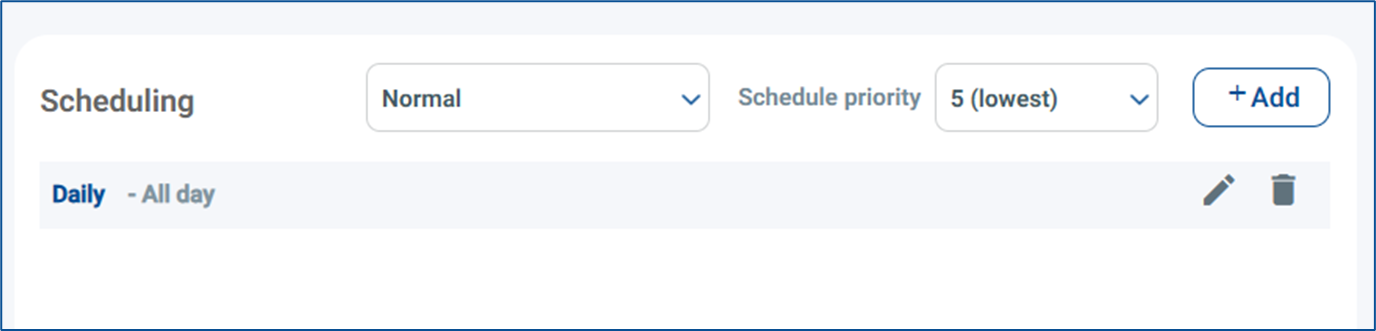
Scheduling Types and Priority are only available on Clever Playlists
This new feature is currently being deployed and may not be present in your tenant yet.
While you will likely see the new drop-down soon, if you do not have it yet you can continue to schedule interupts using the Interupt chech box inside the schedule edit window.
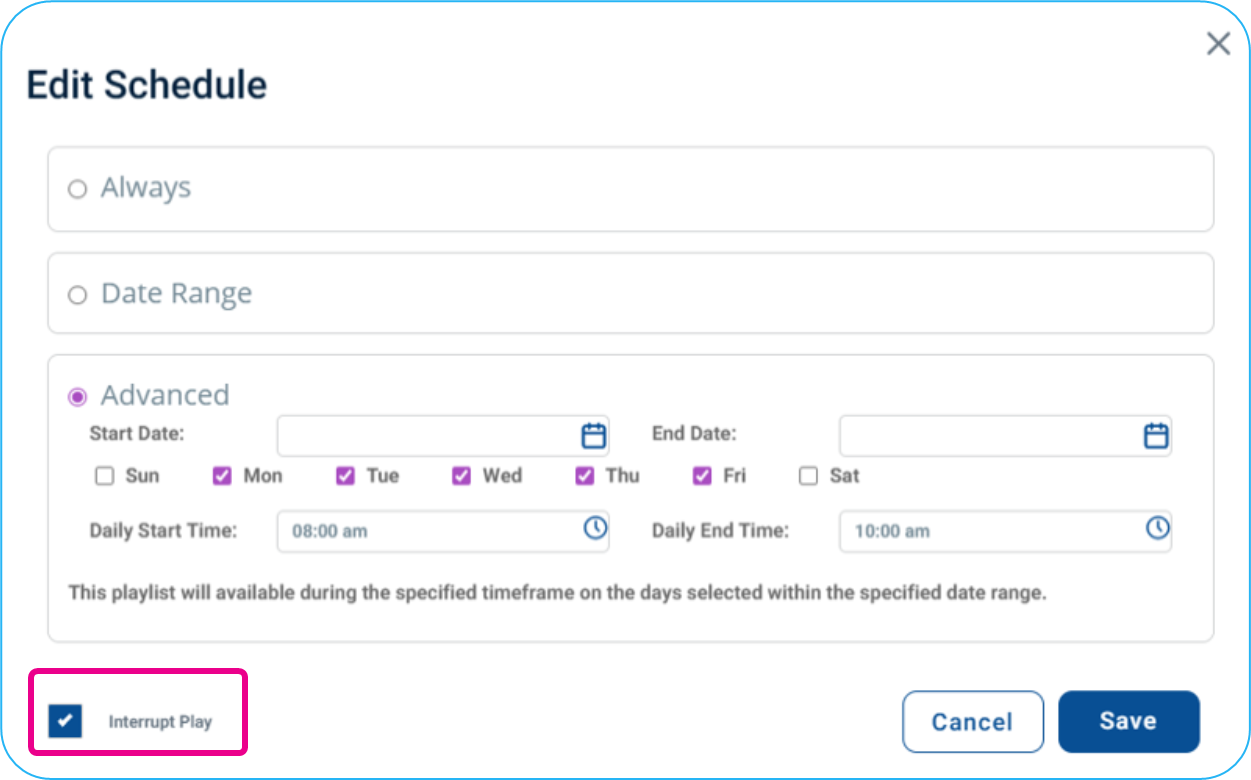
This article reviews the specifics of setting a schedule. For general playlist help, see Creating and Managing Playlists
NOTE: Currently, the Override Selection will only function IF the media player is opperating with our Beta 3.15 PRT Version. If your players do not have PRT 3.15 please use the Override method described here - Playlist Takeover And Interrupt To Override Schedule Content
The Override method desribed in that article will opperate as Override is described below.
Schedule Type Visualization
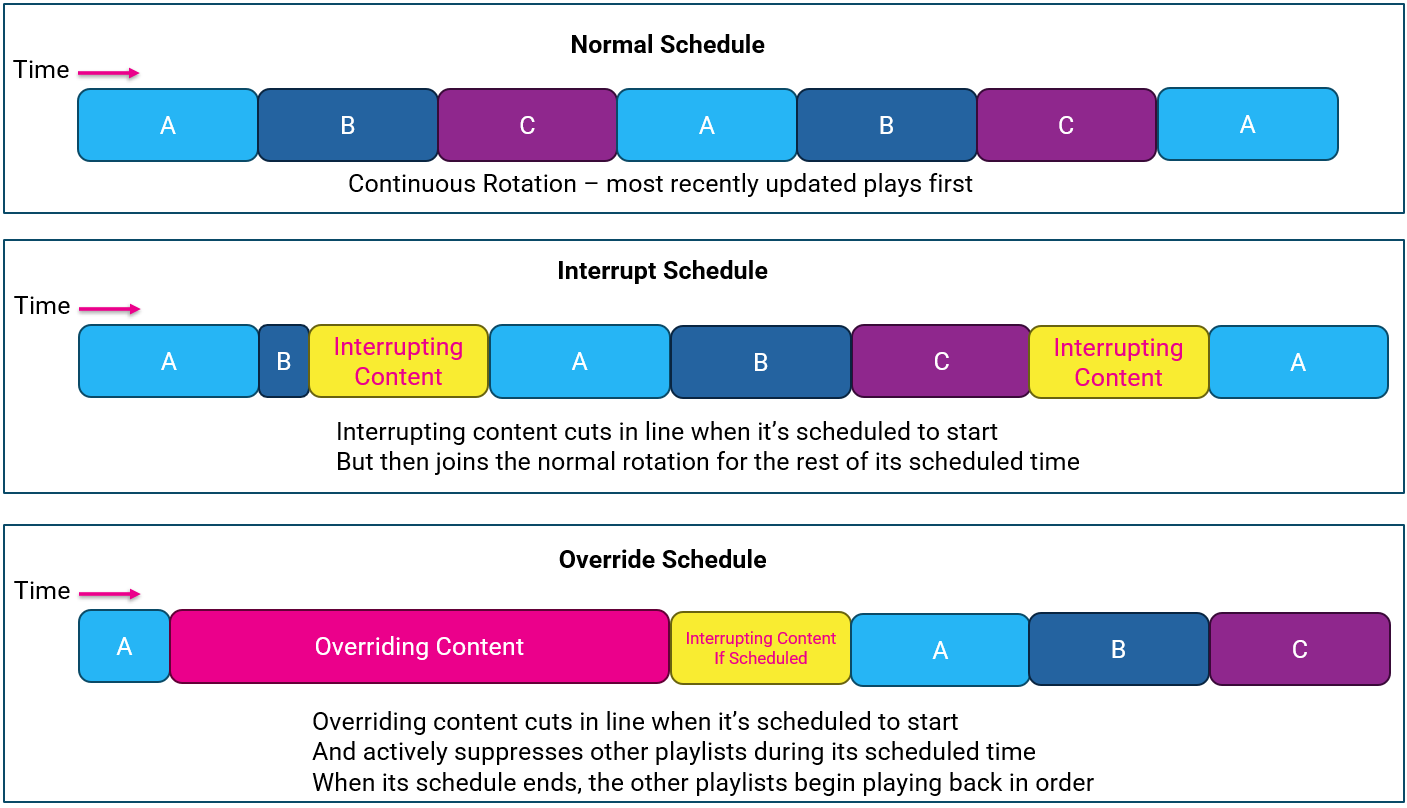
Schedule Types Explained
Normal
A Normal schedule will rotate with other playlists, each showing its associated content in order from the most recently updated playlists to the oldest updated playlists.
Normal Playlists do not require or accept a scheduling priority
Interrupt
An Interrupt schedule is one that, at the beginning of its scheduled time, will “Interrupt” the playback of other playlists and their content.
This disruption is not permanent, and all playlists will begin playing back their content together in rotation like a normal schedule once the interrupting playlist reaches the end of its content.
This used to be controlled by the Interrupt checkbox in the schedule window.
An interrupting playlist does not stop other content from playing.
Interrupting schedules can have an assigned priority, helping the system to decide how competing interrupting playlists should be treated.
Override
Reminder: Currently, Override Selection only functions on players with Beta 3.15 PRT
If your players do not have PRT 3.15 please use the Override method described here - Playlist Takeover And Interrupt To Override Schedule Content the Override process described in that article still operates as described below
An Override schedule is one that, once it’s scheduled, playback begins, it will stop other playlists from displaying their content.
It will also interrupt at the beginning of its scheduled playback time
Override schedules can have an assigned priority, helping the system to decide how competing overriding playlists should be treated.
When the scheduled time for an Override playlist ends, the normal rotation of the other scheduled playlist resumes.
Setting an Interrupt or Override Schedule
While editing a Playlist, in the lower right Scheduling section
Use the dropdown to select the Schedule Type and Schedule Priority
Priority will be used when multiple playlists have the same type - Interrupt and Override Only
Click the +Add button

A pop-up will open to set the schedule details
An interrupting or overriding playlist should not be scheduled for Always, and should instead be set for a Specific date range, or an advanced schedule
Date Range will allow a simple Start and End date and time
Advanced will allow for a start and end date, but can also be easily set to repeat on specific days of the week, and hour windows of those days
Once you have added your schedule details, click the Save button
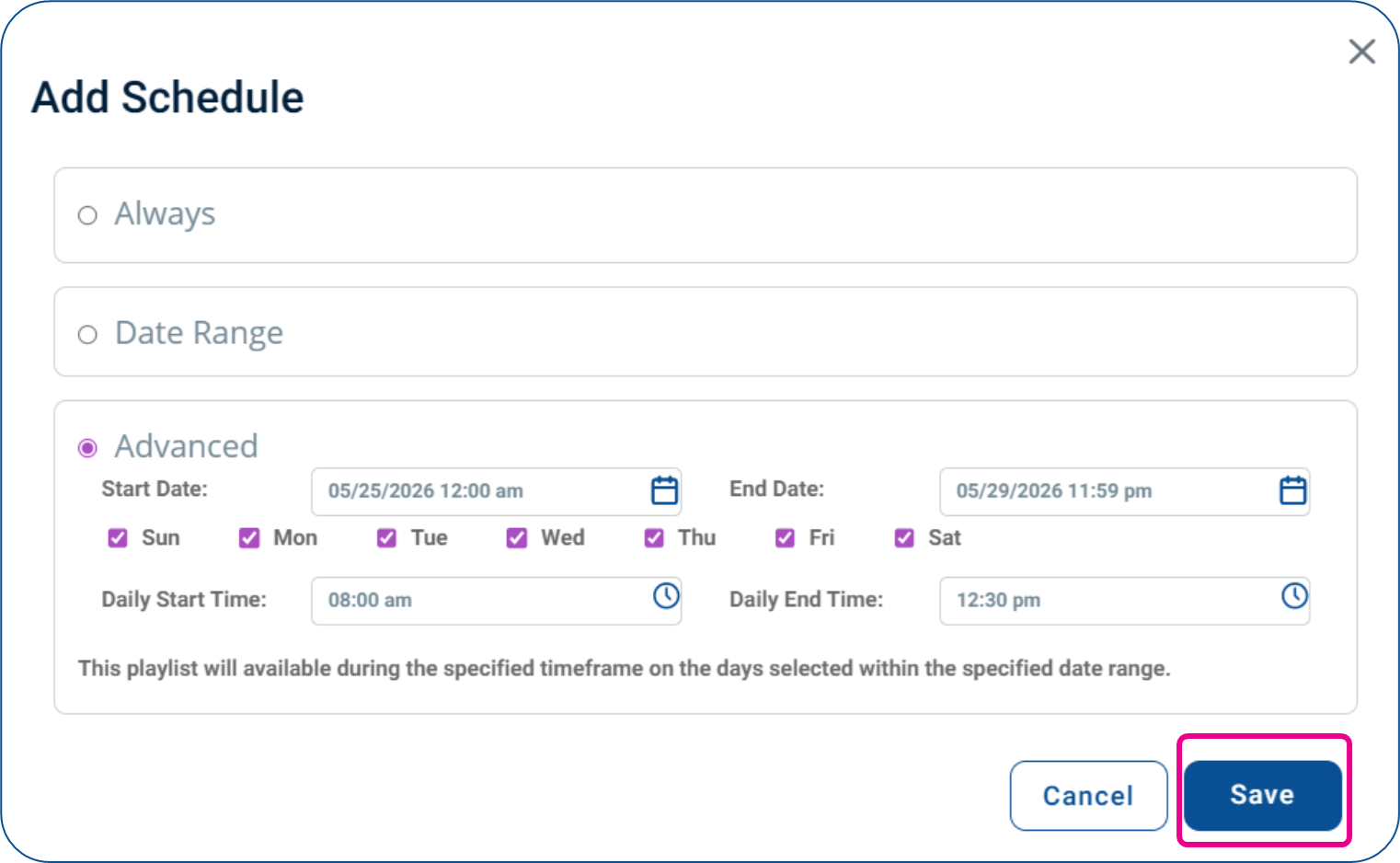
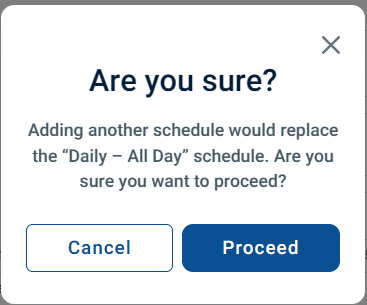
You will be warned that this new schedule will replace the standard Daily - All Day schedule, click Proceed
You will now see your Scheduling Type, Priority, and Times/Dates applied

Reminder – Times are evaluated by the Player receiving the instruction against their local timezone. This requires the players to know the correct time to act correctly.
Still need help? Share an idea