How To Use a Room Scheduling Element
Allows you to add a scheduling experience for your workplace.
Written By Ed Kinne
This element is interactive when displayed on a player and lets you view room schedules and book rooms. Outlook and Google calendars are supported.
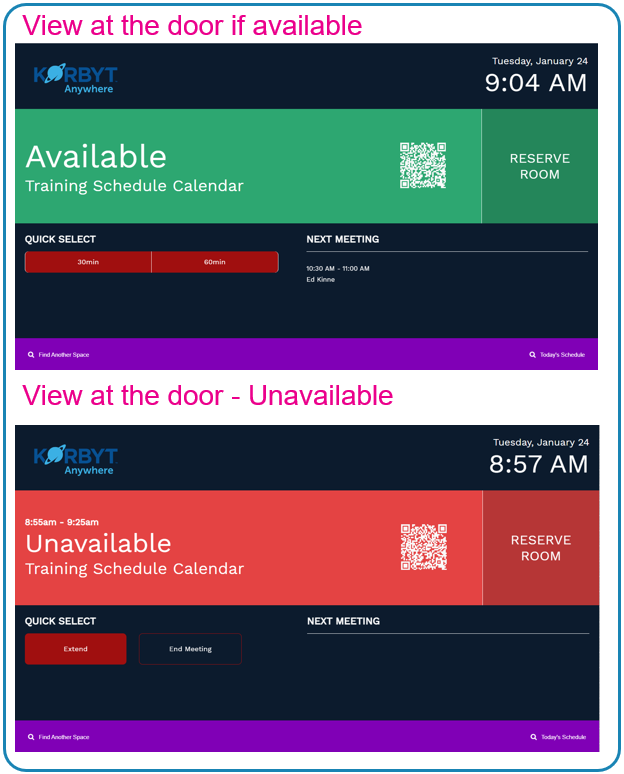
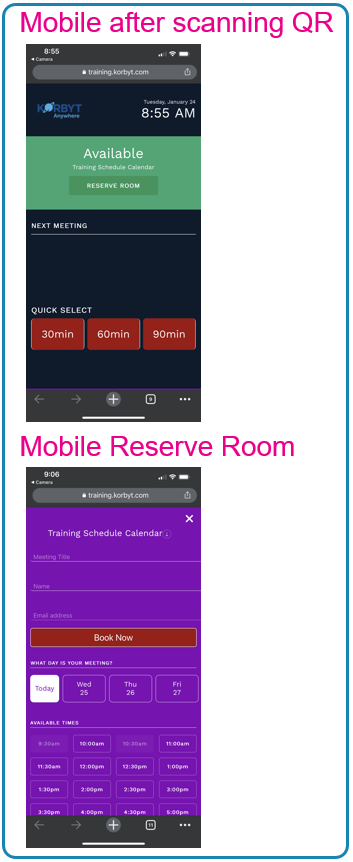
This will create a layout that can be displayed near meeting rooms to show their availability and give people a way to reserve this room, or others in your calendar system, through the display itself if it is a touchscreen or mobile device using a QR code.
Adding a Room Scheduling Element
When you add a Room Scheduling element to the canvas, it will add a default door room availability design to the entire layout.
This will include the Korbyt Logo and room text. The color palette, font, and Logo image can all be customized, but the general shape and layout can not
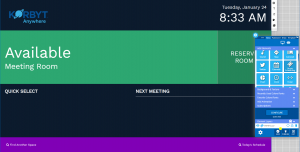
To configure a Room Schedule, open the Settings gear in the upper right and select Edit Element.
Connect the layout to your calendar system
Select the Specific Calendar (tied to the meeting room) to view
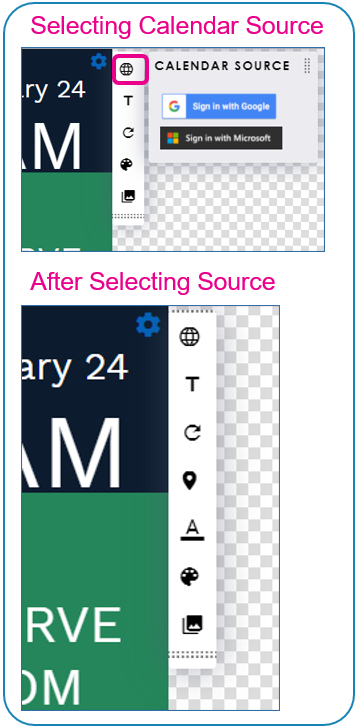
Icon | Setting Description |
 | Calendar Source allows you to select a source. You will see pop-ups to log in to your calendar data source. You may need to allow Pop-ups in your browser. |
 | Text allows you to change the Font used in the design |
 | Refresh Calendar allows you to refresh the view of the actual room booking |
 | Room: Select the specific room or shared calendar that you have access to through your selected service’s account. |
 | QR Color allows you to select a different color for the QR Code element |
 | Color allows you to change the color of sections of the design (background, status color) or replace the background with a picture file |
 | Logo allows you to |
Calendar Data Sources
Once configured, you will have a dynamic space management display linked to the calendar system, but you will only have access to the spaces that are configured in that system that you have permission to see.
If spaces are not availble to you, you may need to contact your system adminstrator for your Calendar applicaiton, or review the configuration of those spaces.
How does it work
The Room Schedule Element creates a design that can be scheduled to a room door panel through a playlist. A Zero-Second display time is suggested if you want the door panel to permanently only show the room schedule design.
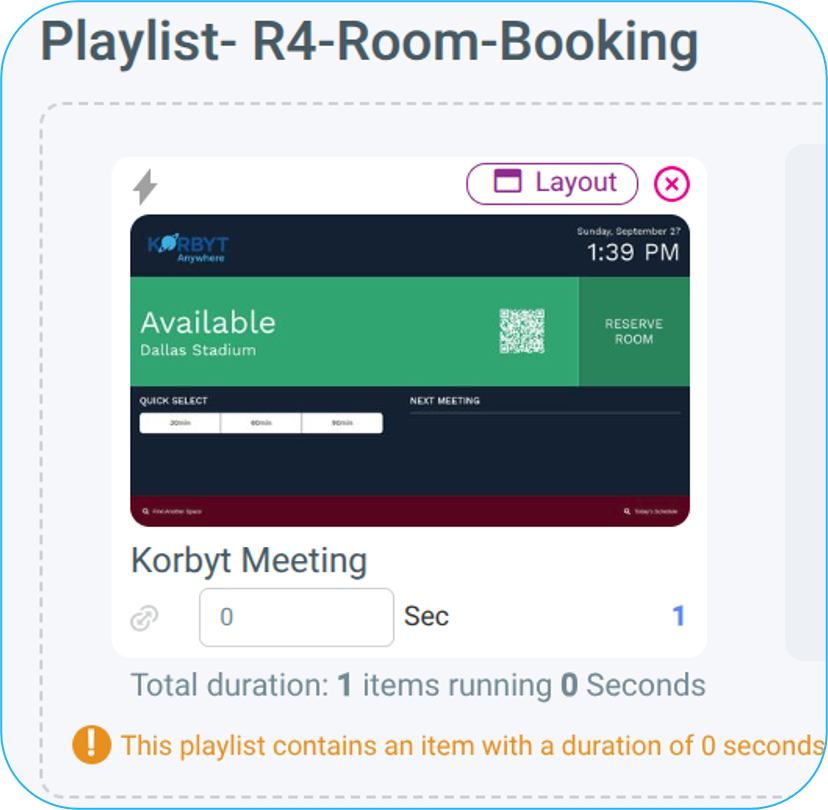
Once displayed, the design lets your employees or guests view room availability and book the space directly on the display (if it is touch-enabled) or on a Mobile Device using the displayed QR Code.
Below are some examples of a room in motion.
A reminder that the colors can be customized in the layout builder interface
Limitations
Unlike a Data Adapter, the Room Scheduling Element can only connect to 1 room in your calendar system and does not directly view the Data; therefore:
A specific Layout will have to be created for each door panel separately
The room scheduling information can not be accessed and used to trigger Clever playlist instructions
Still need help? Share an idea