Newsfeed Posts
A review of how to create and edit Newsfeed Posts for the Mobile and Web platform through the CMS
Written By Ed Kinne
In Korbty Mobile and Web platform, the primary communication method is through the Newsfeed and the posts that have been published for a user to see based on their Audience membership and Category subscriptions.
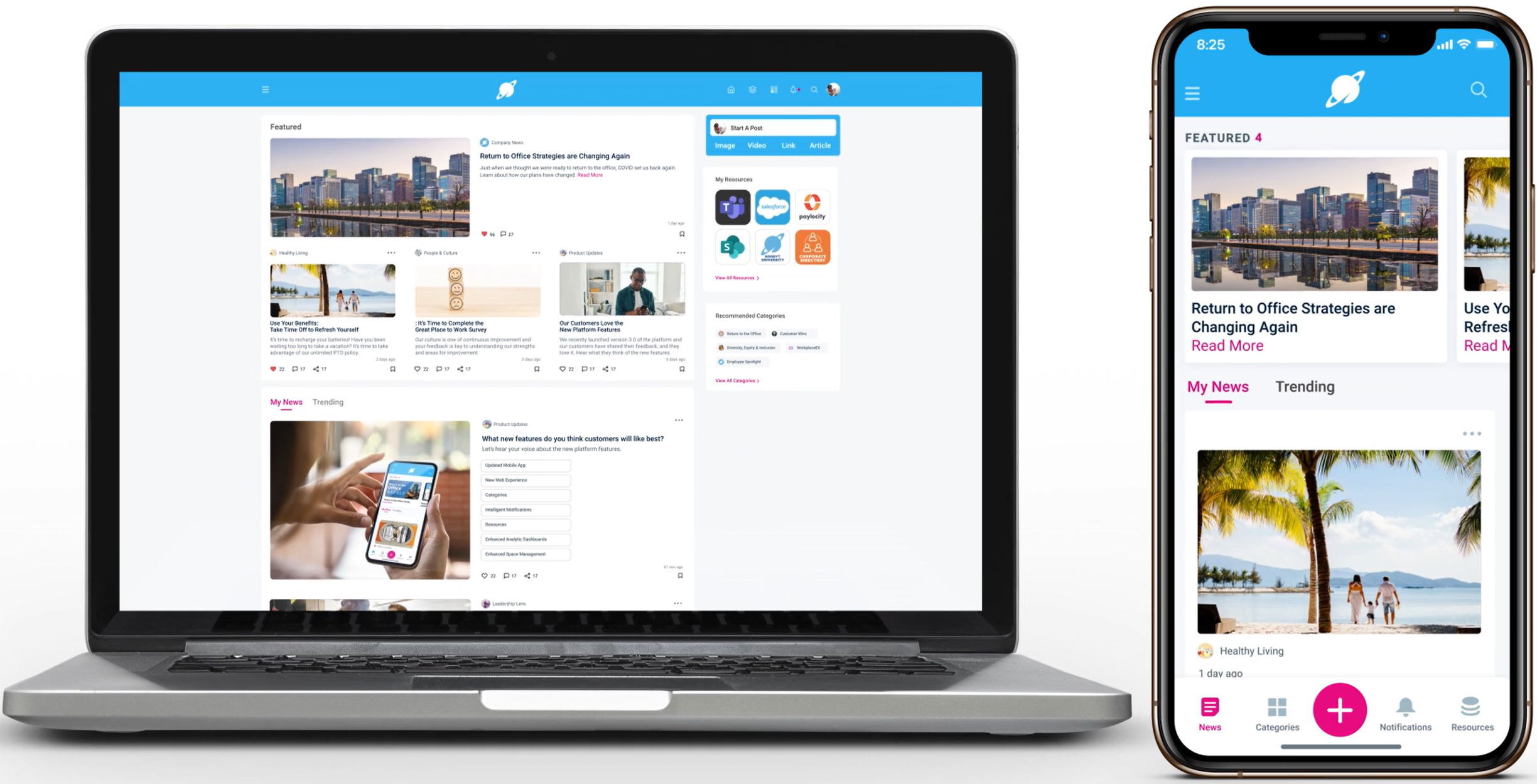
Posts Screen in the CMS
To view the Posts menu
Open the Mega Menu in the upper left corner
If needed, select the Mobile/Web option

In the Content section, click on Posts
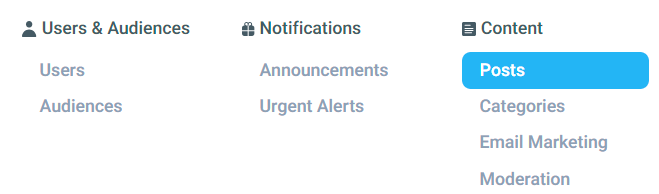
You are now on the Post management Screen
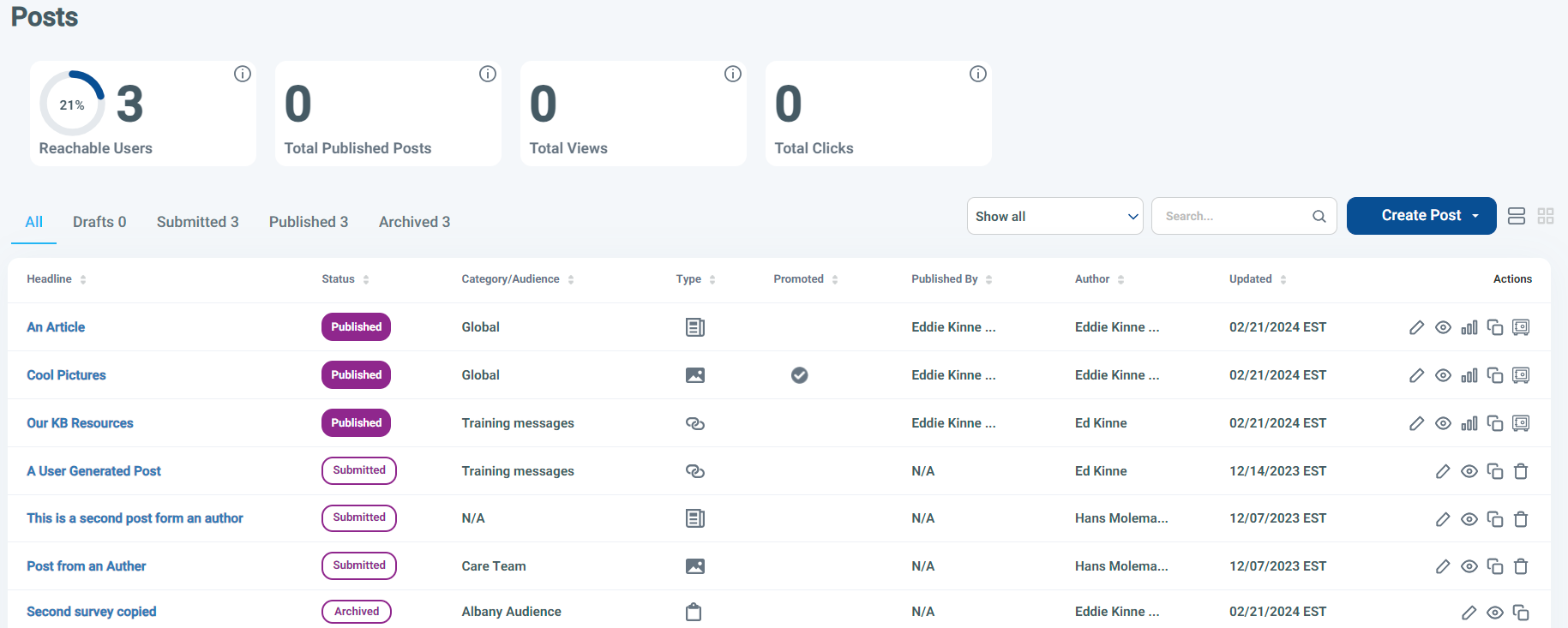
At the top are the Statistics about your posts and interaction from them
Posts can either be viewed as a list or card selected next to the Create Post button
Post can be in 1 of 3 statuses
Published - Viewable to their audiences
Submitted - A draft awaiting final publishing, possibly created by an Author
Archived - Removed from view
You can see details on this screen, such as type, dates, author
Action Icons to the right allow you to Edit, Preview, See Statistics, Clone, and Archive specific posts
Creating and Editing Newsfeed Post in the CMS
From the Posts screen, click the Create Post drop-down
Or click the pencil Icon of a Post you wan to edit
Select the type of post you wish to create
This can be changed in the next screen if needed
Set the Headline/Title
Set the Optional short Description
This is the text that will preview with the item in the Newsfeed
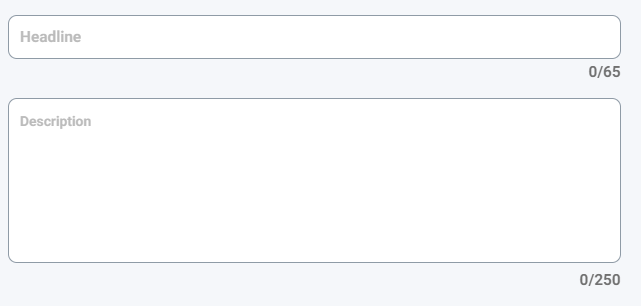
Every Post type has a Headline and Description Option
The other options available for the Post will be based on the Post Type
Newsfeed Post Types
Expand a Newsfeed Post to see that type’s options and details
Video Post
Video Post
Video posts are a very effective way of communicating with users. Whether you’re posting a fireside chat with the CEO, a tour of a new facility, or training content, videos always draw a lot of attention. Video posts can include local and external content such as MP4 files and Youtube videos.
When publishing video posts from the content management system, the video file size isn’t limited. However, it’s recommended that you keep your video file size as small as possible. Smaller videos are easier for users to play on their devices. Once your video is uploaded, it’s stored in the Media Library so that it can be used for other posts and messages on your digital signage player.
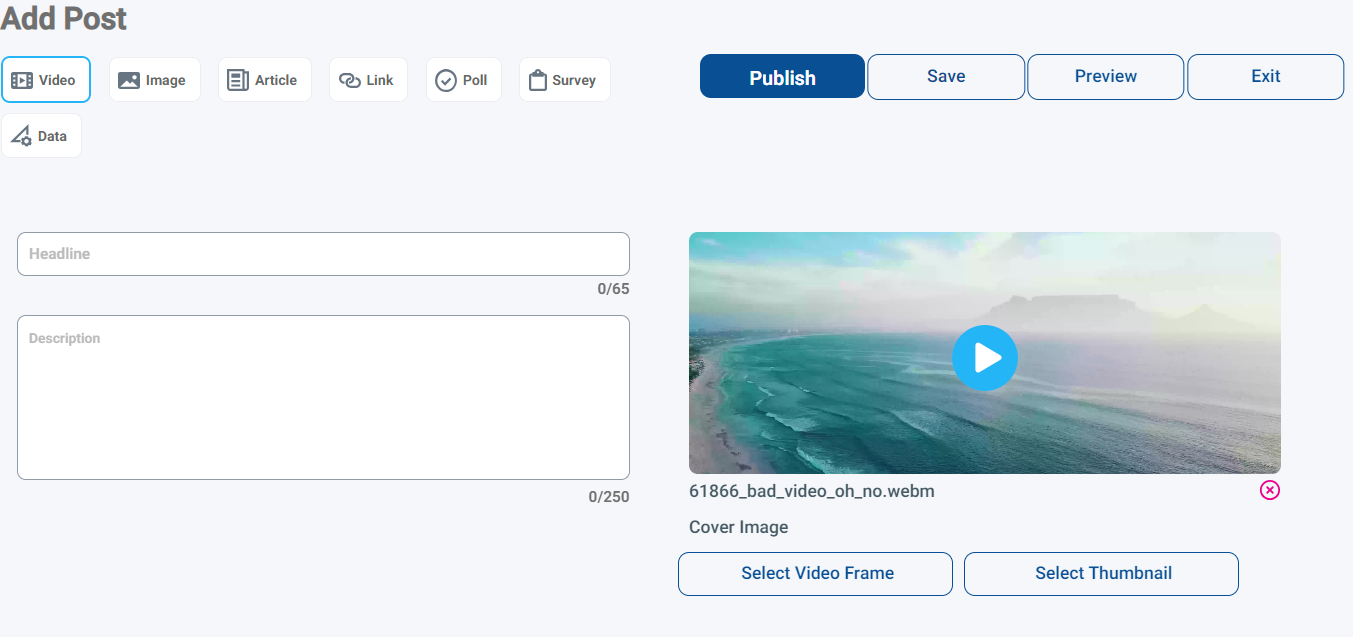
Will create a Cover image based on the video
You can select a specific video from
Or you can select another image file to be the cover image
Image Post
Image Post
Image posts are the simplest type of post but the most visual.
Up to 10 images can be included per image post.
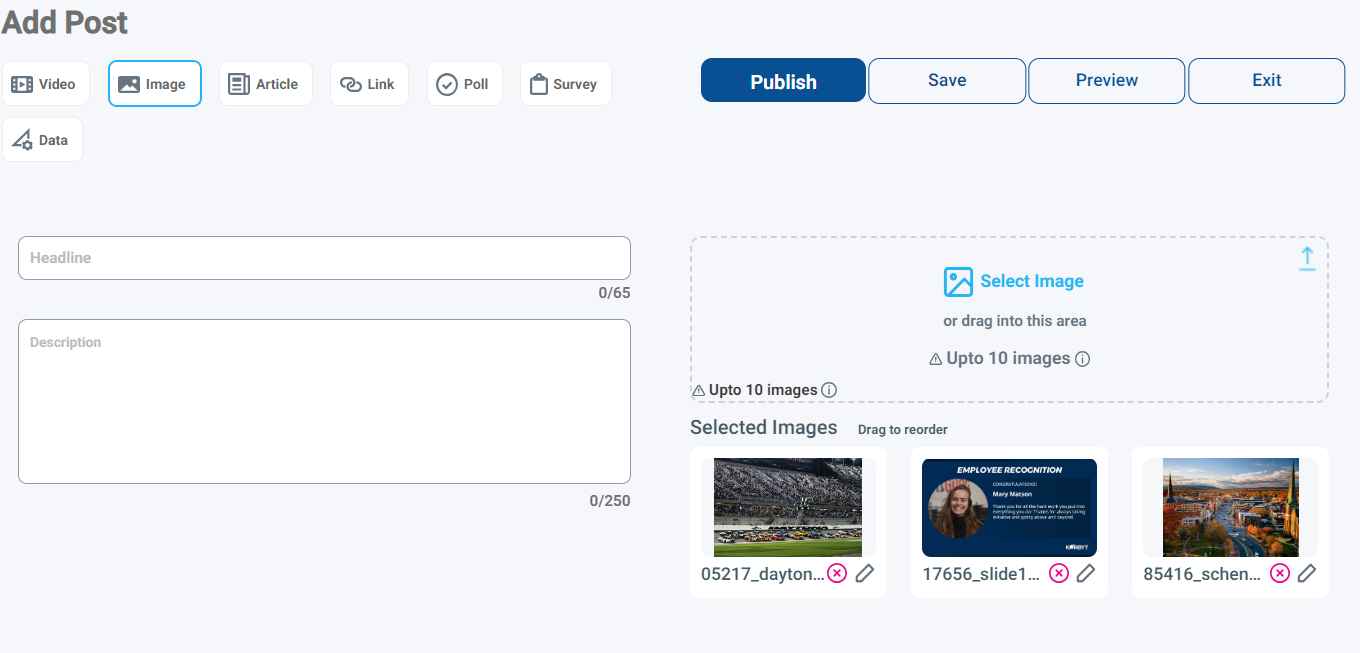
Drag to reorder the images, the first image will be the Cover
The pencil icon for each image will open a crop and adjustment tool
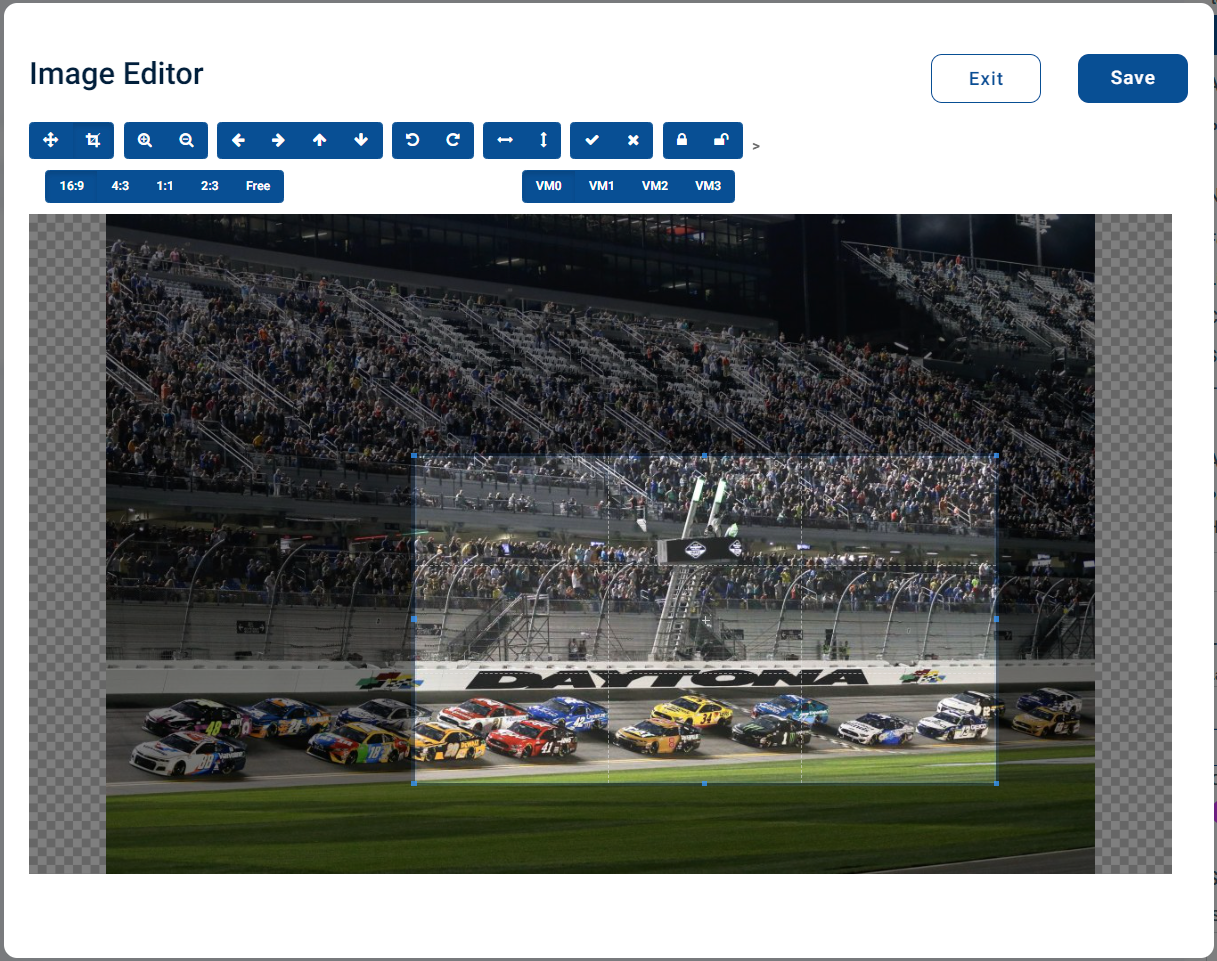
Any changes will create a new image file in the media manager
Article Post
Article Post
Article posts should be used for longer featured pieces. You can use the What You See is What You Get (WYSISYG) editor to insert custom links, assets from the Media Manager such as PDF files, and resources.
Add up to 10 images, the first will be used as the cover
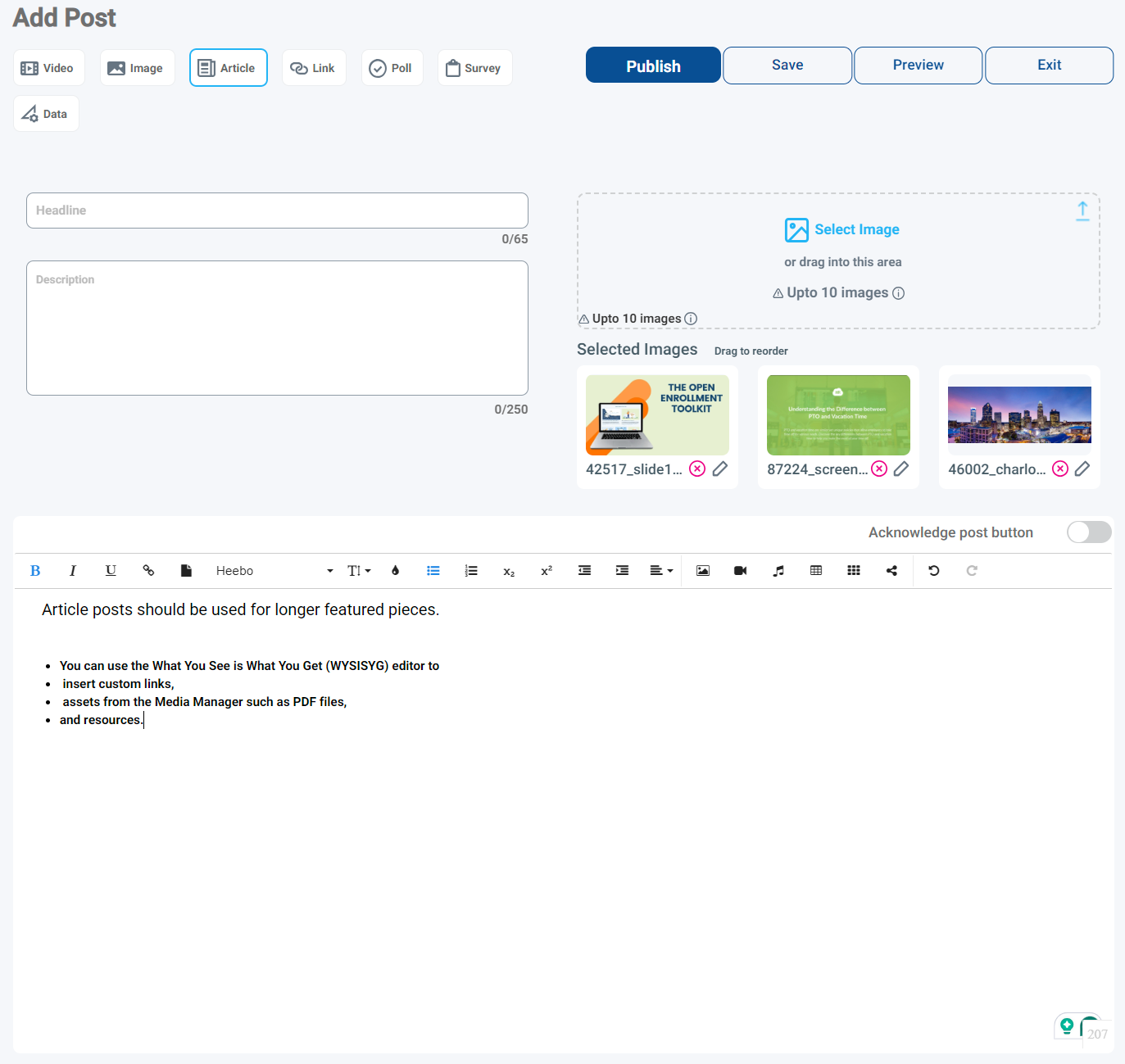
An optional Acknowledge post button can be turned on to add an interactive trackable button to the post for the end user to click
Link Post
Link Post
Link posts should be used to share important external websites or intranet pages with users. To create a link post, all you need is the URL to the webpage that you want to share with your users.
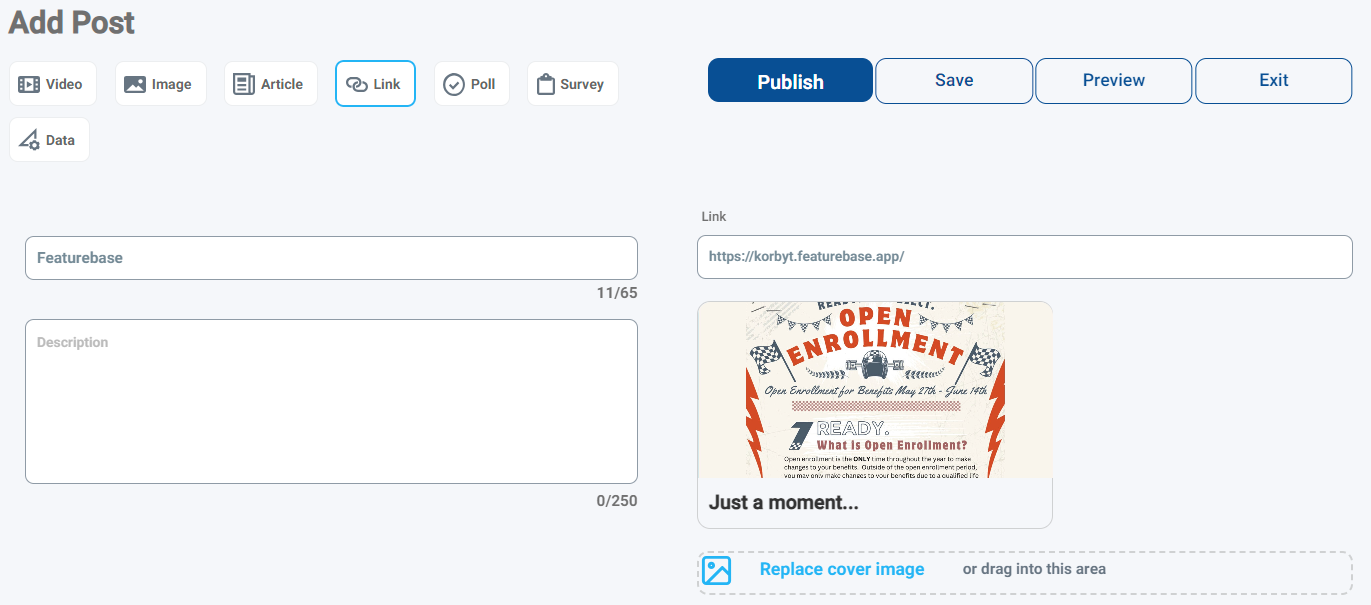
Once you enter the URL, the content management system will read the dynamic HTML to import and generate a Cover, or you can select your own cover image
Poll Post
Poll Post
Poll posts should be used to create a single multiple choice poll that can be used to gather quick feedback from your users.
It will generate a Cover Image based on your Branding Settings
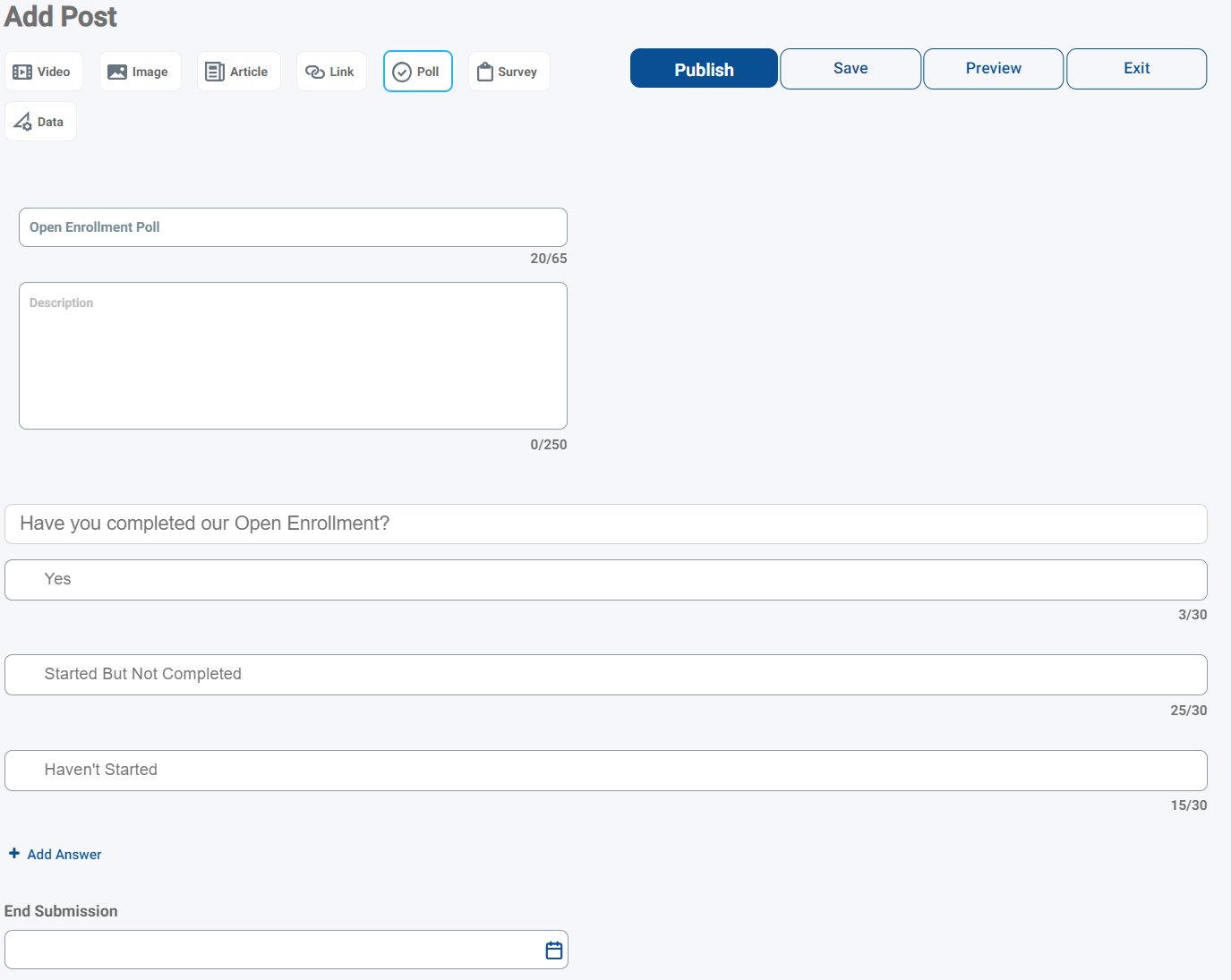
Polls deliver instant results to both you and your users.
Survey Post
Survey Post
Similar to poll posts, survey posts should be used to gather feedback from your users.
Unlike poll posts, survey posts allow for more in-depth questions and responses.
You can also set the Cover Image
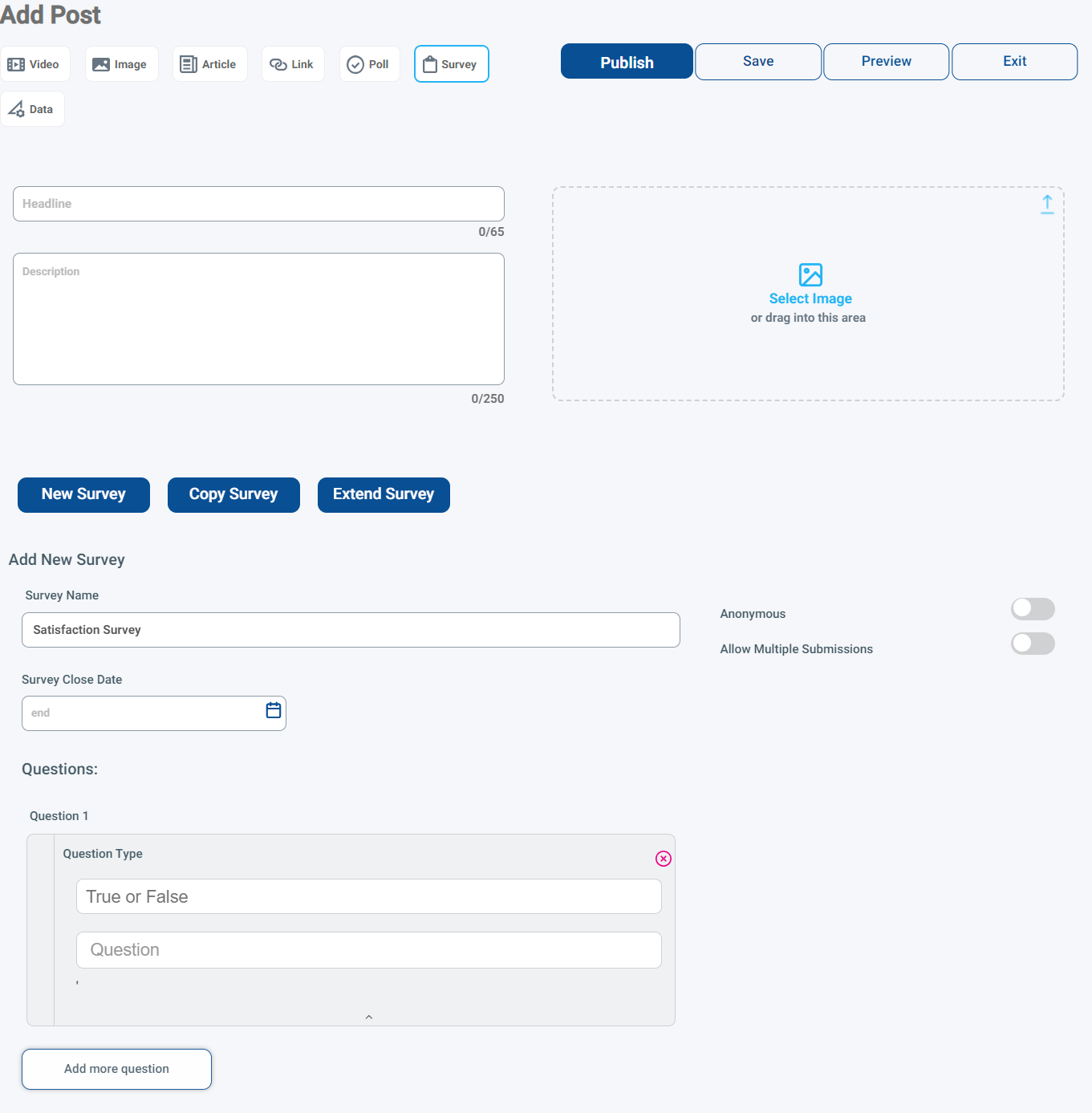
The survey is built using multiple True or False, Multiple Choice, Text Response, or Numerical Response questions
Responses can remain anonymous or be categorized by user. Survey posts can be re-used to collect new responses.
Data Post
Data Post
Data posts allow you to share a Data Message built in Korbyt that can be configured to show real time performance information integrated into your Korby Tenant
Select the Data Message to display and up to 10 images
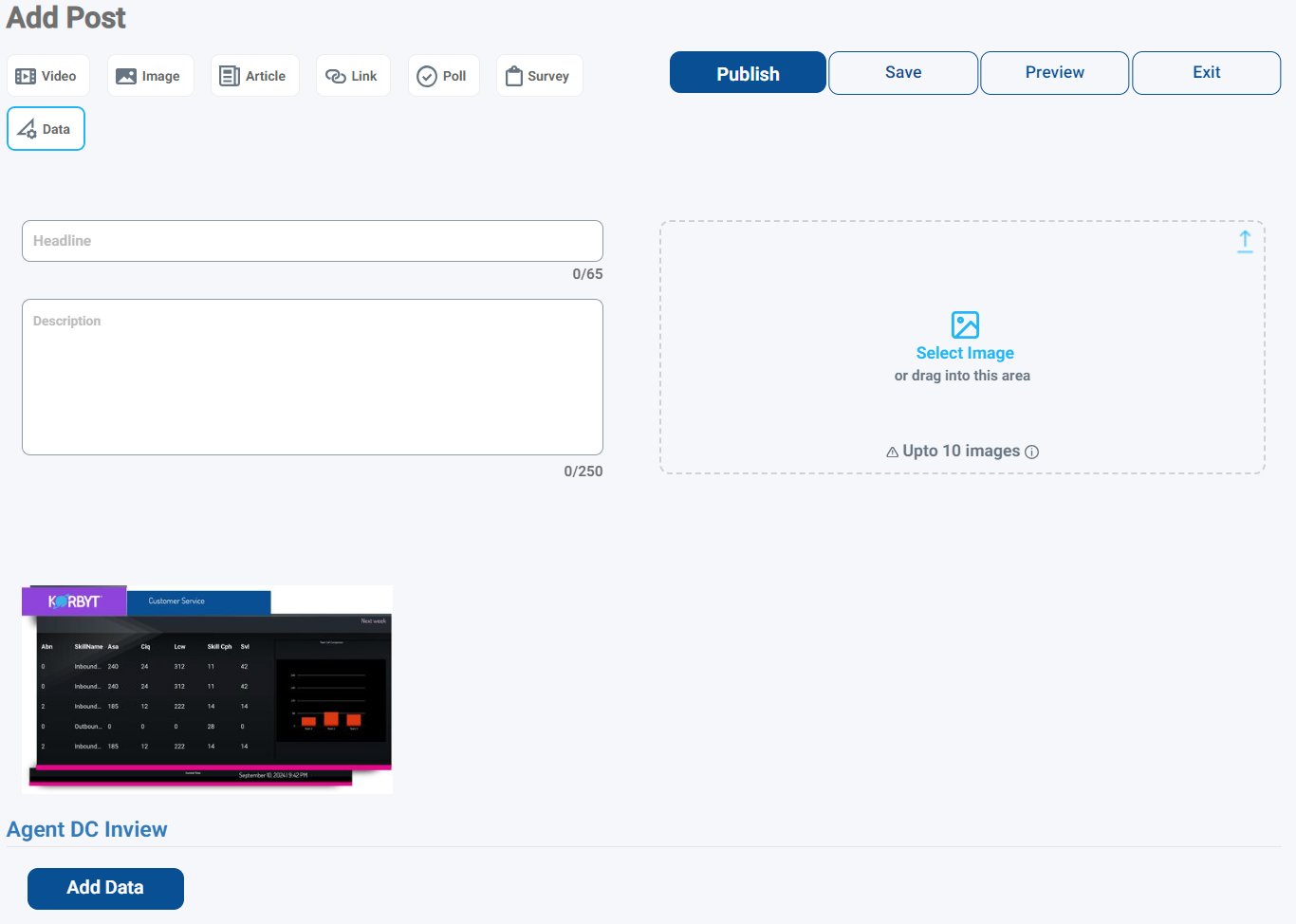
The Data messages are built in the Korbyt Builder Tool and attached to the post
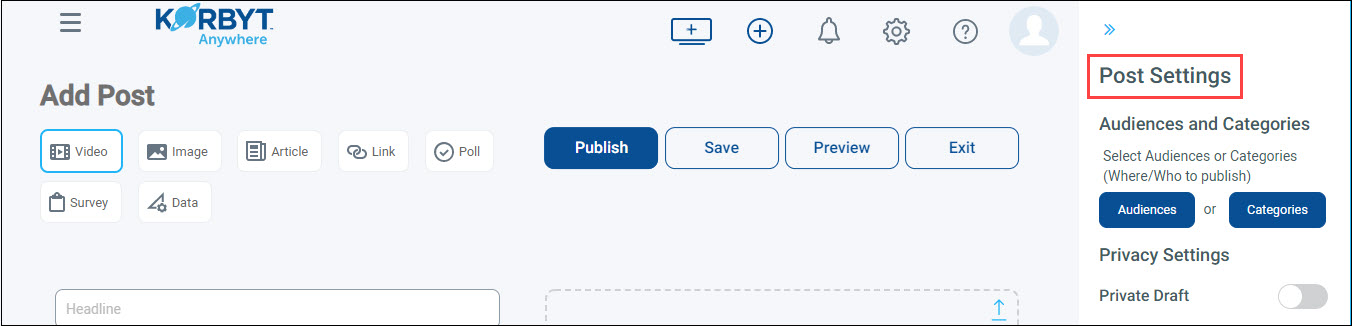
After writing the Post, you will configure the Post Settings
Post Character Limit
To give your users the best experience possible, we standardized the character limits across key fields.
Expand for more details on Character Limits
Expand for more details on Character Limits
There are two types of character limits for post fields:
Soft limits are the recommended character count for a field. While it’s possible to type beyond the soft limit for a field
If you exceed the soft limit, your user may be presented with a “…more” option so that they can see all the characters. Otherwise, the excess characters will be truncated.
Hard limits are the maximum character count allowed for a field.
You can’t type beyond the hard limit for a field.
Post Settings and Options
Post settings allow you to configure who sees the Post and how they see it in the Newsfeed.
Some will require a selection, some have default options that do not require setting
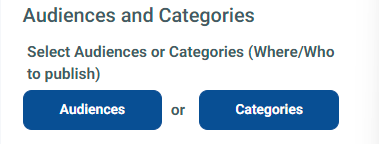
Audience and Categories - Required
Audience and Categories - Required
Controls who sees the article based on their Audience membership that has been assigned to them, or the Categories that they have subscribed to
A selection needs to be made for the article to be published
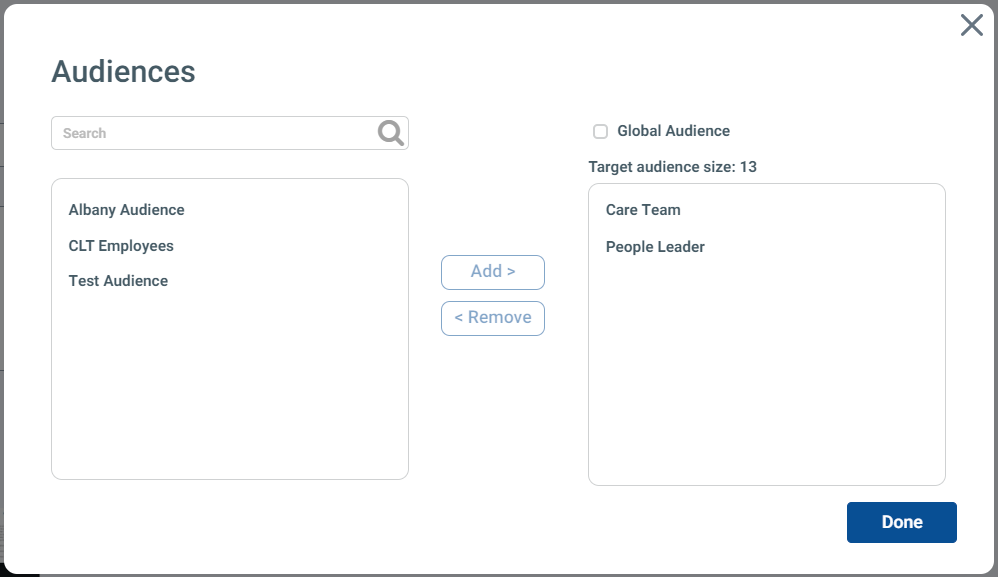
Can select multiple Audiences, or multiple Categories,
but not both Audiences and Categories on the same post
It can be set to the Global Audience if it is for all users
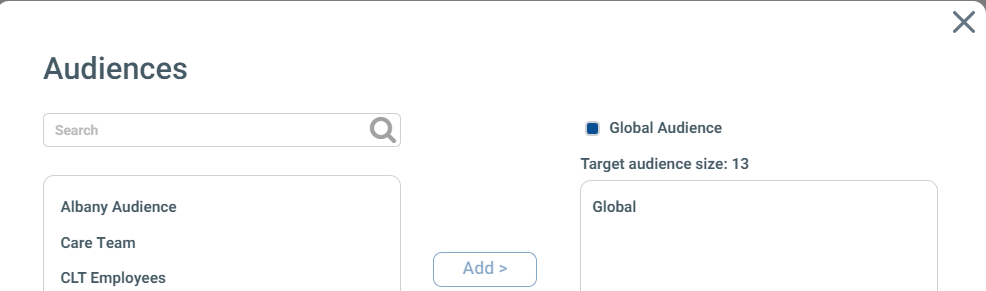
At least 1 audience or category needs to be selected to publish the Post
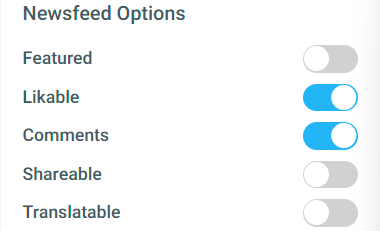
Newsfeed Options
Newsfeed Options
Featured
Puts the article in a Top Articles area to highlight them.
4 articles can be featured at a time
Likable
Enables or Disables the ability for users to like the post
Adds a heart icon to the Post when enabled
Comments
Enables or Disables the ability for users to leave comments on a post
Adds a chat icon to the Post when enabled
Users can comment on other comments as well
Shareable
Enables or Displays the ability to click to share the post to Facebook, LinkedIn, or Twitter
Adds a network icon to Posts when enabled
Tranlatable
Enables or Displays the ability to translate the post to other languages.
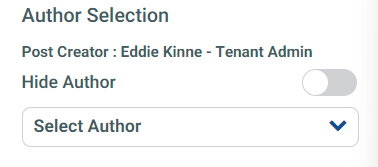
Author Selection Options
Author Selection Options
Allows the person composing the Post to select a different author that users will see the post from
For example, the head of HR is writing a Post that should appear from the CEO
Posts can also be set to hide the Author
If no selection is made, the person creating the post will appear as the author
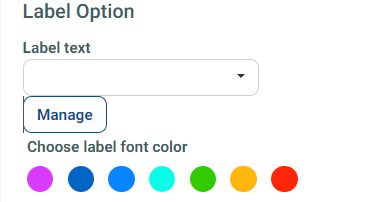
Label Options
Label Options
Labels can be used to draw more attention to a post
They can be standardized as well to let users know the the theme or type of article it might be if you have routine post types
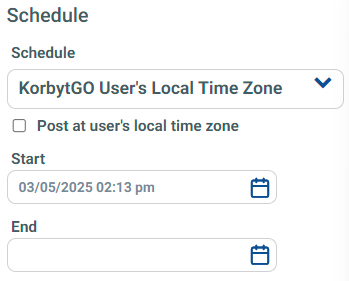
Schedule Options
Schedule Options
Allows a post to be published now, but not visible to the user until a later date and time
Can set a specific time zone, or allow the user’s local device time
Used to create posts in advance rather than publishing on demand
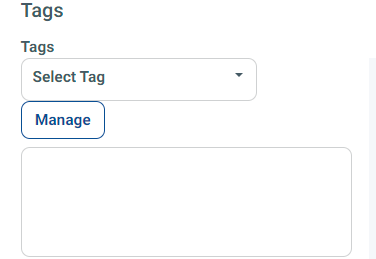
Tag Options
Tag Options
Allows content managers to organize content more effectively
They are not visible to the audience
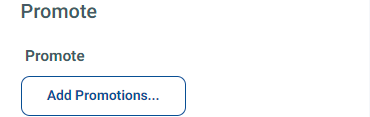
Promotion Options
Promotion Options
Can add Email and/or Mobile Push Notifications to inform the user that the Post was published
Has to be set before the Post is Published, it can not be added to a post after being published
Email Promotion
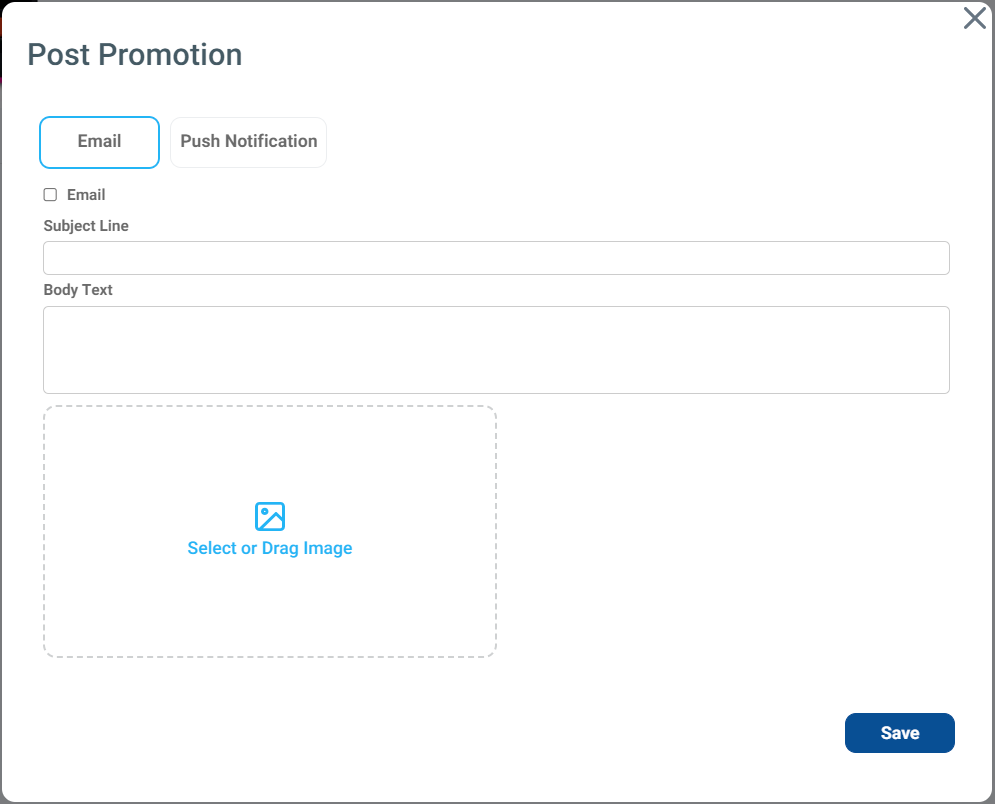
Allow a Subject Line, Body Text, and an attached image
Push Notification Promotion
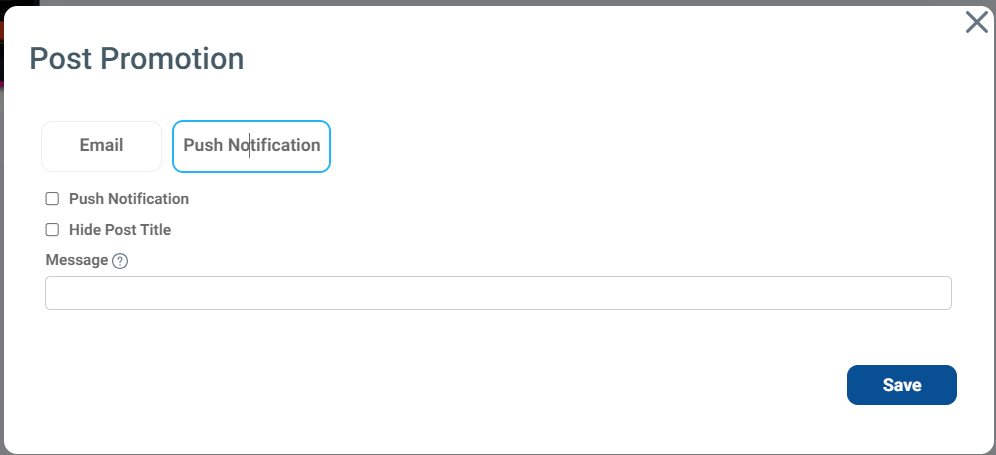
Can specify a message, and if the Post Title should be shown or hidden
Save / Publish or Submit / Previewing / Exit
The options at the top of a Post will vary based on the User’s Role
Approver and Higher’s View

Author’s View

At any time while editing a Post you can use the buttons at the top
Publish
Publishes the article to the selected Audiences or Categories
Will be immediately viewable to users if no Schedule options were set
or Submit for Authors
As an author, you can not fully publish a Post
When ready to be reviewed for publishing, clicking Submit will alert content approvers that the Post should be reviewed
Save
Saves progress in a Draft status
Not viewable to users yet
Only option available to Authors for Mobile and Web
Preview
Opens a new window showing how the item will appear in a user’s Newsfeed
Exit
Leaves the editor
Will alert you if there are unsaved changes
Optional Creating a Signage Layout Design from a Newsfeed Post
Korbyt provides the option to create a draft Signage Layout when publishing a new Image, Video, or Article Post to your Mobile & Web news feed.
The feature is not available for other post types at this time
This will allow easier use of content across multiple communication channels
This option is available when adding a post in the Post Setting section on the right of the screen
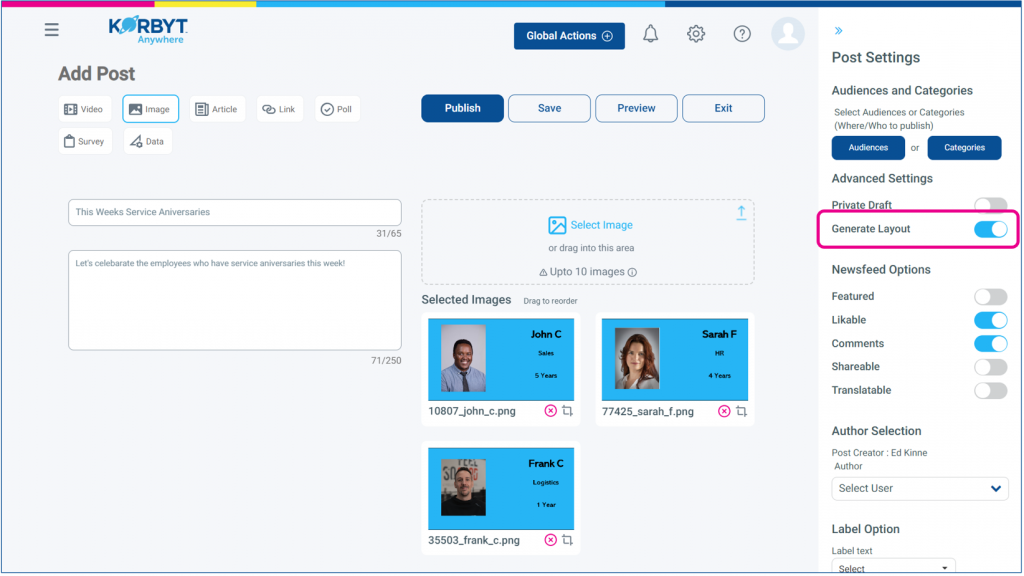
This option will produce a Layout the when the post moves from a Draft to a Published status.
After constructing your and publishing your Post a new Layout will be created in draft status.
The name of the Layout will be the Title from the Post.
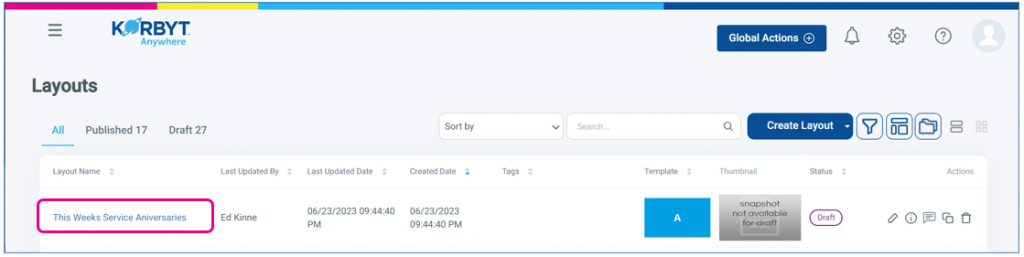
This new layout will have been created with Two Elements populated
A Text Note Element at the top with the Text from the Title of the Article
A media element that will vary based on the media in the post
A Video Element will be created from a Video Post
An Image Element will be created from an Image Post or an Article Post with 1 Image
A Carousel Element will be created from an Image Post or an Article Post with multiple images
Default 10 sec view time and a face transition for each item
Positioned using the Cover sizing mode
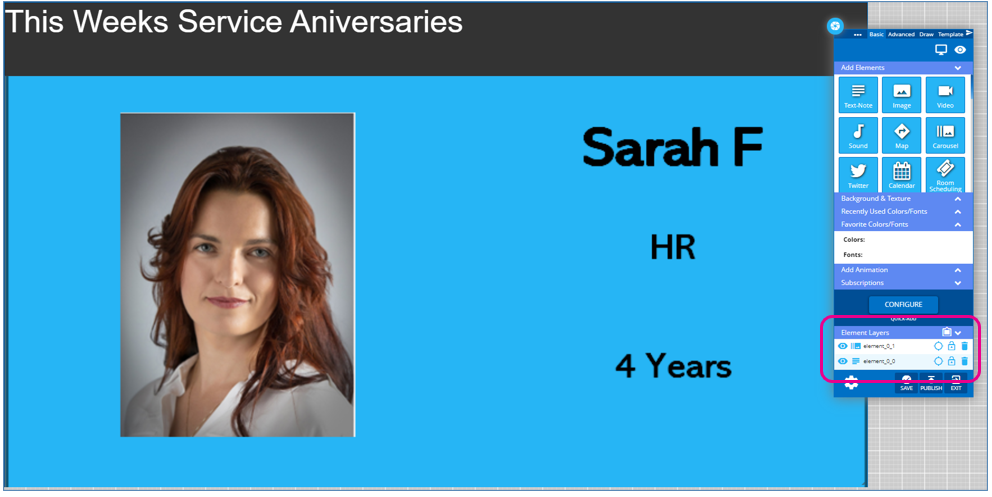
This new layout can be further edited as normal using the Builder Tool, and published to Playlists.
If you do not see this option present in your Mobile & Web tenant please contact your Korbyt Support team so that it can be turned on.
Still need help? Share an idea