Korbyt Windows Player (KWP) Requirements and Installation
Software Instalation, Limitations, and Testing
Written By Ed Kinne
Korbyt Windows Player (KWP) Minimum Requirements
The Korbyt Player software can be installed on a Windows 10 or Windows 11 PC with the latest Windows updates.
Expand to see more detailed requirements.
Expand to see more detailed requirements.
NOTE: These are Minimum System Requirements. The Requirements for your usecase may be higher
Windows 10/11 Enterprise or Windows 10/11 IOT
8 GB of RAM
128 GB SSD
Graphics card needs will depend on the content to be displayed
KWP Software Installation Process
Contact Korbyt technical support to request the software installation files.
You can email Korbyt Support at support@korbyt.com or phone number: 844-858-9585.
This article review the process for KWP Software v3.43 and higher
Note The latest KWP version will install node.js v22.14
Your ability to install and run the KWP application may be limited by your organization’s IT group policies.
The Korbyt Application should be installed by an Admin Level user account on the PC.
User restrictions may stop the application from being installed correctly.
To have full functionality the application should be run under a user account with admin level access.
In Windows 11, if the application is not running under an account with admin level access the KWP applicaton will not restart automatically after a computer reboot/restart.
The application would have to be reopened manually after a device reboot.
When you click the download link, it will start the download of the zip package through your browser
It will not open a new tab/site
Extract the files from the zip folder
Locate and run the KorbytBootStrap application.

Or use the command prompt as an admin to run the KorbytBootStrap.exe
When the installer opens, you will be asked to select the version of the KWP application you would like to install

Standard is the preferred package as it will provide a full experience
The Standard Installation will require the user account running the application to have Admin-level access to the PC
If installed in Lite mode, admin-level access is not required to run the application, but there will be limitations on the capabilities of the KWP software (see below in the expandable section)
Your group policies may impose user restrictions that prevent the application from running fully, even in lite mode.
Lite Mode Limitations
Expand for Lite KWP Installation Limitations
Expand for Lite KWP Installation Limitations
Lite Mode Limitations
No Support for Korbyt Optix tracking services
No Player Configuration Page that can be accessed through the network
No Sleep Schedule Programming
No Reboot Schedule Programming
No Video (HDMI) Passthrough
Not being able to capture Screenshots
For Windows 11 specifically, the KWP application can not auto-restart after a computer reboot/restart without Administrator-level access
Confirm your selections and click Install

Once the installer runs, you will have to restart to have the Korbyt Application Launch

Your computer will reboot
You have now installed the Korbyt Windows Player (KWP) Application.
When your computer reboots, the Korbyt Application should automatically start. It may need to be started manually, depending on your user access and your company’s Windows policies (see notes above)
Provisioning (adding) the KWP to your Tenant
If this is a new device, you will next need Adding Players to your Korbyt Tenant - Provisioning
KWP Modes: Desktop vs. Appliance
Desktop Mode is the default installation mode. This preserves access to the Windows Desktop and normal Windows functions.
The Korbyt Application should Auto Start (autorun) based on your installation configuration and Windows privileges, but in Desktop Mode, it can be stopped or interrupted using the normal Windows keyboard commands.
Appliance Mode blocks access to normal Windows OS features and interface
Expand to See Details on KWP Appliance Mode, including how to turn it off
Expand to See Details on KWP Appliance Mode, including how to turn it off
Setting the KWP to Appliance Mode
Switching the appearance setting to Appliance Mode will autoload into the Korbyt application, and a user won’t be able to casually access the underlying Windows OS
To change the unit's operation to Appliance Mode, the user will need to access the player's web config page.
The IP address of the player needs to be typed in an internet browser

This will open the Web Config Page login
the user will be prompted for a login and password.
This login and password are configurable from inside the web config page.
Note: Please contact Korbyt Customer Support for the initial login information.
Once logged in, the page will display the following screen:

From the Display Tab, click on Display and Sound

Switch the “Appearance” setting from Desktop to Appliance

In the Mouse Pointer section, click on the dropdown and select “Arrow.”
NOTE: We also recommend setting the MousePointer to “Arrow” so you can use a USB mouse on the device.
Click the Save button in the upper Right
You will be prompted with a pop-up dialogue confirming you have saved the settings.

Now that the unit is in Appliance Mode,
Turning off Appliance Mode, setting back to Desktop Mode
On a connected keyboard or through a remote desktop application, press CTRL + ALT + L to get the login window.
Note: Please contact Korbyt Customer Support for the login information.Follow the steps above, but select Desktop for the Appearance.
Restart the player in Desktop Mode.
Installation Using CMD Terminal
Installing the Korbyt Windows Player is also possible using CMD Terminal commands.
The specific command would be: KorbytBootstrap.exe --advanced /SP /VERYSILENT /SUPPRESSMSGBOXES /NOCANCEL /CLOSEAPPLICATIONS /FORCECLOSEAPPLICATIONS
for more information on installing/uninstalling via the CMD terminal, visit: https://jrsoftware.org/ishelp/index.php?topic=setupcmdline
KWP Certification and Testing
Because Windows hardware varies, you may wish to test a device to ensure it can deliver for your use case.
Expand to see Details on KWP Device Testing
Expand to see Details on KWP Device Testing
Step 1: Install the Korbyt Windows Player Software on your device.
Contact Korbyt Support (support@korbyt.com) to create a Support Ticket. We will contact you via email to ask if you need the KWP software. If you do, we will provide you with a link to download the software.
Step 2: Provission Player In Korbyt
See Adding Players to your Korbyt Tenant - Provisioning
NOTE: If your player is having difficulty connecting to Korbyt.com, please ensure Port 443 Outbound has been opened from the player. More information about connectivity requirements HERE
Step 3: Check performance of your hardware configuration.
Different business use cases can be achieved with different levels of hardware.
Simple views will require less robust hardware. More complex screens and content will require stronger hardware.
Each of the use cases below has been built to test different business needs. If your player does not display any of the following content well, consider using a more hearty hardware configuration.
Use Case #1 – Multizone Layout
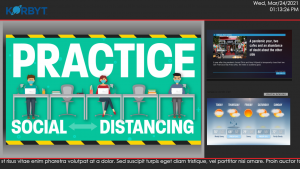
Left Main Area:
Are animations in the signage content running smoothly?
Top Right Sub-Area:
Is news rotating?
Bottom Right Sub-Area:
Is the weather rotating?
Ticker:
Is the ticker moving smoothly? Are there any framerate dips?
Use Case #2 – Full Screen Video – 1080p

Is the video running smoothly?
Use Case #3 – Multizone Layout with Multiple 1080p content videos
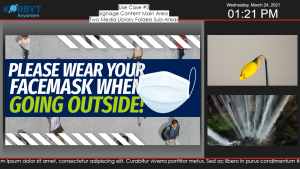
Left Main Area:
Are animations in the signage content running smoothly?
Top Right Sub-Area:
Is the video running smoothly?
Bottom Right Sub-Area:
Is the video running smoothly?
Use Case #4 – Full Screen Video – 4K
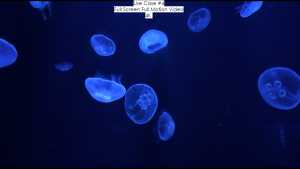
Is the video running smoothly?
Use Case #5 – Data Visualization
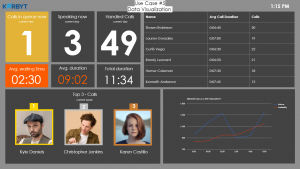
Does the graph appear?
Does the Data table appear?
Use Case #6 – Full Screen Video – 4K (High Bitrate)

Is the video running smoothly?
Still need help? Share an idea