How To Use a Google Slides Element
The Google Slides Element allows you to present a Google Slides document in a Layout directly
Written By Ed Kinne
The Google Slides Element allows you to connect a Google Slides document by entering the document's URL into the settings. You can also authenticate your Google User ID in the element for protected documents.
In Google
Create your Google Slides document
Tenant Settings for Keychain
In your Korbyt Tenant, the Keychain feature needs to be enabled in your Korbyt Tenant Settings.
The Keychain setting allows your tenant to save the validation of access you will create when you access Google through the Element in the Adding Google Slides Element step
You will need to be an Administrator or Tenant Administraort to access these settings.
In the Korbyt Tenant
In your Tenant, open the system settings (Gear Icon)
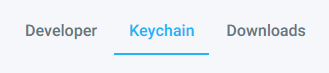
Select the Keychain Tab
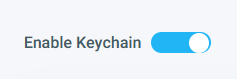
Toggle the Enable Keychain on (or confirm it is on)
If you do not see a Keychain tab, contact us Contacting Support
Adding the Google Slides Element
In your Korbyt CMS
Drag and drop the Google Slides Element onto the canvas
Click on the Gear in the Upper Right corner of the element to open the settings list and click on Edit Element
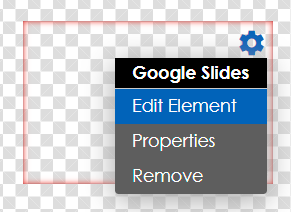
In the Edit Element menu,
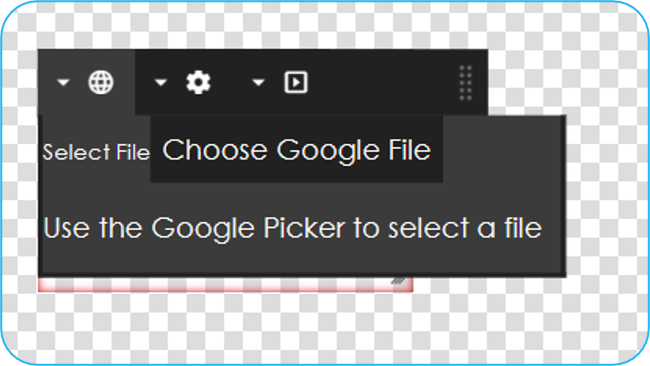
Choosing a File
Click the Globe icon to select a File and log in to Google
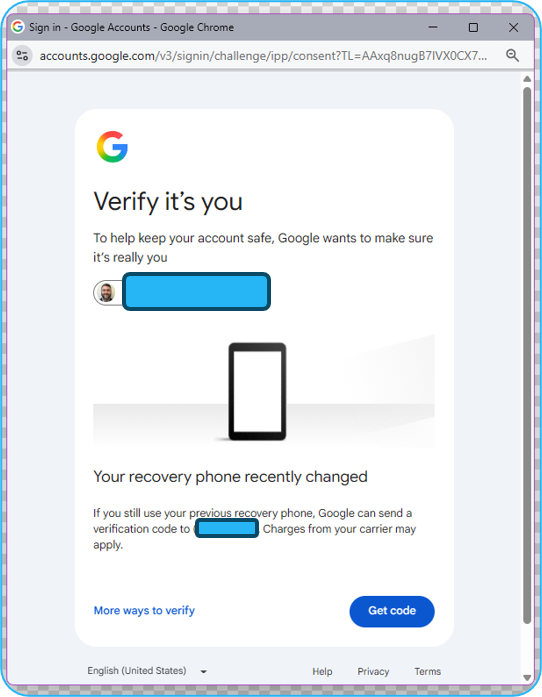
Log in and Authenticate
When you click Choose a Google File for the first time, a pop-up will appear to log in and authenticate your Google Account.
Select your Google Account
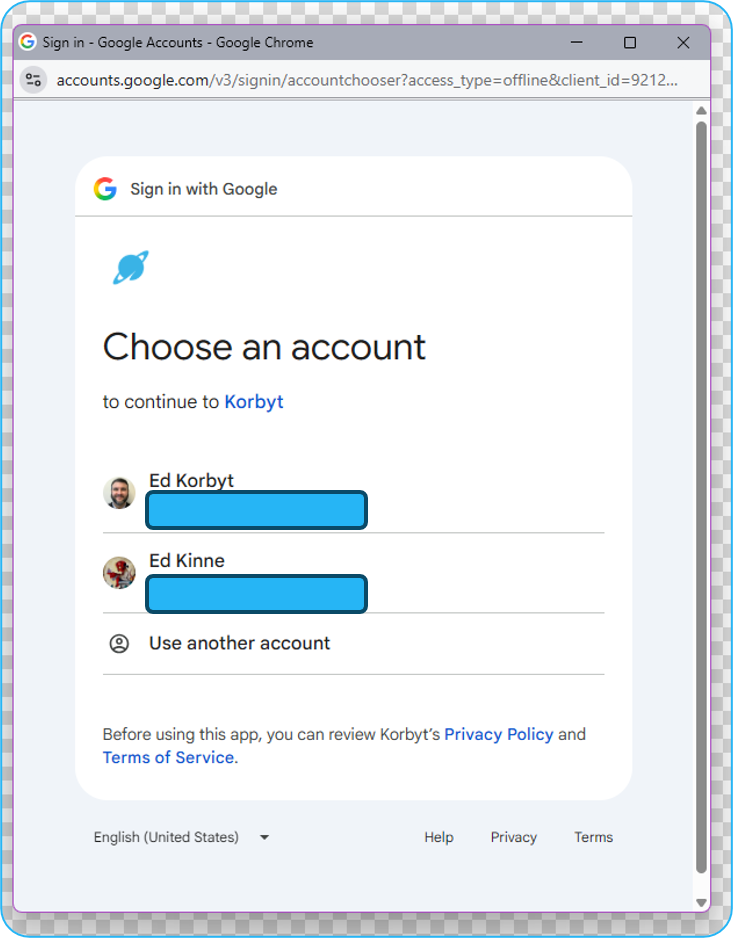
Authenticate your Account
Select your File
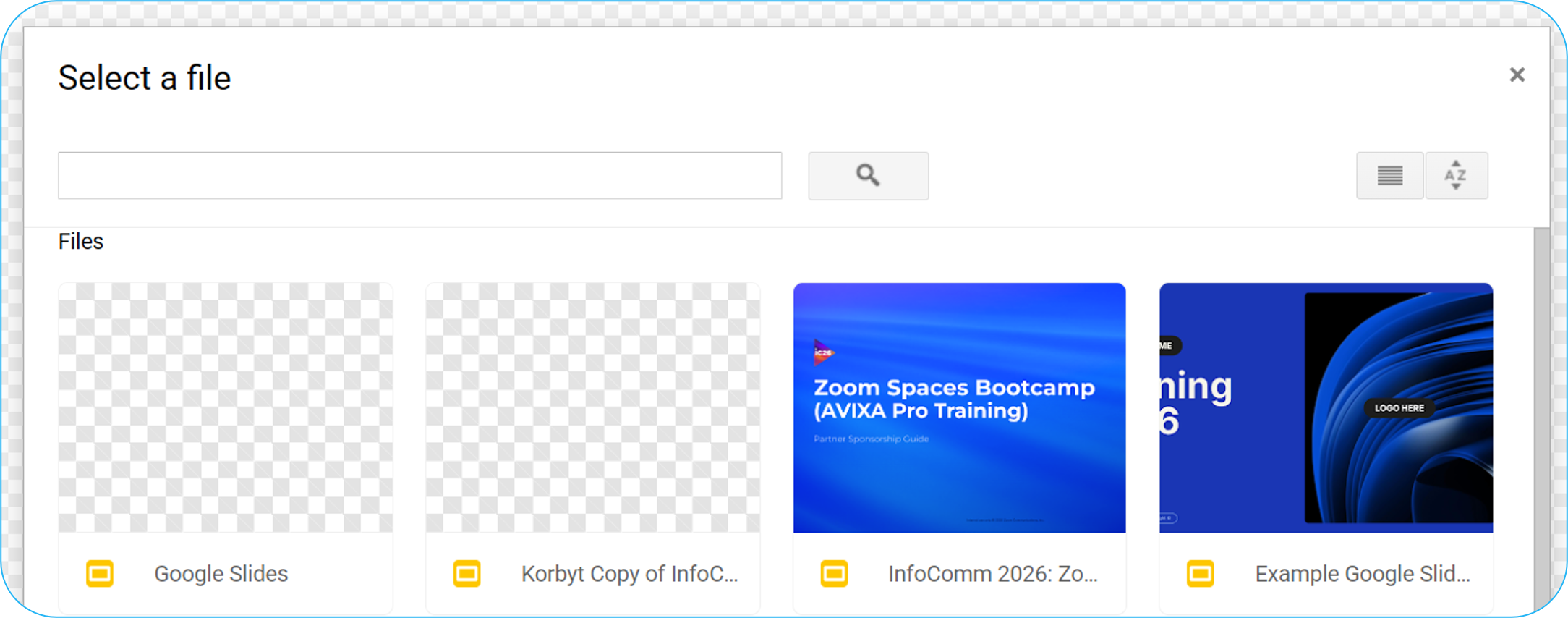
Your presentation will then appear in the Google Slides Element
Playback Controls (Gear Icon)
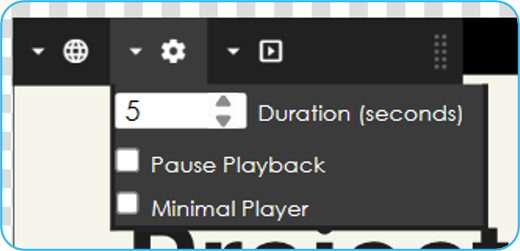
You can set the Duration for each slide by clicking on the Clock icon and setting the number of seconds that each slide should be viewed for
Pause Playback - Sets the slideshow to not play through automatically, and slide progression would be through the arrows on the bottom left
Minimal Player - When enabled, turns off the Google Slides controls that are seen at the bottom of a presentation by default
Play All Slides - When checked, the Layout will stay on the screen until all slides in the presentation are shown
Click the Play button, and then click the Check box
Requires Authentication
Continue using the Builder Tool as normal to finish your Layout
For assistance see Using The Builder Tool For Layouts Or Messages
Was this helpful?
Still need help? Share an idea