Korbyt Frequently Asked Questions
A collection of FAQs about Korbyt organized by topic/product
Written By Ed Kinne
General Questions
What browsers are supported by Korbyt?
What browsers are supported by Korbyt?
Chrome or Edge web browsers
Korbyt has been exclusively built and tested to work on the Chrome browser.
With MS Edge using the Chromium language that browser is also supported.
Other browsers may allow you to log into your Korbyt CMS, but you will encounter errors with some functionality.
The Korbyt CMS is also intended to be used with the Desktop/Laptop version of Chrome or Edge. If you are on a mobile device like a phone or tablet you will similarly be able to log into your CMS but not all functionality will work
Where can I find my Korbyt Tenant ID or Tenant Token Code?
Where can I find my Korbyt Tenant ID or Tenant Token Code?
Click the Gear icon in the upper right to open the Settings

Then on the General tab scroll to the bottom of the page.
You will find your Tenant ID | Tenant Token Code | Service Type at the bottom left of the page
Does Korbyt support different user roles with different abilities and access?
Does Korbyt support different user roles with different abilities and access?
Yes, there are several different user roles available within the Korbyt CMS that allow different levels of control.
Access to specific folders and players can be restricted through the use of User Groups and User Permissions so that users will only be able to see and interact with specific content.
There is no way to create custom roles or edit the capabilities of existing roles.
Permissions in Korbyt, in general, were designed to retain simplicity and be flexible, so a user role always has the set abilities.
What interactivity and scripting does Korbyt support?
What interactivity and scripting does Korbyt support?
Korbyt supports several powerful scripting languages from HTML, CSS, and Javascript. In addition Korbyt also offers several powerful frameworks and libraries to unleash the full potential of your creativity!
Available Frameworks:
Animate.css – Animate.css allows for a variety of CSS-based animations.
https://github.com/daneden/animate.cssjQuery – a JavaScript framework used for a large variety of tasks, including DOM manipulation, AJAX requests, and many other things.
https://jquery.com/jQueryUI – is a JavaScript framework built on top of jQuery that provides a variety of widgets, interactions, and effects.
https://jqueryui.com/jQuery.Keyframes – Used to enhance jQueryUI keyframe animation.
https://github.com/Keyframes/jQuery.KeyframesjQuery.rss – A jQuery plug-in for parsing and rendering RSS feeds into HTML.
https://github.com/sdepold/jquery-rssMoment.js – A JavaScript library for parsing, validating, manipulating and displaying dates and times.
https://momentjs.com/Numeral.js – A JavaScript library for parsing, validating, manipulating and displaying numbers.
http://numeraljs.com/Swiper – A JavaScript library for creating sliders.
http://idangero.us/swiper/
What are best practices for interactivity on Korbyt?
What are best practices for interactivity on Korbyt?
A Best practice for interactivity is to cache the interactive content for future use.
To do this put all layouts and any content that is called by an interactive button into a playlist and schedule this for far in the future or sometime in the past on each player that will interact with this content.
By having this content in a scheduled playlist the player will download it and have it available locally for quick access rather than downloading the content on the fly as needed.
Are Languages other than English supported?
Are Languages other than English supported?
The Korbyt Platform supports multiple languages in several ways so that users see content in their preferred language.
However, the Content Management System’s user interface is currently only available in English at this time.
What are Data Adapters?
What are Data Adapters?
A Data Adapter is Korbyt’s point of Integration to access a data source(s).
Data Adapters and Data Integrations are subscription features that may or may not be included in your Korbyt Services. If you are unsure if you have a Subscription to Data Adapters you should contact your Korbyt Account Executive
Data Adapters can be created from custom code or one of Korbyts Data Adapter Templates
Signage Questions
Media Players and Equipment
What is a Media Player?
What is a Media Player?
A Media Player is a device that is configured to communicate with Korbyt to receive instructions on what items to show on a screen in the form of a Playlist
Korbyt is compatible of working with several different types of hardware to have them act as a Media Player.
What ports are required to be opened on a customer’s network for Korbyt and Korbyt players?
What ports are required to be opened on a customer’s network for Korbyt and Korbyt players?
To function correctly your media players do need to be able to access certain domains and ports.
For full details please review Whitelist and Port Access Requiments for Korbyt
Does Korbyt work on BrightSign devices?
Does Korbyt work on BrightSign devices?
Yes, Korbyt is compatible with BrightSign and is an approved partner.
You will find our application listed in the BrightSign activation process.
Korbyt does require that the BrightSign device be running a compatible version of the BrightSign OS that is compatible with the Korbyt software.
For the latest supported Brightsign and Korbyt versions see the Korbyt/BrightSign Change Log
Can Media Players be managed remotely?
Can Media Players be managed remotely?
Yes.
Korbyt CMS users who are Administrator and Tenant Administrator level users have remote control over Korbyt players and can monitor player hardware health and perform device upgrades and reboots.
The degree of control that the Korbyt CMS has over the player can be limited based on the type of player.
Can permissions be set for access to specific players?
Can permissions be set for access to specific players?
Yes, player permission can be set that controls which players a User’s Group will have access to in the CMS.
This can stop users from being able to change what is playing on screens that they are restricted from even if their user role would normally allow it.
How do I verify my player has been provisioned?
How do I verify my player has been provisioned?
If the player successfully provisions and has a working network connection it will change from the blue provisioning screen to either playing the content is has been assigned, the Korbyt Default Content (korbyt logos), or your defined default content.
Players also confirm their own provisioning status by using their provisioning token at the end of the URL below.
https://korbyt.com/ws/v1/check?pt=
(Example: https://korbyt.com/ws/v1/check?pt=9WXM0NQLED39)
For KDA devices you may also find the provisioning information and token from the serial number using the following URL:
Can Korbyt Players and Services be set to automatic updates
Can Korbyt Players and Services be set to automatic updates
CMS Platform Updates
Korbyt continuously seeks to improve the platform. To that end SAAS tenants will receive periodic automatic updates to their CMS experience
Hybrid tenants must request an update from inside their CMS whenever they would like to install the updates as long as they are on version 2.0 or higher. This is available by clicking the white upward pointing arrow in the upper right corner when logged into your tenant.
On-Prem tenants must update through a manual upgrade process. Please reach out to your Client Relationship Manager to discuss these upgrades.
Media Player Updates
Most players have to be manually updated through the CMS by selecting the update option from the player actions area in the player properties or a player group’s properties.
How can I see the provisioning screen data after provisioning?
How can I see the provisioning screen data after provisioning?
There are three ways to view the provisioning code for a player after it has been provisioned
At the device locally
Connect a USB keyboard to a USB port on the device
Press ctrl + alt + p – it’s an overlay on the screen with all of the player identity details.
In the CMS
Log into your Korbyt Tenant
Open the Mega Menu

in the upper left corner
In the Device Management column, click Players
You can see Korbyt Agent version by clicking on the pencil for a specific player to open it
Scroll down and you will find the provisioning code in the details section to the left
Through the Device Management Page (if supported by the device)
Ensure your computer is on the same network as the player
Open a web browser and enter the IP address of the player
Enter the Username and Password to open the device configuration page
Click on the Server Tab and you will see the provisioning code
How do I find the Agent and OS version of a Korbyt player?
How do I find the Agent and OS version of a Korbyt player?
Log into your Korbyt Tenant
Open the Mega Menu in the upper left corner
In the Device Management column, click Players
You can see Korbyt Agent version by clicking on the pencil for a specific player to open it, or switching the view to List View of all players, and Agent Version is a column of information
How do I upgrade a player’s software?
How do I upgrade a player’s software?
The Software Version that a player is running can be seen by
Opening the Mega Menu
in the top left corner, in the Device Management Column, clicking on Players
Select List View in the upper right if it is not already
You will then be able to see the Player Software Version listed for each player
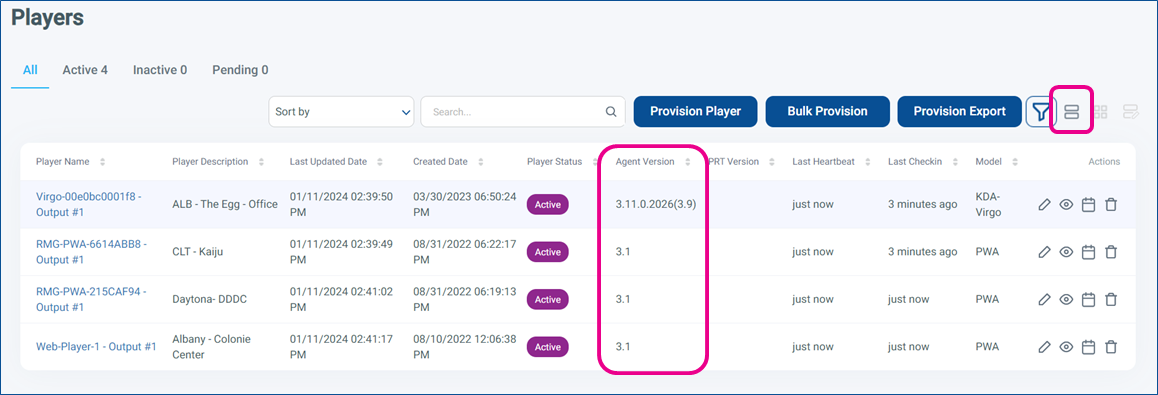
You can also see the current Software Version a player is on by clicking on the Pencil Icon for that specific player and then scrolling down to Agent Version on the
Upgrading Player Software
On the Player Screen, click the pencil icon

for a specific player
Requires Tenant Administrator or Administrator user role in Korbyt
In the Actions section in the upper right, click on Player Upgrade
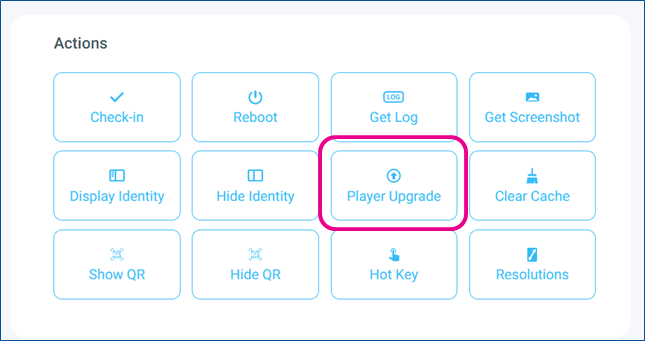
The Actions section will now show available versions of Korbyt Software for your player
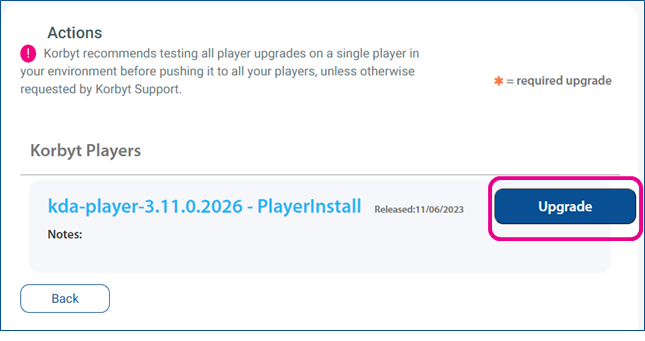
Click on the version you want to install
You then have the choice to have the upgrade take place now (on the next heartbeat) or at a scheduled date in the future

You will see the Player Software upgrade action added to the pending action section, with the date and time based on your selection

If you scheduled it for now, you can refresh your web browser after a few minutes to see that the action was completed
The Pending Action will be cleared
The player Agent Version will have changed
The player captures a new screenshot
Your player is now operating on the most recent version of the Korbty Software
Do Korbyt Media Players (KDA) support Control of a Screen
Do Korbyt Media Players (KDA) support Control of a Screen
Yes, Korbyt Digital Appliance (KDA) Media Player Devices do support sending screen control commands to the actual screen or TV
This can be limited by screen manufacturer and compatibility and specific KDA Model
In a Player’s Settings in the Korbyt Content Management System (CMS) there is a section for Screen Control.
Does Korbyt support TLS between Korbyt and the KDAs?
Does Korbyt support TLS between Korbyt and the KDAs?
Yes.
At this time TLS1.2 is being used for the authentication between KDAs and Korbyt.
Can a video player like U-Stream be added to the Korbyt Anywhere app or digital signage experience?
Can a video player like U-Stream be added to the Korbyt Anywhere app or digital signage experience?
Korbyt only supports Dynamic Adaptive Streaming over HTTP (DASH), also known as MPEG-DASH and HTTP Live Streaming (also known as HLS).
As long as these live streams come in that format, they should function with Korbyt.
Does the Korbyt platform support SSD and/or SD Card installations on Brightsign?
Does the Korbyt platform support SSD and/or SD Card installations on Brightsign?
Yes, Korbyt can be installed on both Brightsign units with either SSD or SD Cards. We do recommend SSD for best performance.
What Korbyt branded devices are supported by the Korbyt platform?
What Korbyt branded devices are supported by the Korbyt platform?
Supported Korbyt branded devices include 904, 909, 930, 960, 965, 1010, 1040, 1060, 1065, LEC-7388S-5A. Aries I, Aries II, Leo, and Virgo
What are Player Groups used for
What are Player Groups used for
Players may be organized into Groups for playlist assignment, reporting, and dashboard views.
Players may be added manually or dynamically based on conditional rules.
Player Groups are also how Alerts and Permission for players can be set
How do I set the time on a KDA?
How do I set the time on a KDA?
Korbyt players should be set to a time server to coordinate the time automatically.
The timezone used by a KDA is based on the address configured for the device
Do Korbyt Players send alerts if they lose connection?
Do Korbyt Players send alerts if they lose connection?
Yes, the CMS can be configured to send email alerts to select Users if a player’s status changes.
Will players continue to display content if the internet connection is lost?
Will players continue to display content if the internet connection is lost?
Yes.
By pre-loading (caching) content before playback, Korbyt media players continue displaying content even when they lose their Internet connection.
How many screens can be powered from a single player?
How many screens can be powered from a single player?
The number of different screens a Media Player can support is based on the number of video outputs it has.
Korbyt offers several types of multi-output media players.
The 1040 will output to 4 separate displays with individual or synchronized content.
The 1065 will output up to 6. Windows-based media players may have multiple video outputs based on their video card.
Some Brightsign media players may have multiple video outputs
If the multiple screens are showing the exact same visuals, there may be other AV Hardware that can duplicate the 1 video feed to multiple screens that does not involve multiple separate video outputs.
Content and Media Items
What file types does Korbyt support?
What file types does Korbyt support?
Korbyt supports many common file types for different uses in Korbyt.
For full details see Supported Media Specification
What is the Media Manager?
What is the Media Manager?
The Media Manager is a searchable storage library for customer-uploaded content including videos, images, URLs, and audio files.
It can be found by opening the Mega Menu in the upper left, then clicking on Media Manager
Media items can be organized into folders and filtered by type.
Are social media feeds supported?
Are social media feeds supported?
For Social Media services that support RCC feeds you can use the RSS Feed item in the Builder Tool or an RSS Data Adapter.
The Korbyt OnTarget content service can also be configured to support social media feeds. If you are interested in subscribing to OnTarget for social media, please contact your account representative.
Is audio/video transcoding supported?
Is audio/video transcoding supported?
If a video file has a bitrate that is too high, when uploaded you will see an error message letting you know the video’s bitrate and the current bitrate limit for your Korbyt CMS (the standard birate is 5mbps).
Most video processing software allows the ability to set a target bitrate.
If you require one, a simple video transcoding tool is available.
Please contact Support@Korbyt.com to request a link to download the CurtConvert tool.
Is high def video supported?
Is high def video supported?
High-definition streaming, including 4K playback, is supported by Korbyt.
However, not all players are powerful enough to utilize Korbyt’s full capabilities, so be sure to check with your sales representative to make sure your hardware will be compatible.
What High Definition Streaming is supported?
What High Definition Streaming is supported?
Korbyt only supports single channel Dynamic Adaptive Streaming over HTTPS (DASH), also known as MPEG-DASH and HTTPS Live Streaming (also known as HLS), with the use of the ZeeVee streaming device. Please contact your RMG Sales representative for more information.
Korbyt On-Prem and Hybrid installs may work with HTTP. Check with your Korbyt Integrator or Sales Team if you are interested in On-Prem or Hybrid installations with other options.
Is Weather content available?
Is Weather content available?
Yes, Korbyt allows the use of weather data from multiple sources or use cases
The Builder
Tool elements for RSS Feeds, External URL, and HTML Container could be used in different ways to pull in weather data from different sources you may wish to use. These tools do require you to source the weather information outside of Korbyt
The Korbyt Managed OnTarget subscription services provide a way to show weather data such as current conditions, multi-day forecasts, and weather maps in graphic or ticker formats.
If you are interested in subscribing to the OnTarget service, please contact your sales representative.
What are boards?
What are boards?
Boards are a legacy alternative to layouts that allow the visual display to be split into zones.
Layouts offer more power and versatility currently, so Boards are no longer offered to new customers.
What are Layouts?
What are Layouts?
Layouts are content built in our GUI Builder Tool, combining multiple elements like Images, text, tickers, and other elements.
Pre-built layout templates are available with sample elements included .
Complete layouts that are created in other web design tools can also be imported
What is the Builder Tool?
What is the Builder Tool?
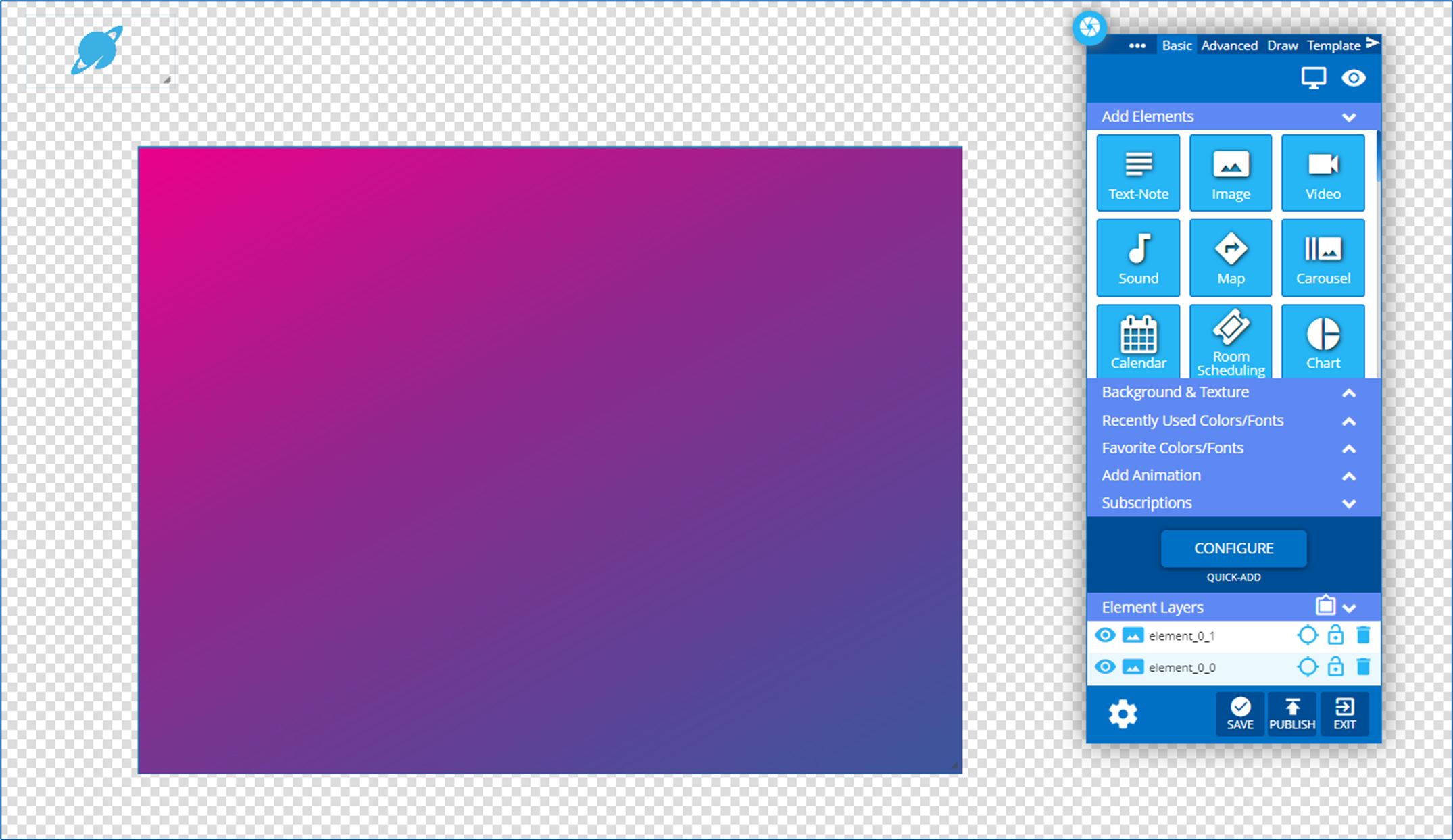
The Builder provides content authors and Korbyt users of all skill sets the ability to quickly build dynamic visual interfaces. Authors drag and drop content elements into fixed or re-sizable layout zones.
Examples of some elements that can be added and edited in the builder include Text Notes, Tickers, Images, Data Tables, Videos, Image Carousels, and many more
The Builder Tool is opened anytime a new Layout or Message is created, or when you click the pencil icon of an existing Layout or Message to edit it
What are tags and what are they used for?
What are tags and what are they used for?
A tag is a piece of metadata assigned to content.
You can think of tags as keywords or labels that an author attaches to some content to make it easier to find, use, or understand.
Tagging allows authors to attach keywords to content.
Tagging can also be used to power automation in playlists. Setting a playlist to find and show all content with a specific tag rather than scheduling that content manually
Does Korbyt allow/support Custom Fonts?
Does Korbyt allow/support Custom Fonts?
Yes, Korbyt does support the addition of customer fonts that are not already included on your tenant.
To add a custom font to your tenant you will want to contact the Korbyt Support team via email at Support@Korbyt.com
Please set the subject line to Font Addition and include the following in the email
Your Contact information
Company Name
Korbyt Tenant ID (found at the bottom of the settings page)
attach the font data files in TTF or OTF format
Why is the Century Gothic font not displayed properly on my screen?
Why is the Century Gothic font not displayed properly on my screen?
Century Gothic is a font available in Korbyt that is commonly found installed on desktop systems, as it’s part of the Microsoft Office installation.
However, several media players won’t have this font installed, so they’ll automatically use a different, similar font in its place. This is the expected behavior.
How do I add content into the Korbyt CMS?
How do I add content into the Korbyt CMS?
Open the Mega Menu (upper left) and in the Content column click on Media Manager
In the Media Manager
Select the Folder on the left where the content should be saved
Click on the Import Media button in the upper right
Click and drag or browse to the content location
Optional - Add any Tag information
Click done
How can I affect multiple items in the media manager instead of one at a time?
How can I affect multiple items in the media manager instead of one at a time?
When adding items, you can drag an entire folder to the import window to import all the folder’s content
When working with items in the Media Manager you can click to the left of the thumbnail
to select an item, then hold either the ctrl key or the shift key on your keyboard to continue selecting multiple items
You can then drag and drop a group
Or use the multiple action menu to Move, Copy, or Delete the multiple items
Can I view imported content without searching individual folders?
Can I view imported content without searching individual folders?
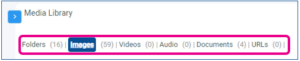
Yes, it is possible to view all items in a category (Folder, Images, Videos, Audie, Documents, or URLs) without navigating the folder structure in the Media Manager
In the Media Manager
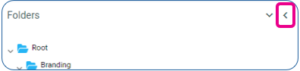
First, turn off the folder view if it is active
Either click on the folder view icon

in the upper right
or Click on the left arrow at the top of the folder list
Then select the category of items you want to browse through
Playlists and Scheduling Content to Screens
What are playlists?
What are playlists?
Playlists organize content into ordered or rules-driven groups for assignment to a player or player group.
They can be simple selections of items, or involve complex automation for the selection and control of what, when, and where content is seen
Can I change content based on the time of day?
Can I change content based on the time of day?
Yes, there are several ways to control time-based content, the most direct is by editing the scheduled times when a playlist will play.
What are Validity Dates?
What are Validity Dates?
Validity Dates are how you can set the earliest and last dates and times that an individual media item should be considered OK for playback on screen.
How often does content refresh on the player?
How often does content refresh on the player?
Players review the content assigned in a playlist through a Check-in process that happens every 15 minutes.
Content that is being automated to playlists may take up to 15 minutes before the Check-in process makes those changes on a player, affecting the screens
When a Playlist is being edited and a user clicks SAVE, it will also trigger a check-in on the players associated with it
Players can be forced to check in manually as an individual or as a group In the CMS through player settings and actions
Is it possible to change the default content of Korbyt logos that play when a player has no other content?
Is it possible to change the default content of Korbyt logos that play when a player has no other content?
Yes, you can replace the default Korbyt logos with media of your choosing.
To set a default Playlist
Create a new playlist with the name “Korbyt Default Content”
In Playlist settings add the tag “korbytdefaultcontent“.
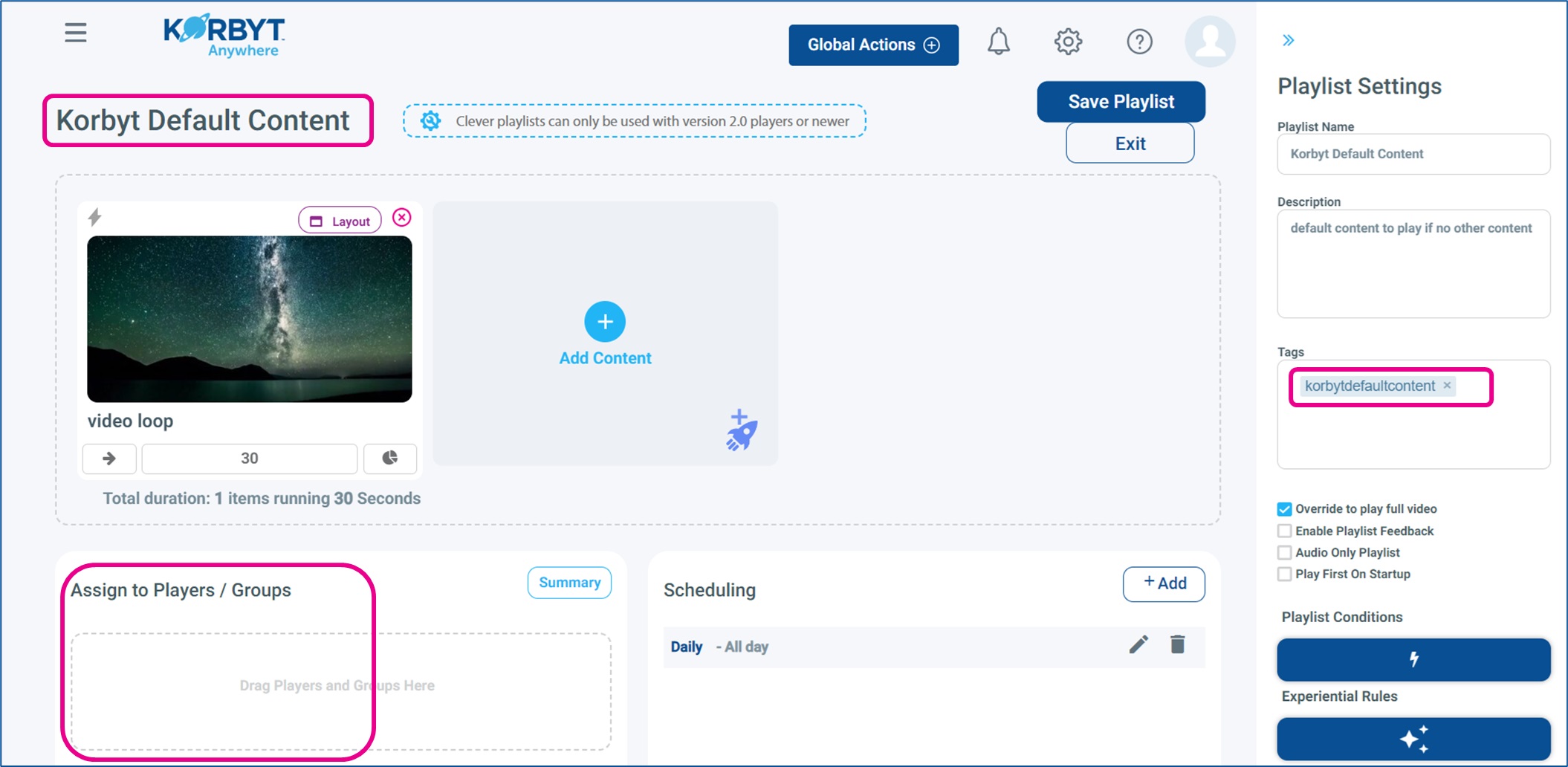
It can be a Standard or Clever Playlist
Add content items as you normally would
Once you have added your content, click the Save button in the upper right
DO NOT assign this playlist to any players
The system will send this to every player on their next check-in, and it will play “by default” when no other content is present or assigned to the player
Is Proof-of-Play supported?
Is Proof-of-Play supported?
Yes, Korbyt provides admin users with proof of play reports for digital signage players and with message receipt reports for Korbyt Anywhere users.
Proof of Play is a subscription feature that would have to be active on your service for these instructions to work
Proof of Play can be added to any Layout or Message by accessing the Metadata for that Layout or message and then checking the “Proof of Play” Checkbox.
Layouts scheduled inside of a carousel element will not produce Proof of Play data as Carousels are a list of URI’s, none of the metadata needed for Proof of Play is available as content plays from the carousel.
Best Practice is to use Playlist Elements instead of Carousels when wanting proof of play data but to still retain functionality similar to a carousel.
You can find Proof of Play under Reports then Proof of Play. There are several filters to find the exact proof of play item you want.
Click the Mega Menu, under the Analytics heading then click Reports
What does the Preview function do?
What does the Preview function do?
The preview function (eyeball icon) allows CMS users to preview designs and layouts in multiple screen resolutions before publishing

Previews are available at the Layout, Message, Playlists, and Player level
Previews follow the rules of the item fully. for example, if an item has validity dates that stop it from showing currently, it will not show in the preview
When should I use a Static, Dynamic, or Clever Playlist?
When should I use a Static, Dynamic, or Clever Playlist?
Clever Playlists are the more modern and powerful option for playlists in Korbyt and should be the choice whenever possible.
They allow for mixing of static and dynamic content with detailed playback instructions for each rule or content.
Clever Playlists do require that a Media Player be running Korbyt 2.0 Player software or newer.
For players that are running 2.0 or lower, you will have to use a Standard playlist with either Static or Dynamic content. And the
How can I assign a playlist to a Player or Groups?
How can I assign a playlist to a Player or Groups?
Players are assigned content through Playlists
Open the Mega Menu (upper left) and in the Schedule section click on Playlists
Either click the pencil to edit an existing playlist, or create a new playlist
In the lower left, you will see available players and can assign or remove players
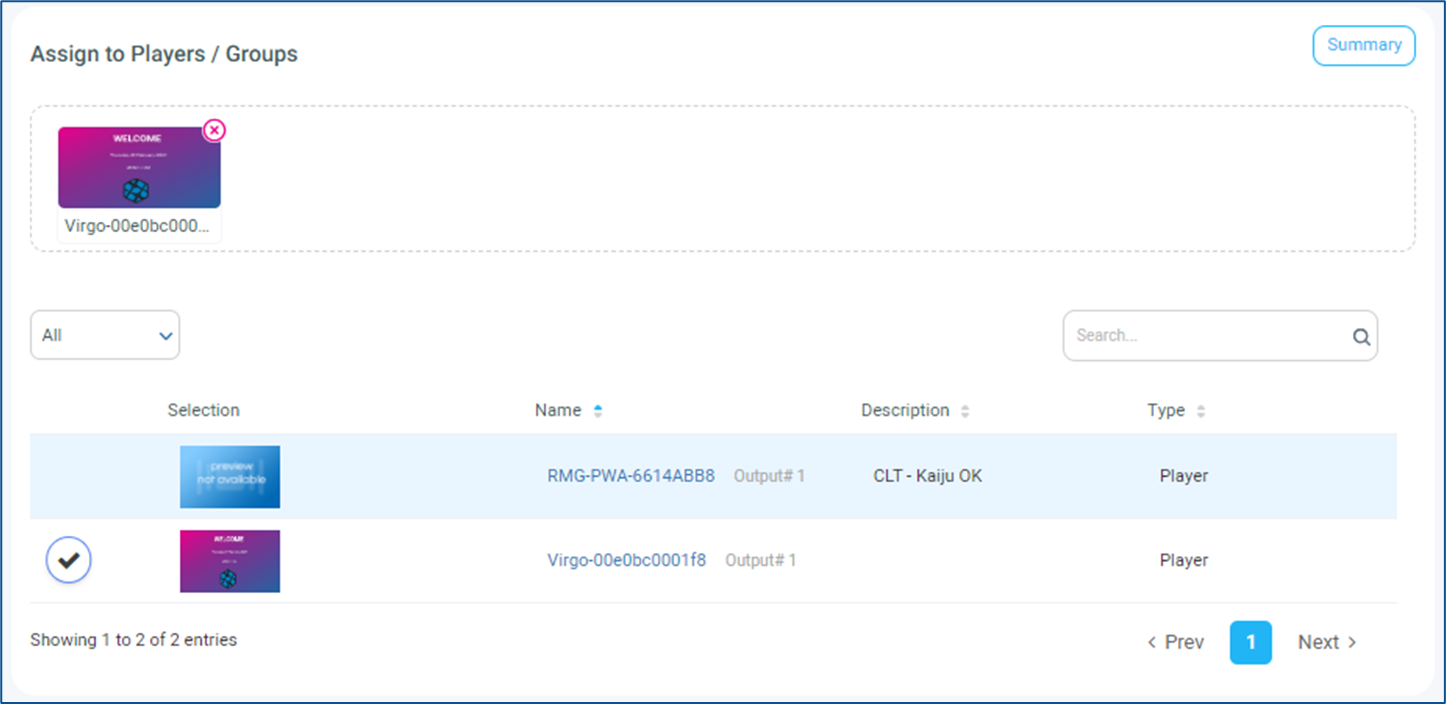
After clicking Save in the upper right the player will perform a Check-in and download the playlists instructions and content
Still need help? Share an idea