Player Settings - Controlling and Configuring Media Players in the CMS
Using the Player screen to monitor players, send commands, program information, create and manage player groups
Written By Ed Kinne
Media Players, or simply Players, represent end-node devices running the Korbyt player software to display Signage Content.
This article will review the settings and options for configuring your media players in the Korbyt CMS. Please see Adding Players to your Korbyt Tenant - Provisioning if you need assistance adding players to your CMS.
The Players Screen
To Access and View the Player Screen
Click on the Mega Menu, in the Device Management column, click on Players
Viewing Options of the Player Screen
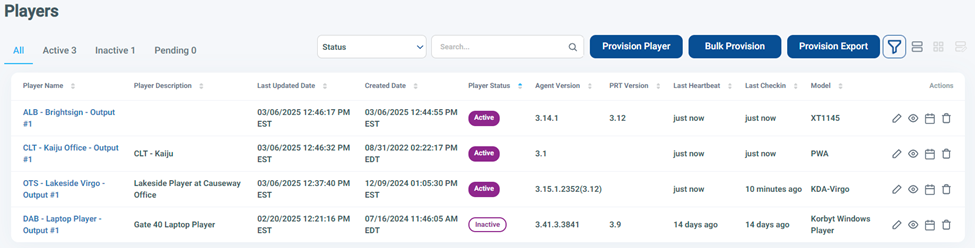
You can set the view to be a List, Cards, or a Custom List using the view controls in the upper right

The List View displays columns of information about players

Expand for details on the Columns of Information in List View
Card View displays the most recently captured screenshots
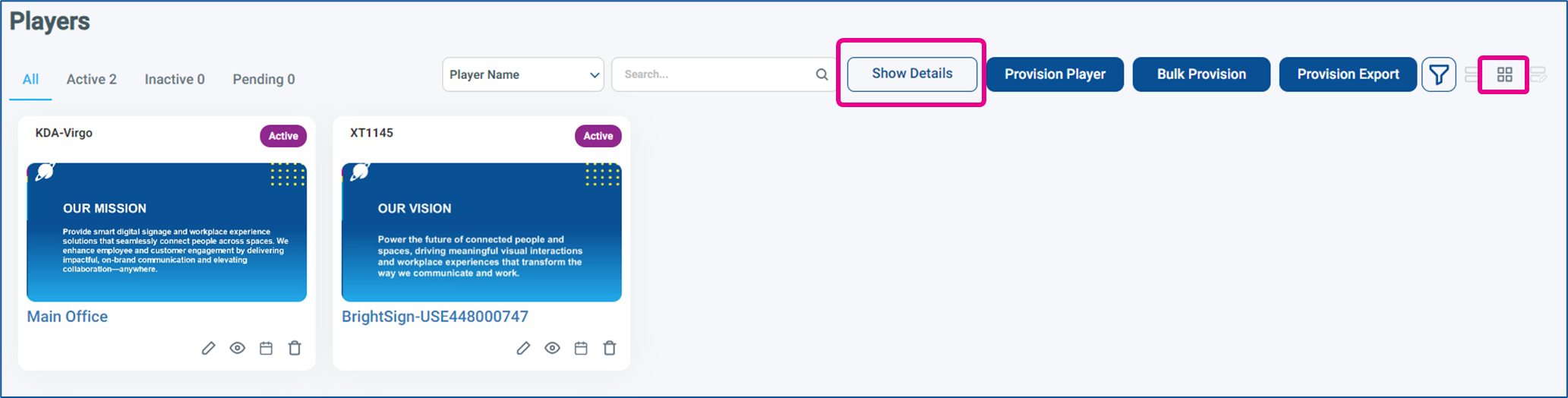
Player Screenshots are normally captured when players reboot, or when the Get Screenshot command is sent. If continually updating screenshots are something you require see Korbyt Instant Screenshots
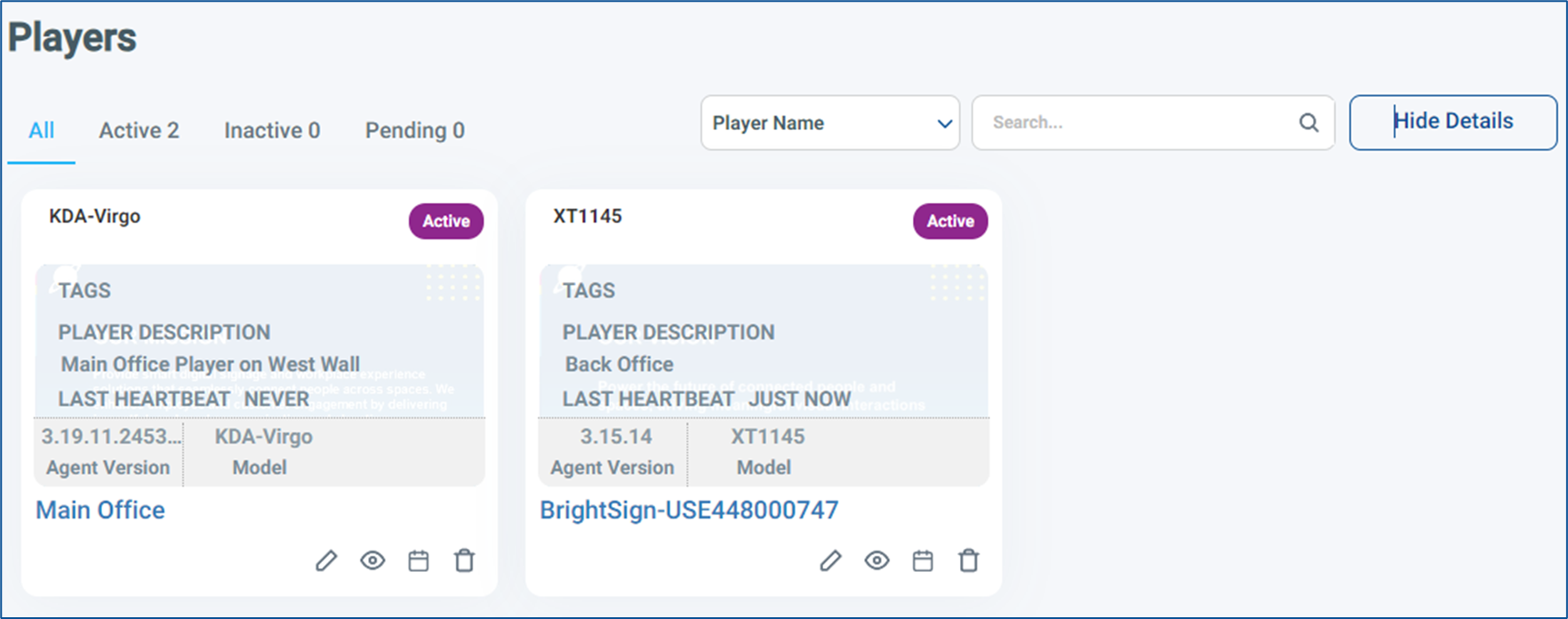
There is a toggle button to overlay player details
At A Glance view allows a user to create a custom list view

When you click the At A Glance selector, you will see a pop-up window to select which data points you want as columns in your custom list view
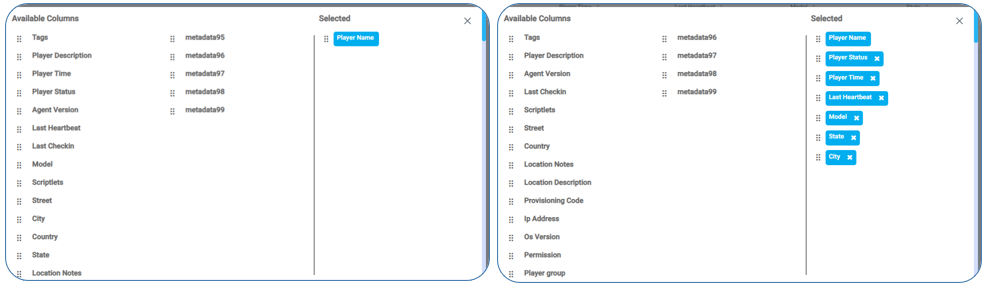
Drag the datapoints to the right that you want to add, then scroll to the bottom of the pop-up and click continue

Player Groups provide an alternative way to view player details. Information about this view can be found in Player Groups and Access Permissions
Heartbeats and Check-ins
In the different views, you can see two duration-based information fields, Last Heartbeat and Last Check-in.

Heartbeat
A small connection from the player to the service that happens every minute
It is used to synchronize activity between the player and the service
When working correctly, the Last Heartbeat should read as “just now”.
Some activities, such as a software update or reboot, will disrupt heartbeats for short periods.
CheckIn
A full review of the content assigned to the player through playlists which happens every 15 minutes.
Any changes that have been made in the system (items being deleted, content added that flows to a playlist through clever rules or tags) will be synchronized to the player through the check-in
Some actions will cause an immediate check-in to happen, not waiting for the 15-minute cycle, such as sending the check-in command or clicking save a playlist that is directly assigned to a player
When an action causes a check-in, it also resets the “every 15-minute” timer for the next check-in
Hearthbeats and Check-ins are also used to determine a player’s status.
Player Status
A player can be in 1 of three states
Active Status
A player who is communicating normally
Heartbeats and Check-ins are happening as expected
Inactive Status
A player who has stopped communicating normally
The reason for the disruption could be that the player is powered off, the network cable has been unplugged, a network outage, or a software crash.
A player will report as Inactive after two missed check-ins, or approximately 35 minutes of missed heartbeats.
The player returns to Active status when the Heartbeast and Check-Ins begin again
Pending Status
Pending is a temporary status for a player between the player being provisioned to the tenant and their first successful check-in
A player that is powered on and connected to a network should only be in Pending for a few minutes.
Slow network connections might take longer
A player that is unexpectedly in Pending for a long time should have its network connection and functionality examined
Ensure the network has Korbyt White Listed and the Ports are available, see Korbyt Player Network Connections
Once a player achieves Active Status, it will not move back to pending
It is possible to configure notifications on players status changes through Player Groups
See Player Groups and Access Permissions and the Player Notifications seciton for details
Taking Actions on Players with the Action Icons
The Actions icons for each player allow different interactions with the player
Pencil = Edit Player Details
View and Edit the Player Detail screen
Only Available to Administrator and Tenant Administrators
Eyeball = Player Preview, opens a new tab
Preview the content assigned to the Player on all of its playlists
Not a live view of what the player is showing at that moment
Available to all users who can see the player
Calendar = Schedules, opens a new tab
The Schedule of playlists assigned to the player
Can be a Month or Week view
Clicking on a Playlist name will open the playlist in a new tab
Only Available to Administrator and Tenant Administrators
Trashcan = Remove
Asks for confirmation
Deprovisions the player from the tenant
Editing Player Details
Clicking the pencil icon for a player will open the Player Details page and allow you to send action commands or set player details
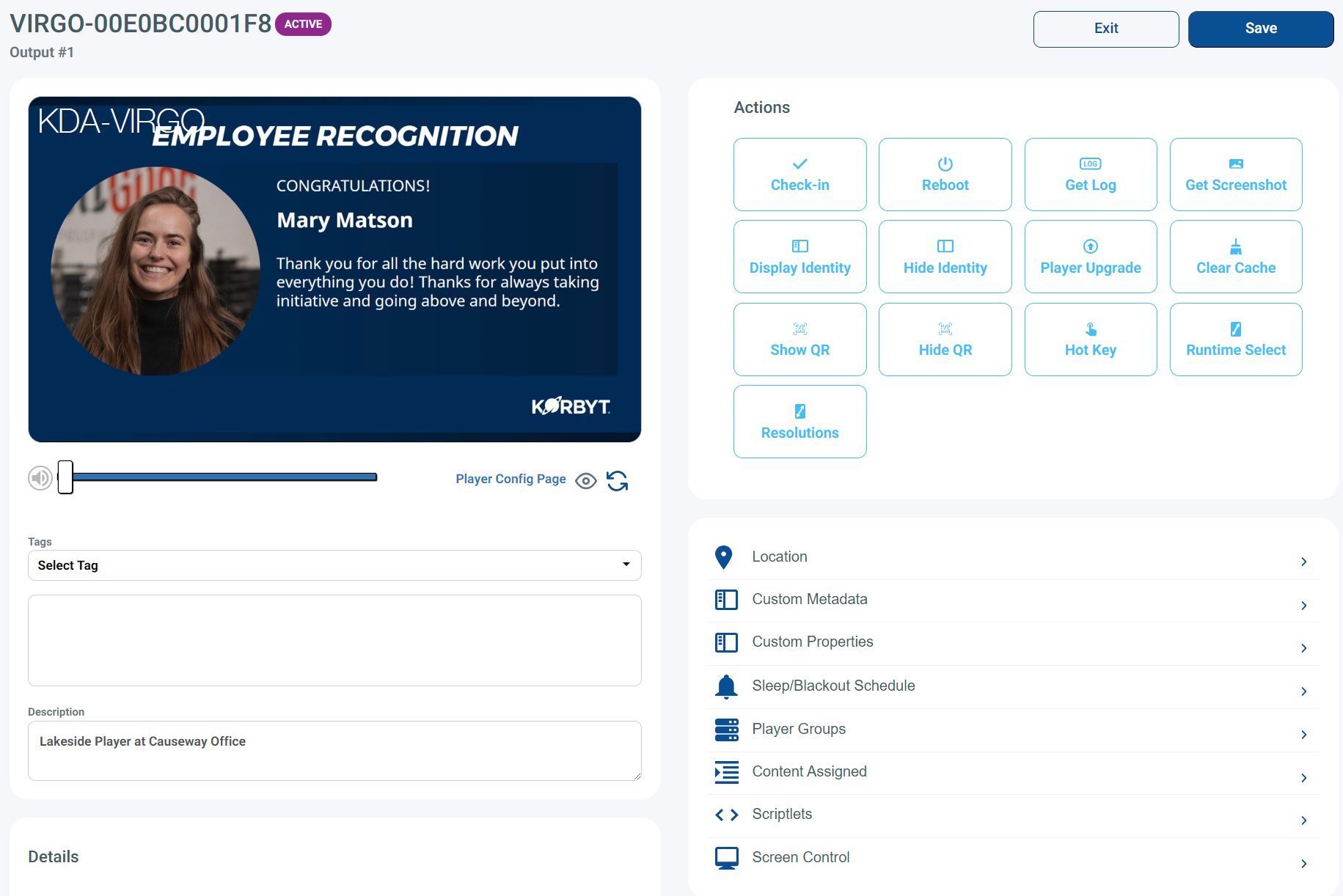
If you change any value in the player you have to click the Save button in the upper right
Player Screenshot
And the upper left player information
In the top left, there will be a Player Screenshot if the Media Player supports them
They are captured/refreshed after a Player Reboot or through the Get Screenshot command (described below in Player Actions)
If continually updating screenshots is something you require, see Korbyt Instant Screenshots
The Player type appears as a watermark in the top left of the screenshot; it is not part of the actual display on screen.

Below the Screenshot, you will find
A volume control slide
If the player allows volume control
S link to the Player Configuration page
The Player Config Page is available for Korbyt KDA and KWP players and links to the IP Address of the player to log directly into the device
For more information, see KDA Player Configuration Page
A Preview Eyeball
Opens a new tab that will preview the player content, the same as the preview eyeball on the Player Screen
Player Tags and Description
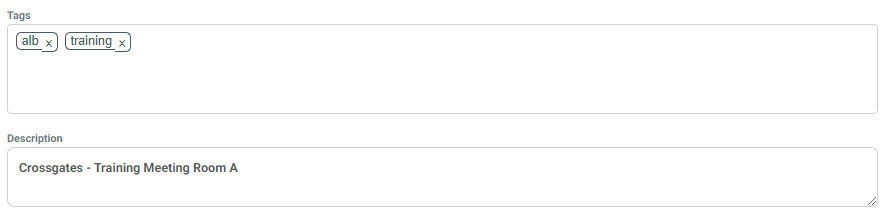
Tags
Attaches a point of information to a player
Can be used to organize, along with the media items that are tagged
Player Description
Can enter a description of the player that would be helpful to other system users, especially helpful if the player name is too limiting
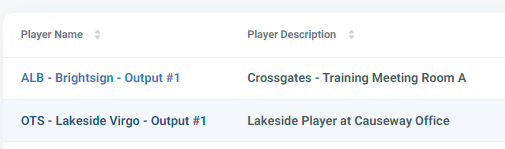
The player description shows in the Player Screen next to the Player Name
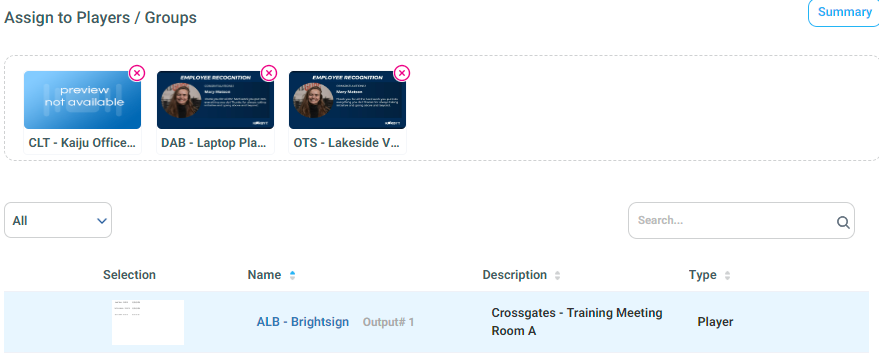
And in the Playlist / Player Assignment window
Player Actions
The Actions section in the upper right allows you to send different instructions to a player. Actions available will vary based on the player type.
When clicking an action, some will send the command to the player on the next heartbeat, some will ask for follow-up instructions, and let you schedule the command
Players have to be Active, with an Active Heartbeat, to receive and carry out Action Commands. If a player is Inactive in Korbty, the command will be listed as Pending until the system receives the player’s heartbeat.
Expand any Action below for more details
Check-in
Check-in ~ Causes the Player to do a check-in on the next heartbeat
Check-in ~ Causes the Player to do a check-in on the next heartbeat
Normal Check-In happens every 15 minutes
When you click Check-In, it will schedule the check-in process to happen on the next heartbeat from the player

Reboot
Reboot ~ Reboots the device on the next heartbeat or at a scheduled time
Reboot ~ Reboots the device on the next heartbeat or at a scheduled time
When you click the Reboot Action it will present a Checkbox to select next heartbeat or a scheduling window to set a date and time
After making your selection, click Send Reboot to confirm and it will be listed in the Pending Actions
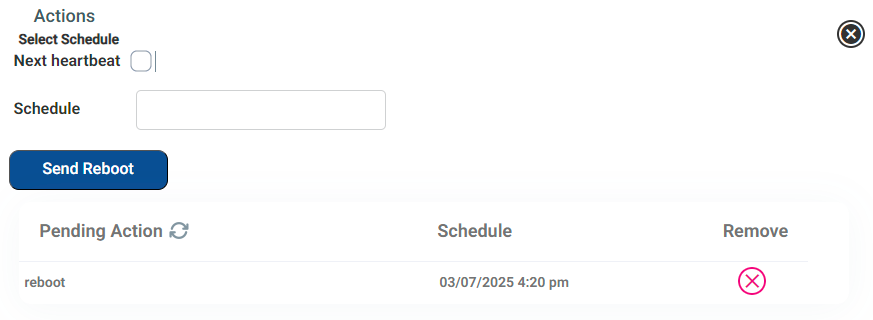
You can abandon the command without sending by clicking the black X
Get Player Log
Get Log ~ Player sends a Data log, helpful for troubleshooting
Get Log ~ Player sends a Data log, helpful for troubleshooting
When you click Get Log, it will schedule the action for the next heartbeat
You will see the Playerlog command as a Pending Action

You can click the refresh symbol, and when the logs have been retrieved, the pending action area will be blank
Now, in the lower right area of the player screen, you will be able to Refresh the player log section at the lower right of the player screen

Click on the drop-down and select the date of the logs – if more than one set of logs were generated. After selecting the specified date, the list with the logs will be displayed as shown below.
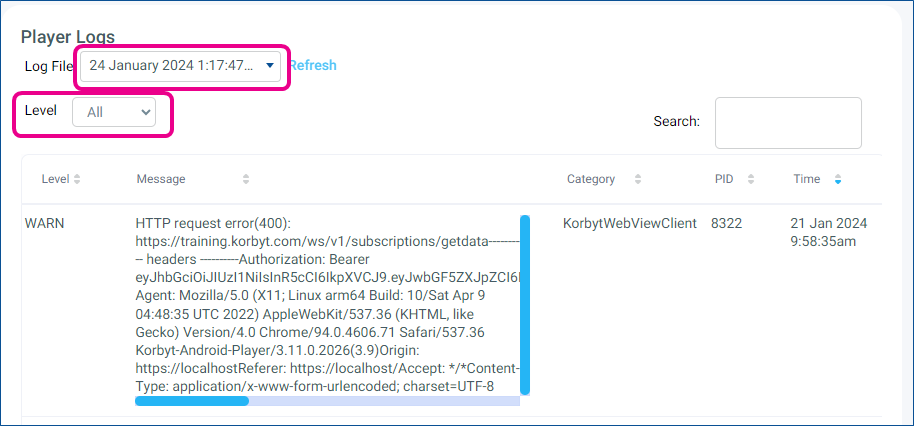
After selecting the log file date, it can also be filtered by Level.
Below are some examples, showing what the logs can be filtered by.
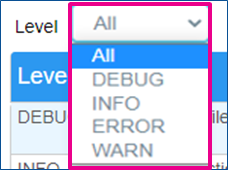
Selecting All it will display all the entries.
You can also highlight the text in the error messages and copy it to paste into a Word document or similar
Get / Update Screenshot
Get Screenshot ~ Retrieves an updated screenshot image from the player
Get Screenshot ~ Retrieves an updated screenshot image from the player
After clicking, you will see the screenshot command listed in the pending actions for the next player heartbeat
You can press the Pending Action refresh button, and when the individual command is no longer listed, it has been carried out
After the Pending Action command for the screenshot has cleared, you can refresh the screenshot that is being displayed
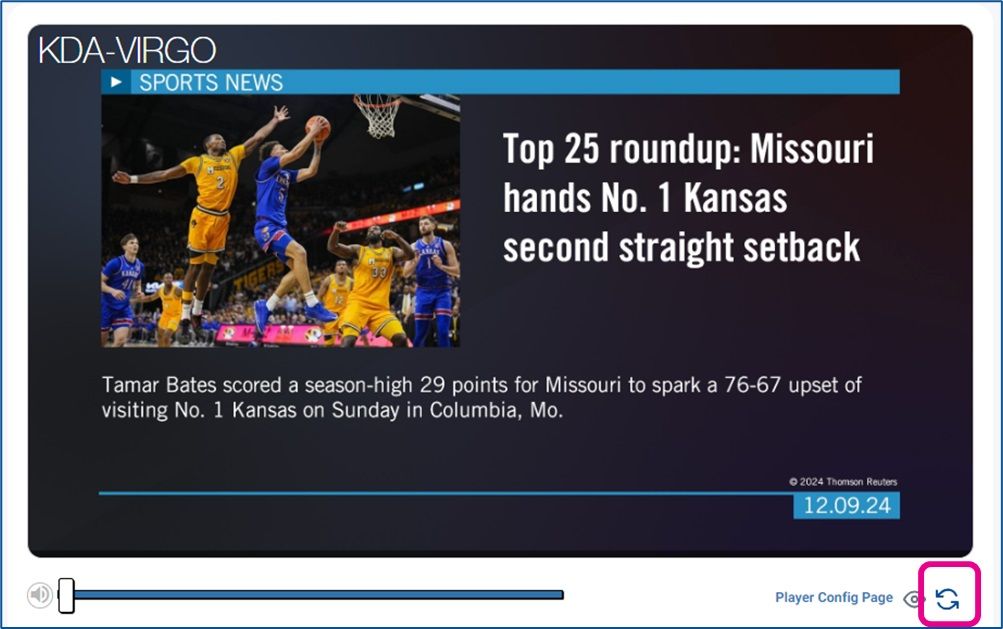
The system will also capture a new screenshot after a player reboot.
Display/Hide Identity
Display/Hide Identity ~ Shows or hides a watermark of Player Information on the screen
Display/Hide Identity ~ Shows or hides a watermark of Player Information on the screen
Display Identity makes the player display information about itself on the screen in a watermark that will be presented on top of whatever content is being played
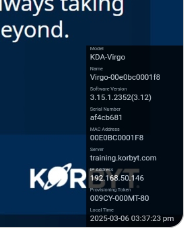
Player Model, Name, Agent Software Version, Serial Number, MAC Address, Server, IP Address, Provisioning Code, Local Time
This information can helpful in identifying which player is controlling which screen, and other player informationbe
Hide Identity turns this information off
Upgrade Player Software / Agent Version
Player Upgrade ~ Upgrade the Korbyt Agent Software
Player Upgrade ~ Upgrade the Korbyt Agent Software
When the command is first clicked, it will show available software updates
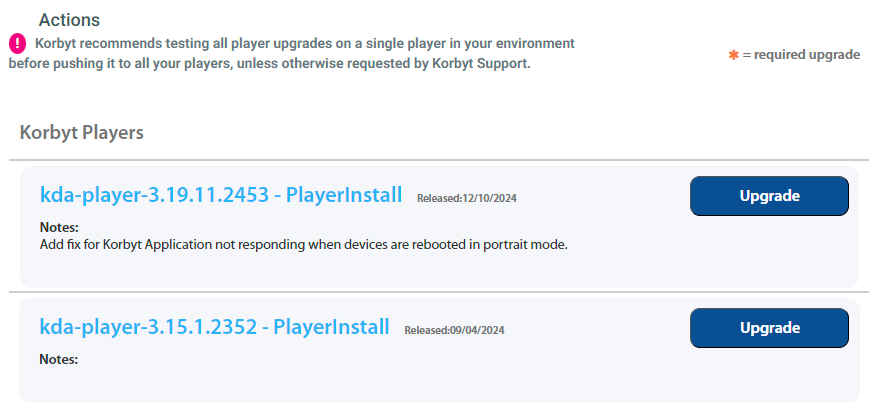
Available updates will depend on Player Type and available new versions
Korbyt recommends testing all player upgrades on a single player in your environment before pushing it to all your players, unless otherwise requested by Korbyt Support.
Stairstepping is not generally required unless indicated on specific version notes
After clicking Upgrade for a specific version, you will be asked for scheduling information
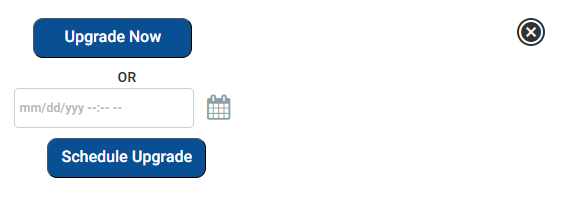
You can upgrade on the next heartbeat, or at a scheduled time
Clear Cache
Clear Cache ~ Removes all saved data on the player
Clear Cache ~ Removes all saved data on the player
Removes all local content saved on the player.
Does not remove Korbyt Application, BUT will remove any custom code or security certificates
Should be a later troubleshooting step if other steps have not resolved
Should Get Log before clearing cahce
Show/Hide QR Code
Show/Hide QR ~ Shows or Hides a watermark of Player Information on the screen
Show/Hide QR ~ Shows or Hides a watermark of Player Information on the screen
Display QR makes the player display a QR code in the upper left corner
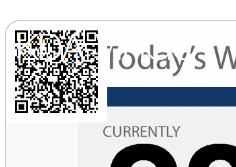
When sanned it will share the Player Model, Player ID, Tenant ID
Used to be used with a retuired Korbyt management app
Hide QR turns this off
Hot Key Commands
Hot Key ~ Send the player a Hot Key command
Hot Key ~ Send the player a Hot Key command
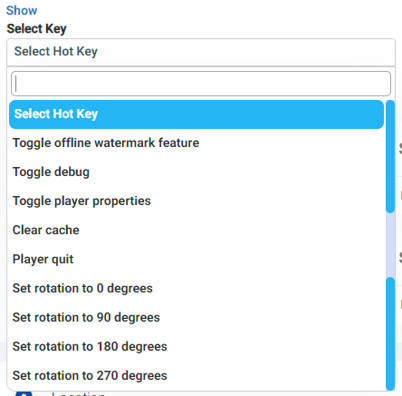
Hot Key Commands are for KDA and KWP devices
They are not compatible with BrightSign Players
Use the Drop Down to select the Hot Key command you wish to send
Runtime Select
Runtime Select ~ Set a Runtime Environment Version (PRT)
Runtime Select ~ Set a Runtime Environment Version (PRT)
Korbyt players use Chromium to display content.
PRT or Runtime is used to help Chromium execute tasks and events that are responsible for handling how content is displayed and scheduled to be displayed on players.
Newer versions of Runtime allow newer features of Korbyt to Function Properly and keep all functions running smoothly.
If your players are not using the latest verion of PRT they may encounter errors or difficulty
Select the PRT versions from the dropdown
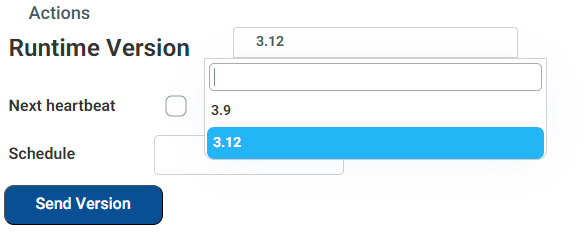
After you select a version, you can send on Next Heartbeat or on a Schedule
Resolutions
Resolutions ~ Select one of the available resolutions.
Resolutions ~ Select one of the available resolutions.
Korbyt is capable of handling a wide variety of resolutions.
The resolutions you will see available in the drop down are a combination of the resolutions that the media player can support and the resolutions that the DisplayID information has provided to the player about the resolutions the screen has available
For video walls it may be required to use Multi Screen Controls
Select the available resolution from the dropdown
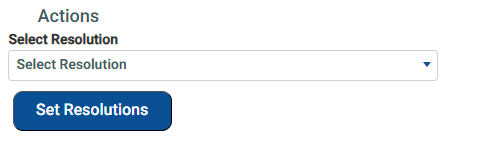
After you select a version, you can send on Next Heartbeat or on a Schedule
Player Metadata and Settings
Player Metadata allows you to program the player with information about itself.
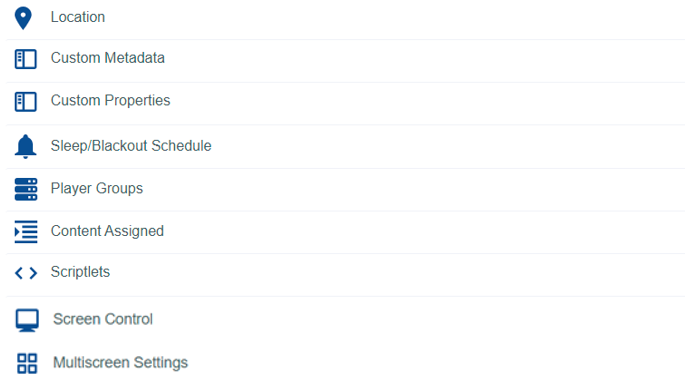
It can be basic information, such as its address or the name of the room it is in, but 100 blank Custom Metadata fields allow you to give any points of information that distinguish the player and who it serves. This information can then be used to create Clever Playlists or Dynamic Player Groups.
This information can be entered and changed one player at a time in this Player Screen, or you can update several players’ metadata at once using the Bulk Provisioning Process
Expand a Metadata or Settings section to learn more
Locaiton
Location ~ The player’s address and location information
Location ~ The player’s address and location information
The Player should at the least be programmed with their physical address, as this controlls the Player Map on the dashboard, as well as any Subscription data that can destinquish different addresses
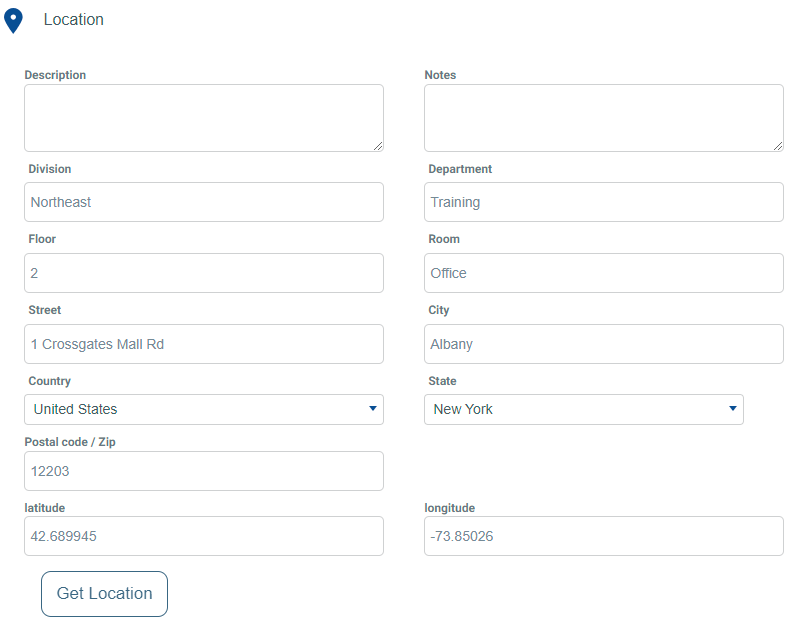
After entering the mailing address you can click Get Location to fill in Latitude and Longitude
Custom Metadata
Custom Metadata ~ Customizable information fields
Custom Metadata ~ Customizable information fields
Custom metadata fields are initially labeled metadata01 - metadata100 and can be used with these generic names.
You can also customize the display name of these fields in the System Settings
Click the Gear Icon in the upper right
Select the Signage tab at the top of the settings
In the Player Metadata section configure the metadata fields as needed
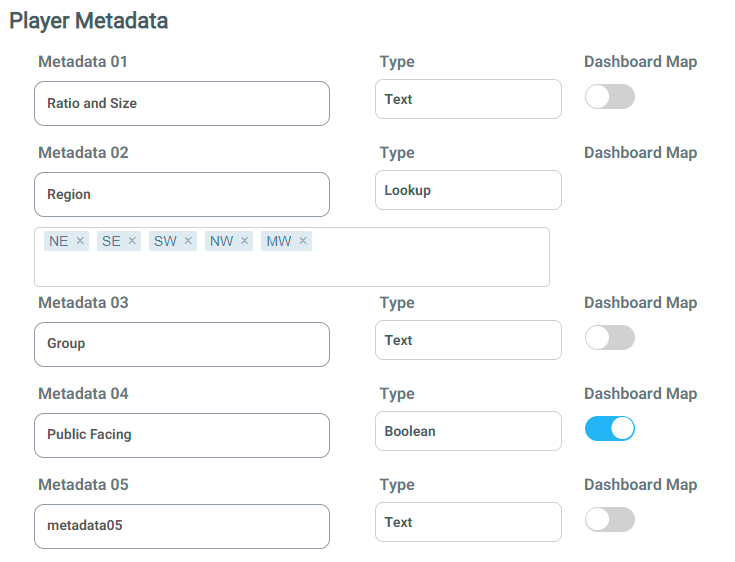
Changing the field name by typing a new name
This will change the name that is presented in other drop-down menus that reference Metadata, in Clever Playlist rules, for example
Type controls what data will be in the field
Text - Standard text field
Lookup - create a lookup table of other drop down values
Boolean - Sets the field to Yes or No value only
Number - Sets the field to numerals only
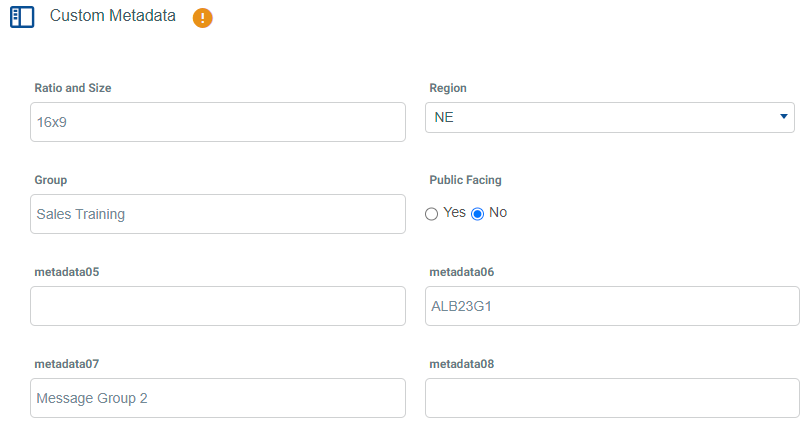
With the player knowing these details, it can not be used when created
Dynamic Player Groups

Cleverl Playlists
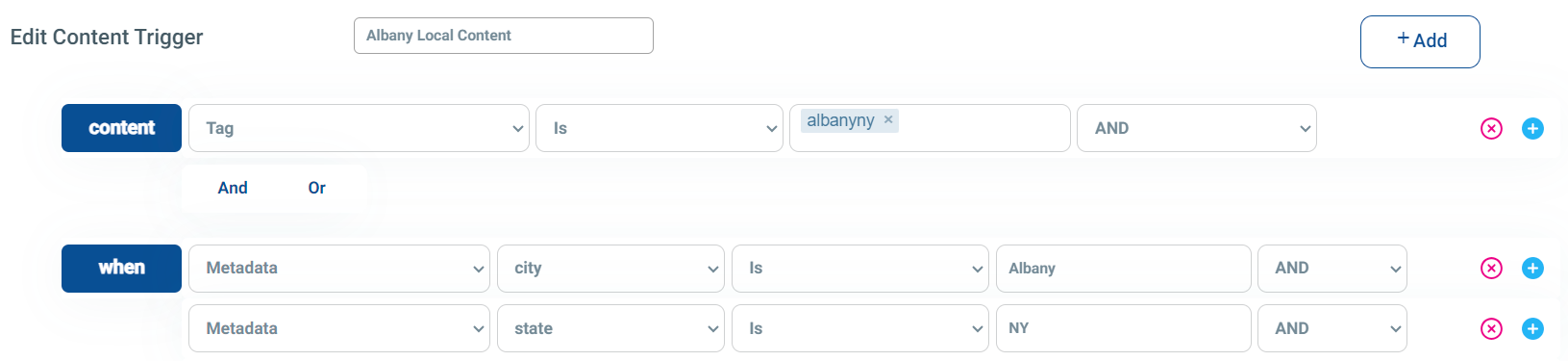
And other automations
Custom Properties
Custom Properties ~ Used by BrightSign, LG, and Samsung devices
Custom Properties ~ Used by BrightSign, LG, and Samsung devices
Allows the setting of specific values for a few select player types
Not all options seen here will be available on all players
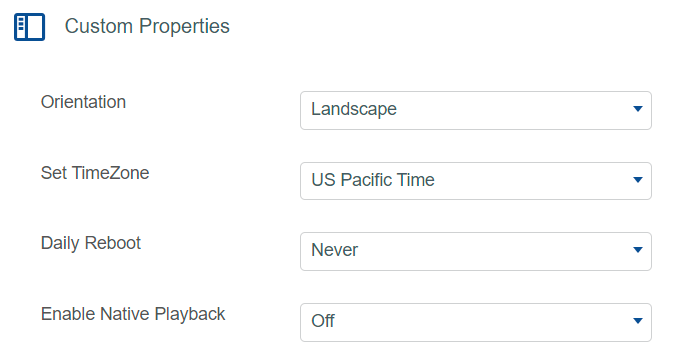
Orientation - Allows rotation of the screen
Set TimeZone - Set a specific timezone if it hasn’t been controlled by BSN Clould
Daily Reboot - Set a daily reboot schedule
Native Playback - Allows native video playback on Brightsigns, can improve Video performance on some video files, BUT if turned on will severely limit the playback of other types of content
Sleep/Blackout Schedule
Sleep / Blackout Schedule ~ Set a sleep or network blackout time
Sleep / Blackout Schedule ~ Set a sleep or network blackout time
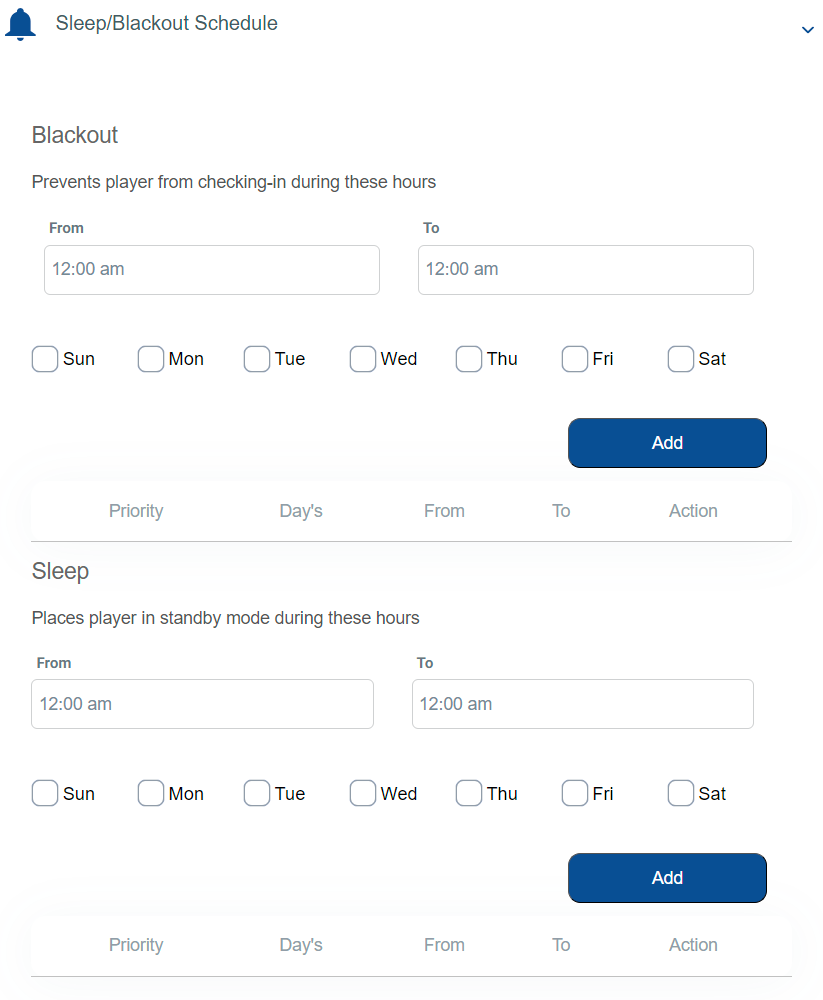
Blackout and Sleep Commands are not supported on all Players
Blackout - Sets a time when the player will not perform normal Check-In behavior. Can be helpful if there are times when network traffic is critical and slow. Will stop content updates from happening during the Blackout period
Sleep Schedule - Sets a time when the player unit will go into a sleep mode. The Screen behavior and programming will decide what shows when the Media Player goes to a sleep state. Most will also enter a power save mode, but that is not guaranteed
Player Groups
Player Groups ~ Can see which groups the player belongs to
Player Groups ~ Can see which groups the player belongs to
The Player Groups section shows the groups that the player belongs to

The Group Membership is controlled on the Player Group screen
The Group Names are links that will open a tab showing the Player Group if the user has access to control player groups
Content Assigned
Content Assigned ~ Can see the playlists assigned to the player
Content Assigned ~ Can see the playlists assigned to the player
Can See Playlists assigned to the Player, either directly to it as an individual player or assigned to a Player Group that the player is a member of.
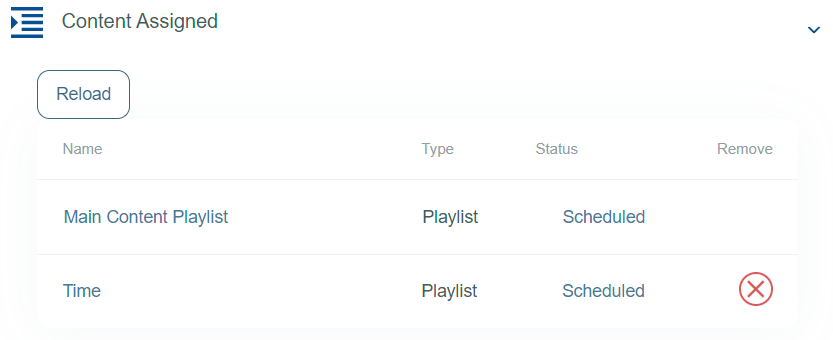
A playlist that has the Red X to remove means it is a playlist that was assigned to the player as an individual
A playlist without a Red X to remove means it was a playlist assigned to the group of players.
To remove this playlist, you will have to remove the content from the Group or remove the Player from the Group
Scriptlets
Scriptlets ~ Program the player with Microcode
Scriptlets ~ Program the player with Microcode
Scriptlets are small sections of code that can be installed into a player to make it act in a custom way that is not a normally supported option
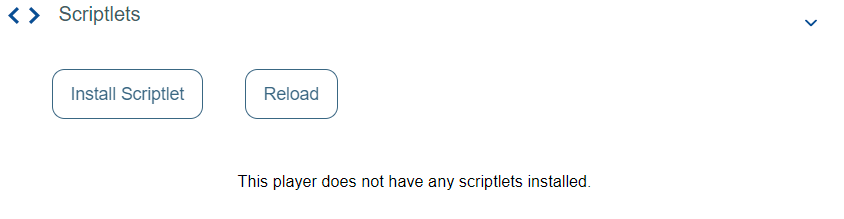
Scriplets, by their nature, are custom and have to be matched to the specific player and end goal
Screen Control
Screen Control ~ Allow the media player to control a screen over a Comm Port
Screen Control ~ Allow the media player to control a screen over a Comm Port
Screen controls allow the player to be programmed with commands that are sent to the screen through a dedicated communication port.
Supported on KDA Media Plyerss
This can be limited by screen manufacturer and compatibility and specific KDA Model
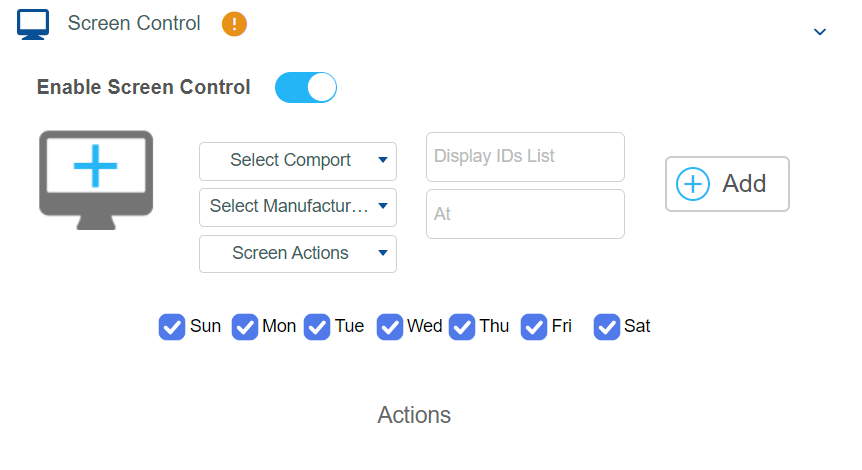
The exact command and syntax will vary based on screen manufacturer
If the screen you are hoping to control is not a listed make/model you can configure additional ones in your Tenant Settings > Screen Control
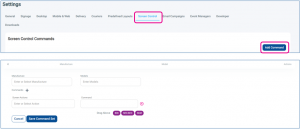
To configure additional displays you will have to know the HEX / RS232 / IR codes for the model you are trying to control
Multiscreen Settings
Multiscreen Settings ~ Allows a multi-output player to merge its outputs to one screen
Multiscreen Settings ~ Allows a multi-output player to merge its outputs to one screen
Multiscreen Settings are only available on players that have multiple HDMI outputs
Some multi-output players will not accept these GUI settings and will need a custom Scriptlet to combine the screens
Either complete the details in the Express Setup section, or device each screen individually
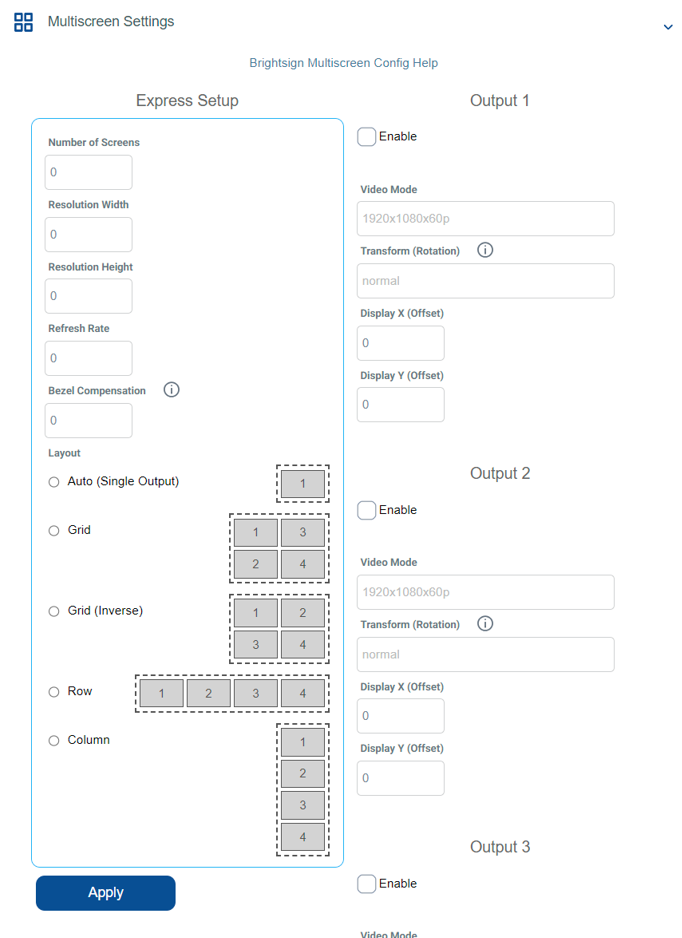
Remeber to hit the Save Button after selcting Apply
Player Details Section
The Player Details section has multiple areas of information. Some sections only display details about the player, some sections are configurable.
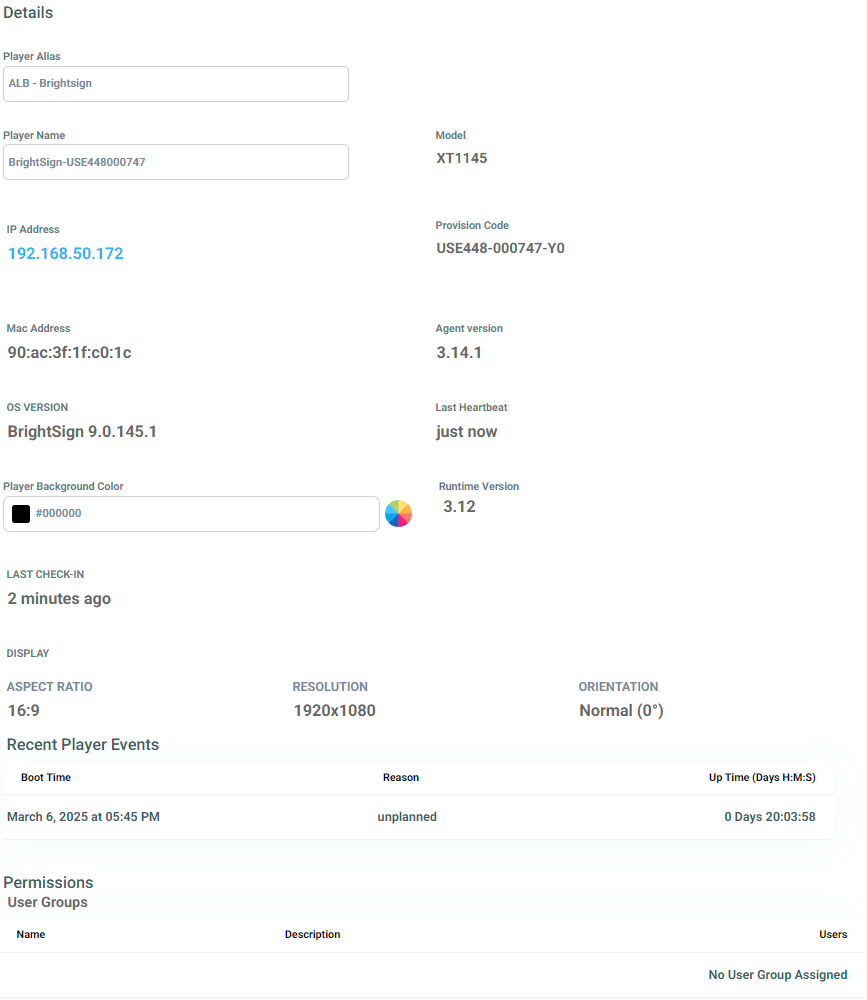
Details that can be Set
Player Alias
An optional “Friendly” display name
Some Media Players have a limited ability to change the player name for the device
Either character limits or format limits
The Player Alias is a way to set a more friendly name that will be displayed in the Korbyt CMS in places that are labeled Player Name
Player Name
It can be set, but some devices limit how it can be changed
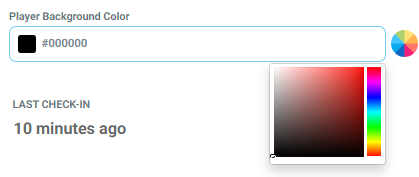
Player Background Color
The color that will be seen if the content does not fill the screen completely
Letterboxing, or Columnboxing
Normal Default is black, but it can be changed
Setting to a Company color can help content look more polished if it is not 100% matching the screen ration
Enter a color code, or use the color wheel
Details that are only viewed
Model - The media player model information
IP Address - the IP Address that the player is connecting from
Can be used to access the Player Configuration Page if available
Provision Code - The code that the player will display if not connected to a tenant
Can be useful to check if a type was entered on a player that has been stuck in Pending status
MAC Address - The device’s MAC Address
Agent Version - The Version of the Korbyt Software that is installed
OS Version - The Operating system version for the player
Last Heartbeat - The heartbeat should be Just Now
Heartbeat should happen every 60 seconds
Runtime Version - the Runtime Environment currently selected
Can be changed through the Action commands
Last Check-in - the last time a check-in was processed
Should be every 15 minutes
Display
Aspect Ratio, Resolution, Orientation
Recent Player Events
Shows the time that the player has been running, and any unexpected or planned reboots
Permissions
Shows the User Groups that have access to the player
Access to the Player is controlled by Player Groups, this is only a display of any limitation
Still need help? Share an idea