Guide To Interactive Signage In Korbyt
Written By Ed Kinne
Korbyt supports several configurations that take Signage from a passive experience to an interactive one.
This article serves as a guide to the different ways interactivity can be configured in Korbyt.
Interactivity Options Reviewed in this article - use the On this page to the right to navigate
Interactive Elements in the Layout Builder
Quick Actions in the Layout Builder for User Interactivity
Data Triggers for Automated Reactions
Kiosk Builder
Optics
Third-Party Interactivity and Responsive Spaces
Interactive Elements in the Layout Builder
The Layout Builder lets users create designs with multiple content types all sharing the same screen space by placing multiple Elements together.
Elements are drag-and-drop content types that can be configured for various use cases.
Some Elements are interactive or allow interactivity through their normal behavior.
Expand for Interactive Elements in Korbyt
Expand for Interactive Elements in Korbyt
Element | Description |
 | Adds a room, floor, or building map that is within Korbyt Wayfinding & Space Management. |
 | Allows you to add a scheduling experience for your workplace. This element is interactive when displayed on a player and can view room schedules and book rooms for use. Outlook and Google calendars are supported. |
 | For interactive use cases like Kiosk, Wayfinding or Space Management. Adds an interactive Button that can be linked to Room Booking, IFTTT programming, or other Kiosk Pages. |
 | Can add an external website. Can be interactive. Websites that require authentication can also be added with specific authentication values. |
 | Creates a list of files based on the content that has been loaded to a specific folder within the Media Manager. |
 | Creates a QR Code that will direct a person who scans it to a specific website. The colors of the QR code are customizable. |
 | Adds a meeting display element that creates a meeting room door sign, this is linked to the room schedule data that is provided through a Data Adapter within Korbyt. Requires that a Data Adapter has been configured and the design subscribes to that data. |
 | Allows the linking of two data subscriptions into one layout to view 2 layers of data. Data Subscriptions are still defined in the Control Panel |
 | Adds a document that has been uploaded to Media Manager. Can set display time between pages. |
 | Layout Only – Builds an interactive form that someone could fill out on a Kiosk or on a Sonar. |
 | Layout Only – Links to a Survey Built in Korbyt Anywhere within the Survey Tool. |
 | Adds an element that can hold custom HTML code. That custom code will then appear in the Builder Tool. |
 | Allows you to link to Tableau data using your Tableau credentials to make a Tableau dashboard seen in a Layout or Message |
 | Layout Only – Pulls in data from the PowerBI Service with Microsoft for data visualization. |
For a list of ALL elements please see Layout And Message Builder Elements
For more details on how to use the Builder Tool to design a Layout see Using The Builder Tool For Layouts Or Messages
Quick Actions in the Layout Builder for User Interactivity
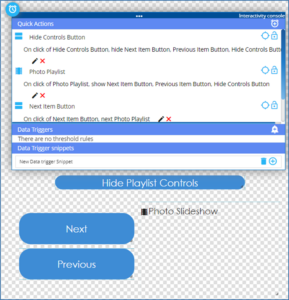
Quick Actions allows designers to embed interactive logic and macros into any Layout.
This is done using the UI to select an element, configure a trigger, and then the desired response.
This interactivity is done by applying instructions to elements that already exist in a Layout without changing to a whole new layout.
Common Use Cases of Quick Actions:
Toggling visibility of a set message or element
Sending a command to an element like Playlist or Carousel to change which item is displaying
Refresh Data
Trigger animations
For more details on how to configure a Quick Action see the Quick Actions for Interactivity in a Layout or Message
Data Triggers for Automated Reactions
Data Triggers allow designers to embed reactive logic into any Layout controlled dynamically by the information provided in a Data Integration.
This is done using the UI to select an element, configure a Data Trigger, and then the desired response.
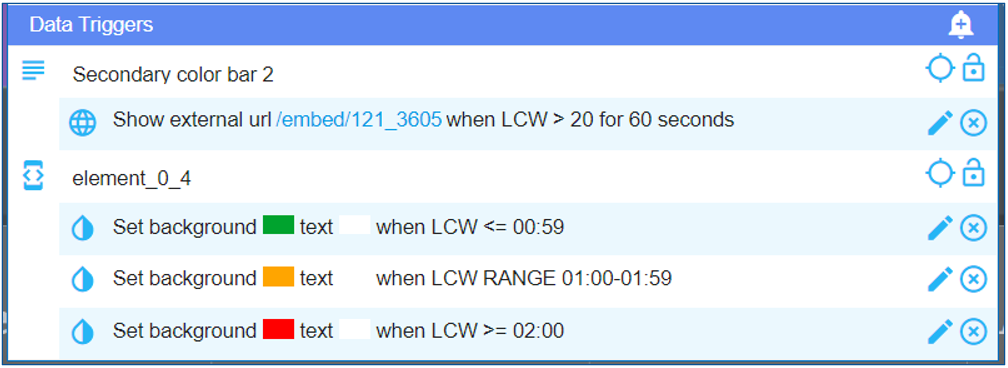
This type of change does not require any direct user action, but is programmed into the Layout to interact with your stream of data
Common Use Cases of Data Triggers:
Changing formatting of text to draw attention to KPI values
Toggling visibility of a set message or element to drive specific actions
For more details on how to configure a Data Trigger see Data Triggers to have Real Time Data Effect Layout Elements
Kiosk Builder
Korbyt Kiosk Builder allows you to build a collection of Layouts/templates that end users can navigate through using interactive touch screens or keyboard/mouse.
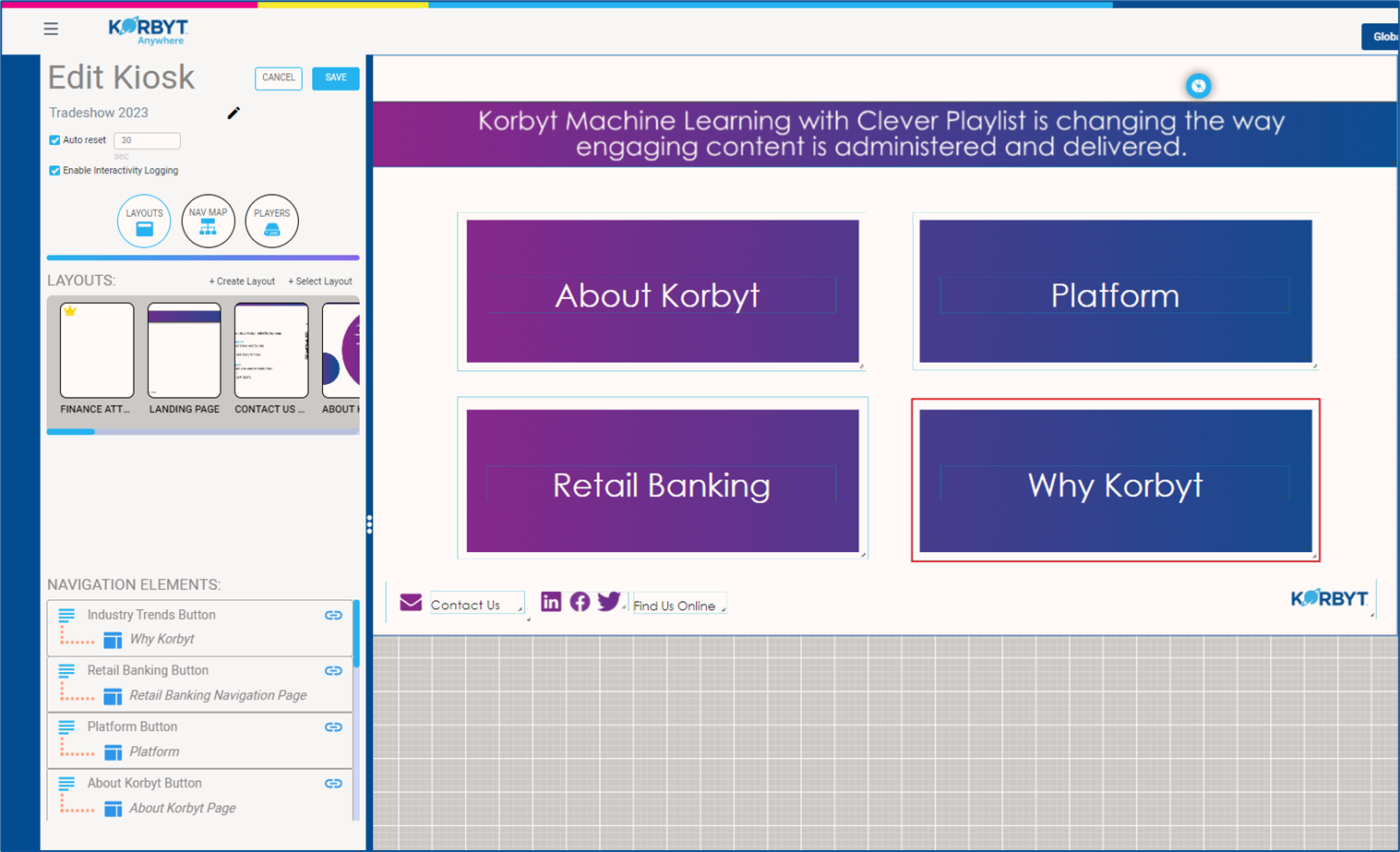
Unlike Quick actions that stay on 1 layout and toggle items Kiosk allow the user to move through multiple “pages” of layouts offering more customization and variation.
Kiosk builder includes the ability to enable and configure Interactivity Analytics to provide feedback on user engagement.
For more details on how to use the system, see the Kiosk Builder article
Optics
Optics is a subscription-based Korbyt feature for Digital Signage that uses a USB camera attached to a media player to interact with end users by changing the playlist that is being displayed.
Content can be set to change based on the number of Detected users and Dwell-Time.
Collected data is text-only and used for content automation purposes, and Analytics on user engagement.
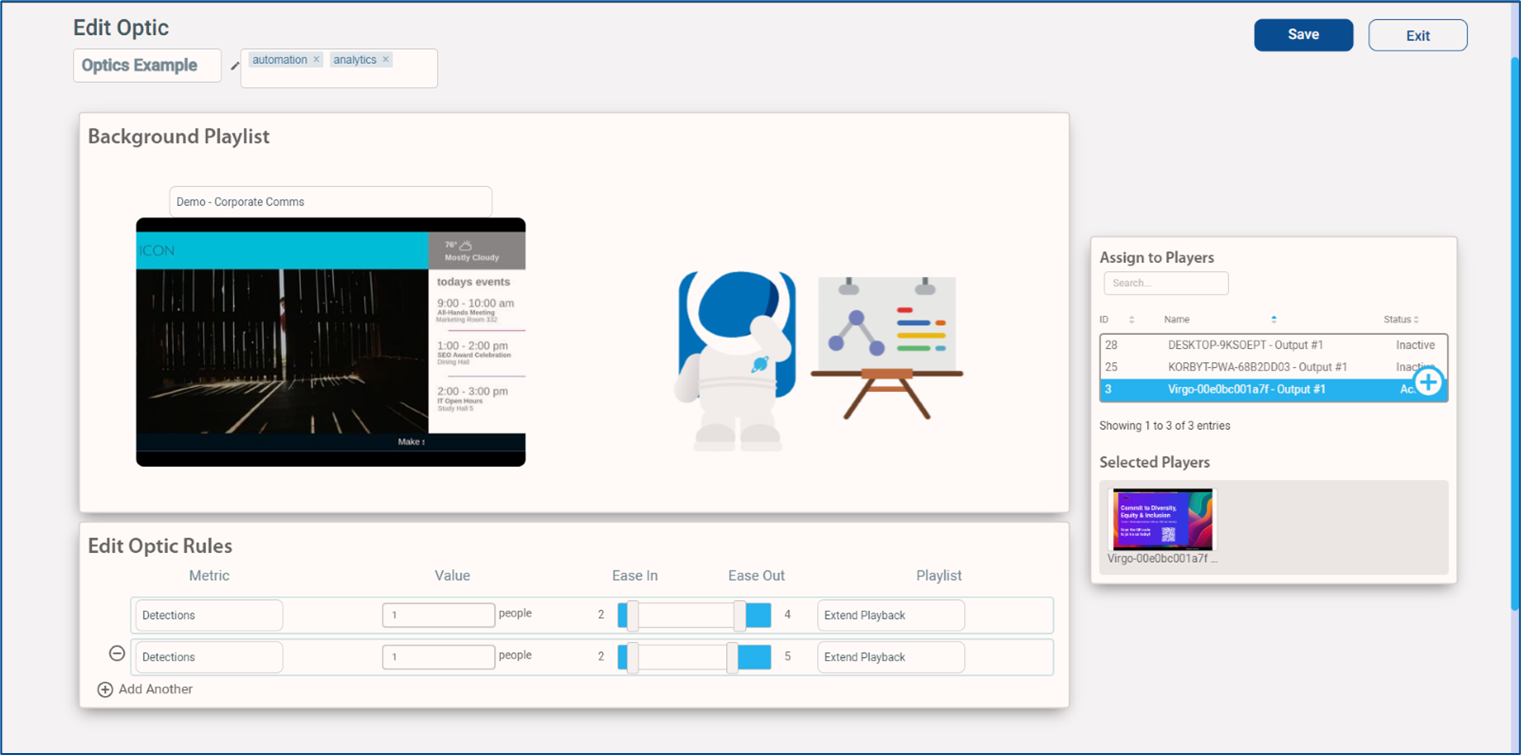
For more details on the requirements and configuration of Optics see Korbyt Optics Service To Control Digital Signage
Third-Party Interactivity and Responsive Spaces
Korbyt enables the use of a variety of third-party sensor types, including sensors, remote controls, database data triggers, tablets, and more.
For diagrams of high-level system integration see Remote Control Of Korbyt Players And Content From External Devices
These options can be customized to meet your needs and should be reviewed with your Korbyt Sales or Service representative for more specific details.
Still need help? Share an idea