Signage Workflow Examples
Ways that content can be sent to your Screens
Written By Ed Kinne
Korbyt offers many ways to control and automate content flow to your screens.
This article reviews Korbyt’s scheduling and publishing systems at a high level. Detailed instructions are in the linked articles.
You can browse the examples below by expanding them
Or you can download a PDF that has them all
Standard (Manual) Workflow Examples
These examples involve hands-on steps to create and schedule content. You can enhance many of these processes with some level of automation.
Standard Content Full-Screen Content Scheduling
A manual process of uploading media items and assigning them to Playlists
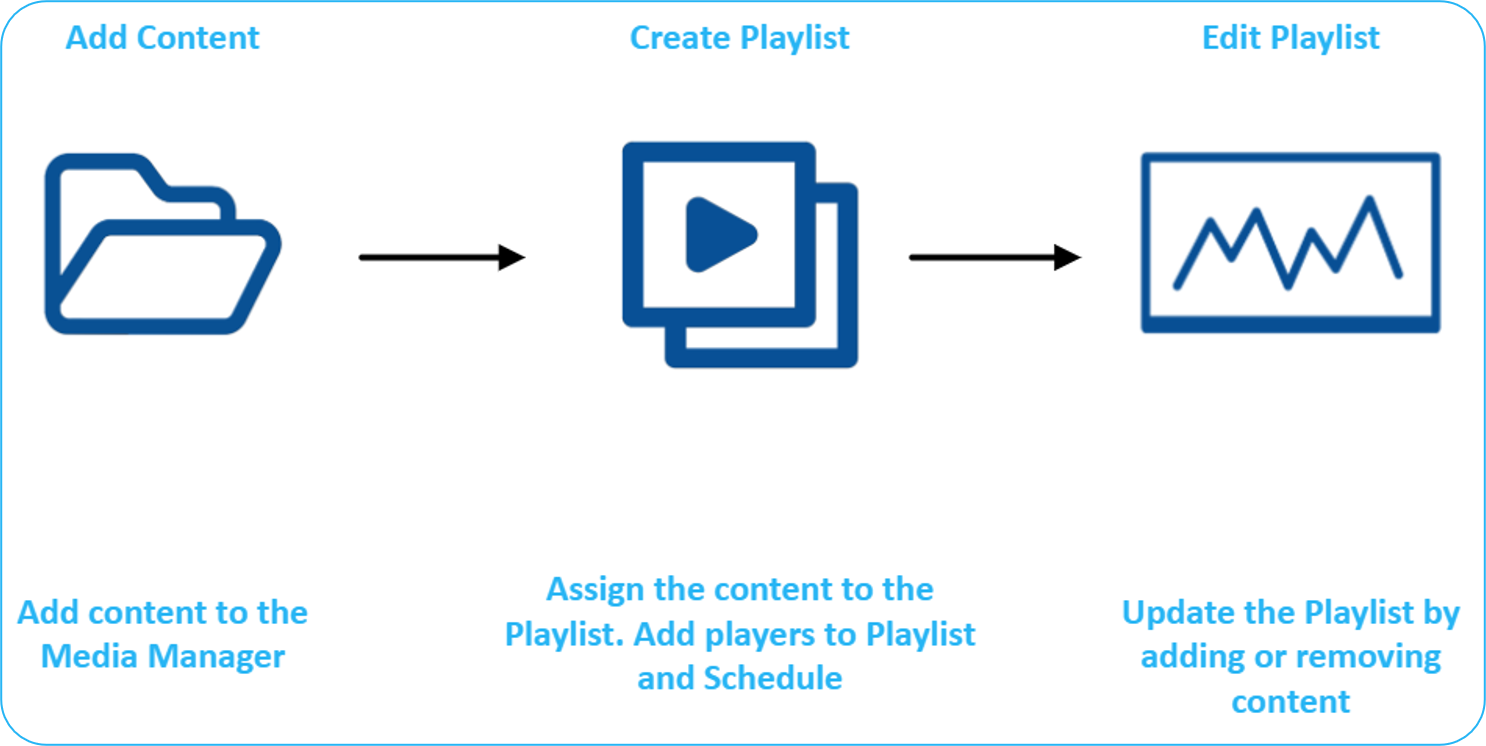
Add content to the Media Manager
Create a Playlist and add your newly uploaded content.
Or edit an existing playlist
Add Players to the playlist and schedule it.
When needed, update the playlist by adding/removing content.
Remove the item from the playlist, or delete it from the Media Manager
Standard Layout Scheduling
A manual process, but with content created in the Korbyt Builder Tool, not limited to preexisting content
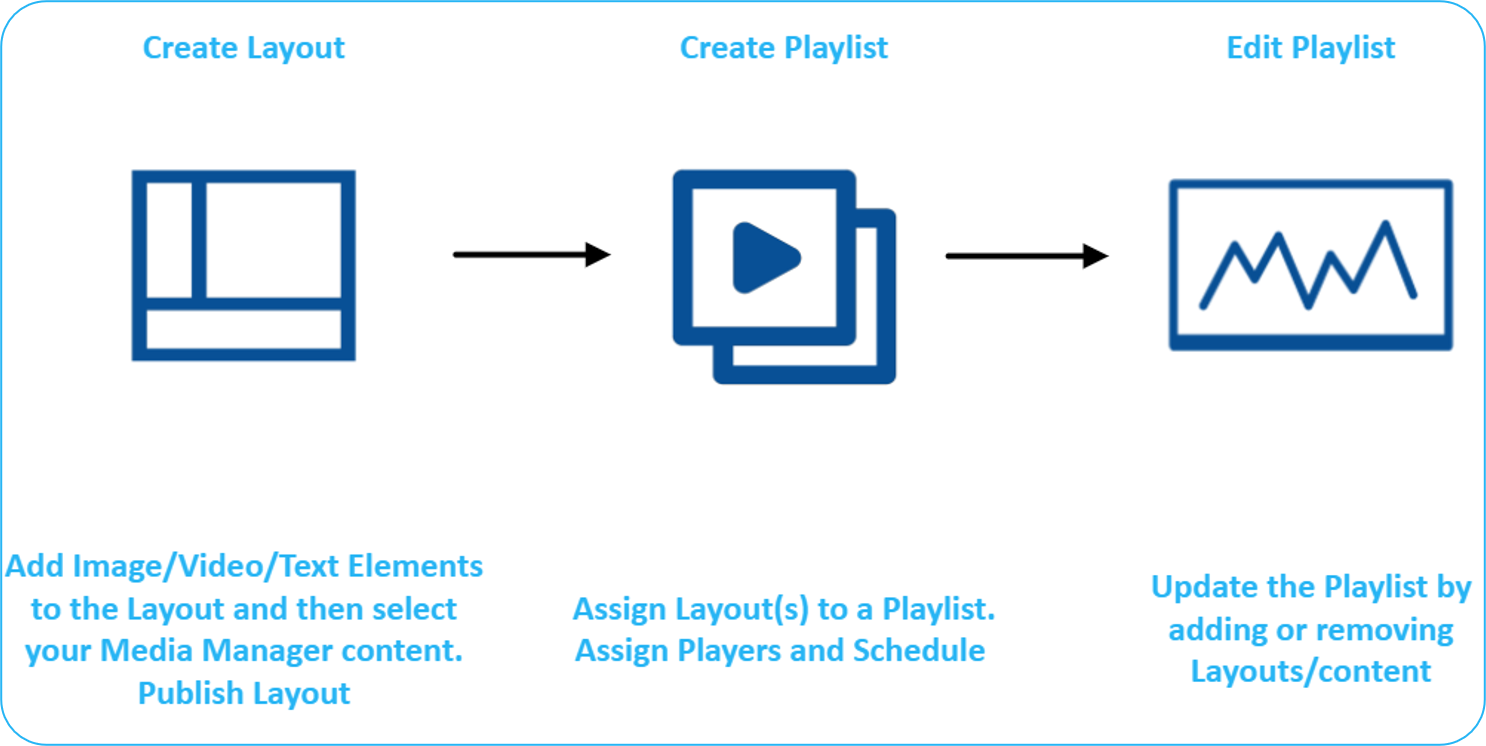
Create a Layout and add and configure the Elements you want to show
Publish the Layout.
Add the Layout to a Playlist.
Assign Players and schedule it.
Update the playlist by adding/removing Layouts/content.
Update the Layout by editing and republishing
Standard Launchpad Scheduling
A manual process where users fill in a Template that creates and schedules new content
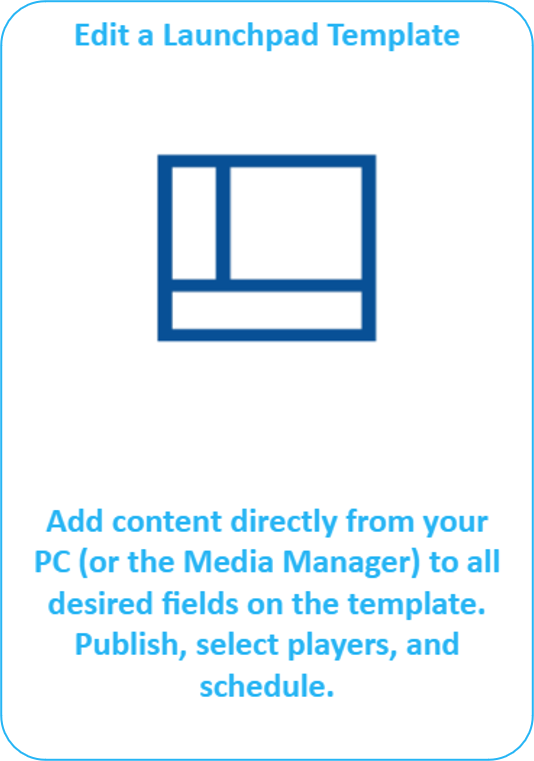
Open a Launchpad template and fill in the required fields.
The fields available will depend on the Launchpad template
Images added to the Launchpad will be saved to the Media Manager automatically
Click Publish to save the Layout you just created
Optionally, if available in the specific Launchpad, schedule the content by choosing Players/Groups or available Playlists
Automated Content Workflow Examples
Folder to Full-Screen Scheduling
An Automated Process that uses folder structure and Clever Playlists to show items on screens automatically
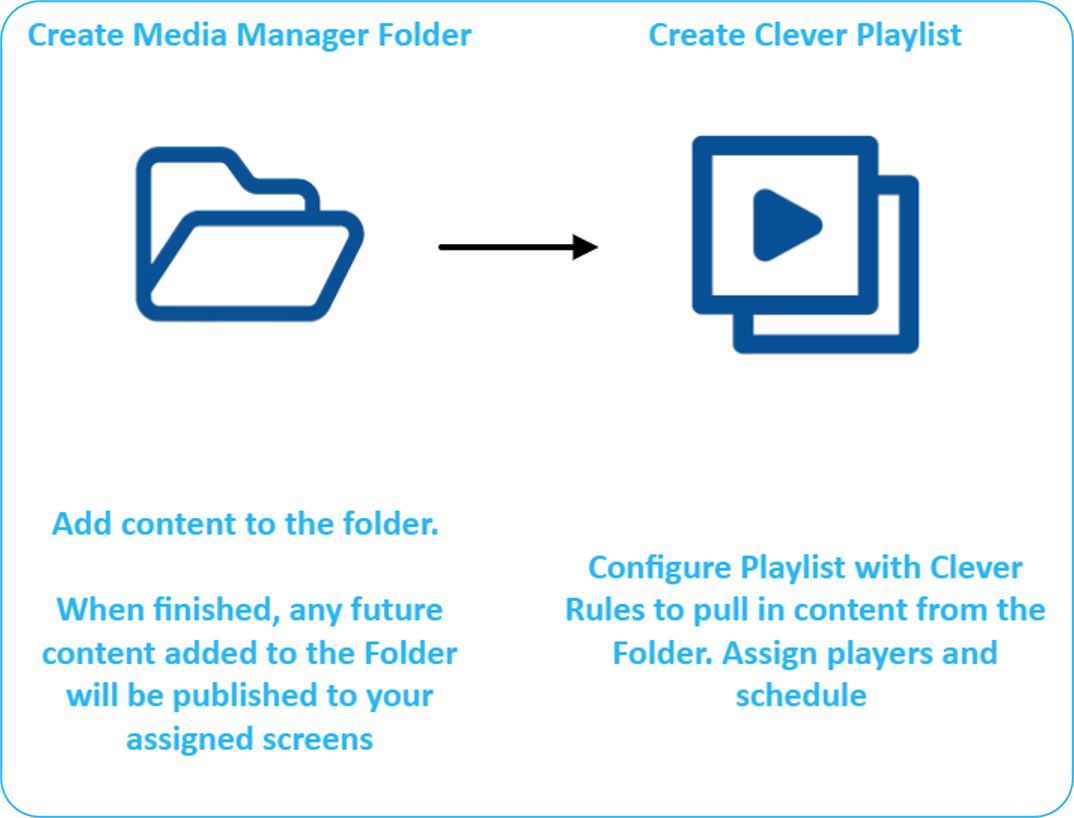
Create a Media Manager Folder and add initial content.
Create a Playlist (Clever Playlist) that pulls from that folder.
Assign Players and schedule it.
Any new content added to the folder is automatically published full-screen to assigned screens. Removing content from the folder will stop it from playing
Tag to Full Screen Scheduling
An Automated Process that uses Tags and Clever Playlists to automatically show items on screens
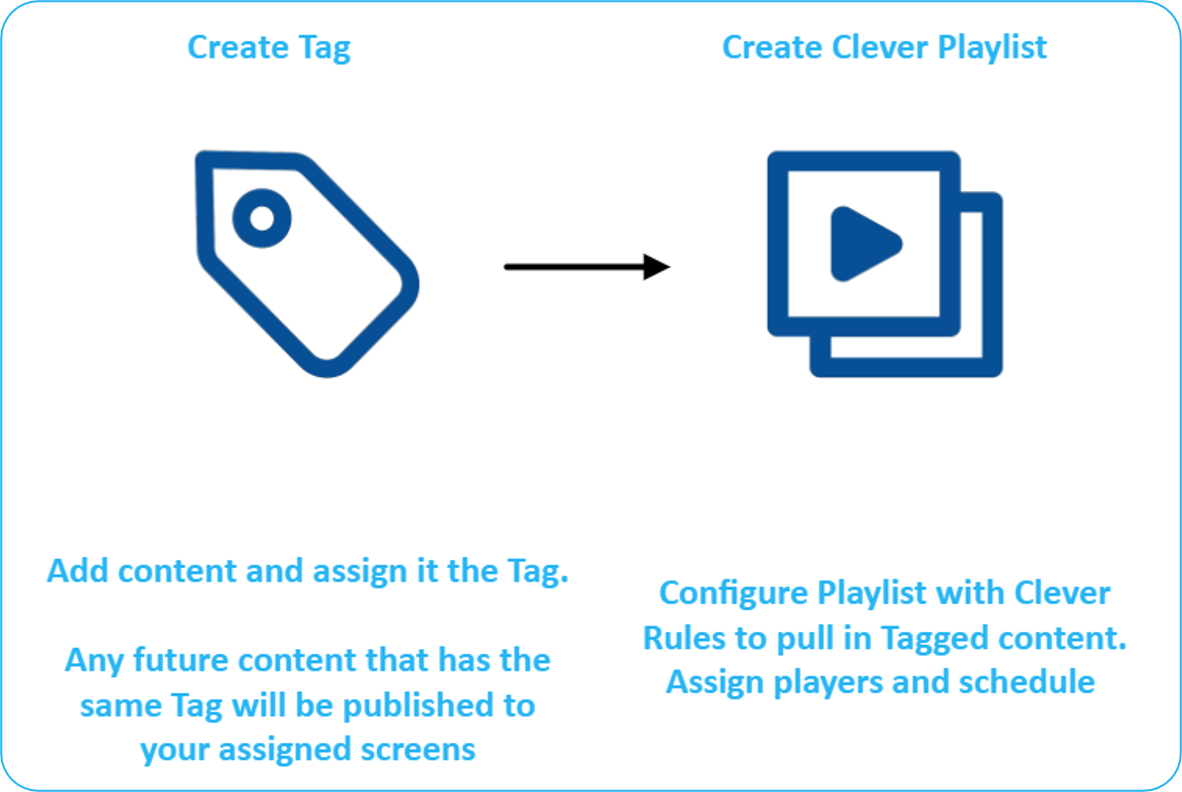
Tag your content either when it is uploaded, or in the Media Manager
Create a Playlist (Clever Playlist) set to pull tagged content.
Assign Players and schedule it.
Any content with that tag is automatically published full-screen. Add the tag to new content to add it; remove the content by deleting it from the system or removing the tag
Clever Playlists can have a combination of Folder and Tag-based automation together on the same playlists
Screen Area (Not Full Screen) Scheduling
A combination of a Layout Design to show persistent screen elements (such as the Time, Weather, or a Ticker) along with the other main messages
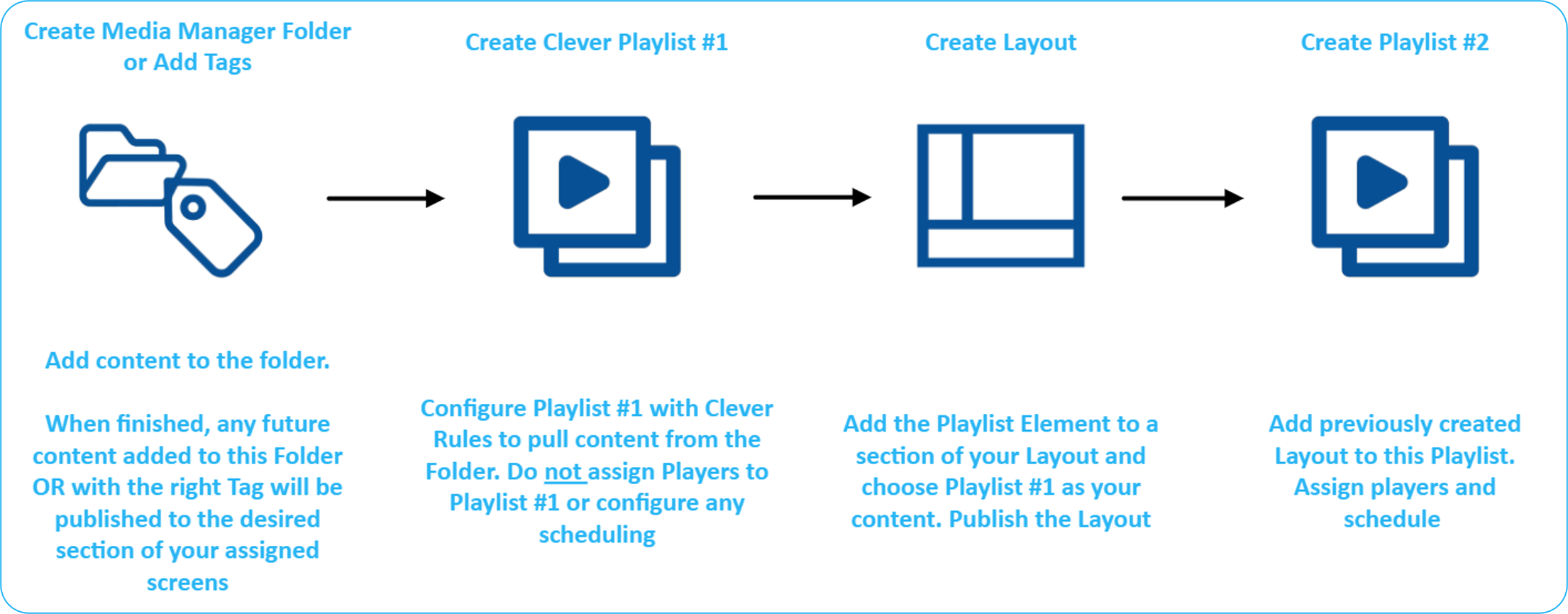
Create your Playlists for the Main Message Area
Use the steps above for Folder, Tag, or Both to create the playlist
DO NOT select your Players on this playlist
Create a Layout, add a Playlist Element in the target section/zone, and point it to the Main Message Area playlist you just created.
Add the other elements you want to also be on the screen, such as time, weather, or a ticker element
Publish your Layout
Create a second Playlist, add the published Layout, set it for zero seconds to hold it on the screen, and select the players to display this Framework layout
New items added to the folder or tagged will flow into the Main Message Area playlist and appear only in that section of the screen via the Layout in the second playlist.
The below options can be used to Automate content to fullscreen or an area of a screen depending on how the schedule to the media player (direclty, or used in a Layout) as described above
Courier to Screen Scheduling
An Automated Process that uses couriers to import content; Clever Playlists that use Folder or tag-based rules to show content on a screen
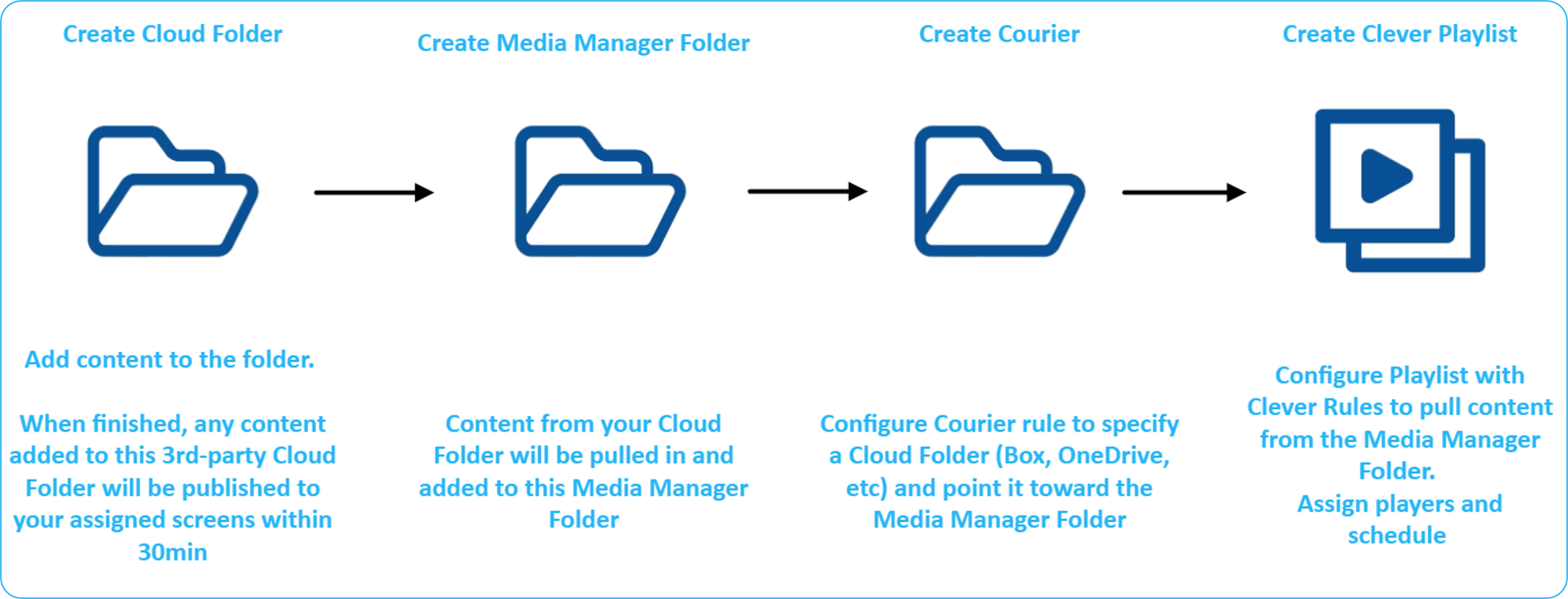
Create a cloud folder (e.g., Box, OneDrive, Google Drive).
Create a target Media Manager Folder in Korbyt.
Configure a Courier rule to pull from the cloud folder into the Media Manager Folder.
Create a Playlist that pulls from that Media Manager Folder.
Assign Players to the Playlist, or use the Playlist in a Layout
Content added to the cloud folder is brought into Korbyt and published to assigned screens.
Launchpad to Clever Playlist
An Automated Process that uses Launchpad templates and Tags to create new content with tags attached and Clever Playlists that use tag-based rules to show content on a screen.
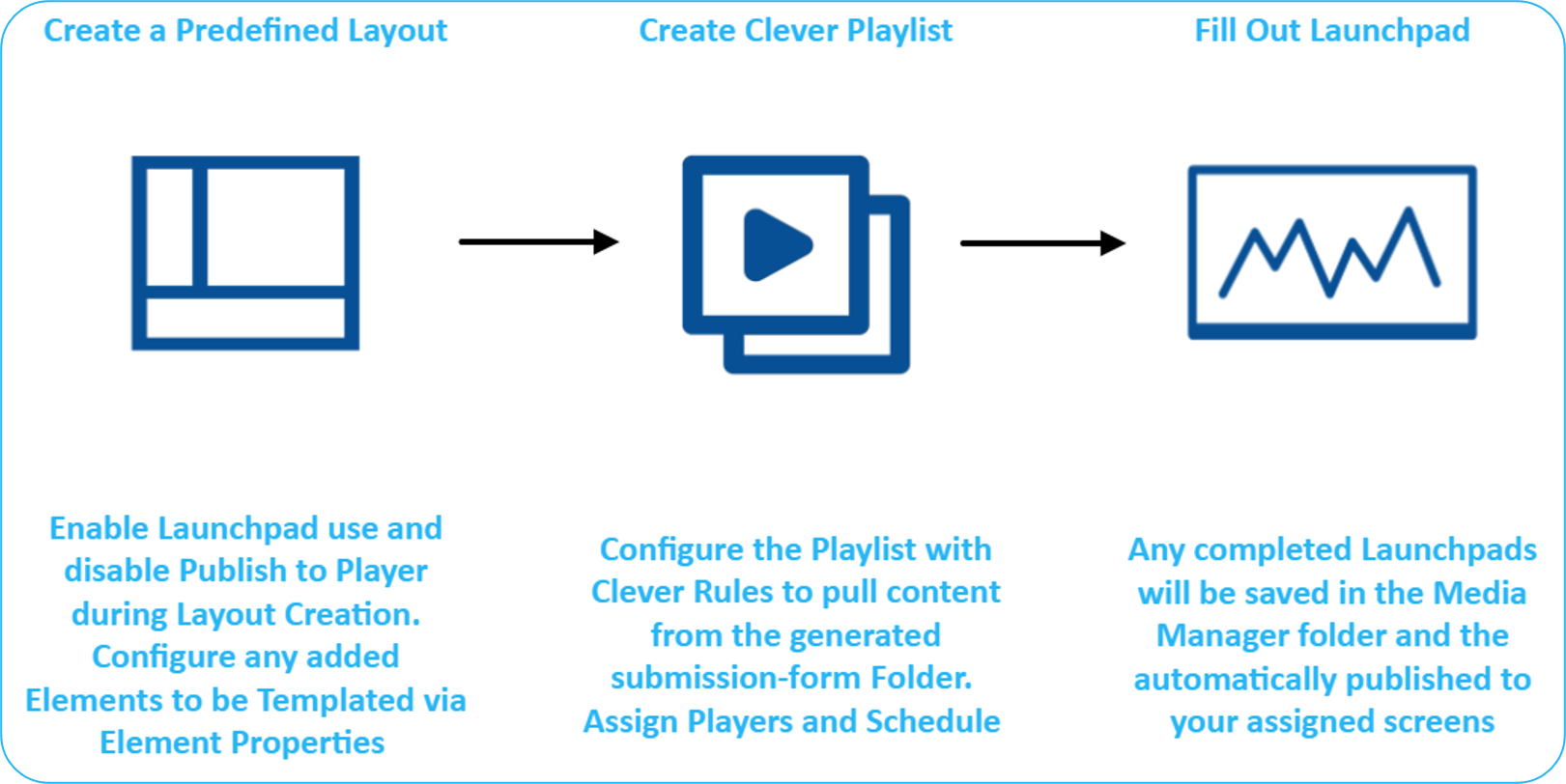
Create a Predefined Web Forms Layout for Launchpads; use and disable “Publish to Player” and Publish to Playlist options
Mark needed Element fields as templated and publish the Predefined Layout (this generates a submission-form folder).
Create a Playlist that pulls from that Tagged content.
Assign Players to the Playlist, or use the Playlist in a Layout
Each Launchpad submission saves to that folder and is auto-published to assigned screens.
Webform Scheduling
An Automated Process that uses predefined webform templates to create new content with tags attached and Clever Playlists that use tag-based rules to show content on a screen.
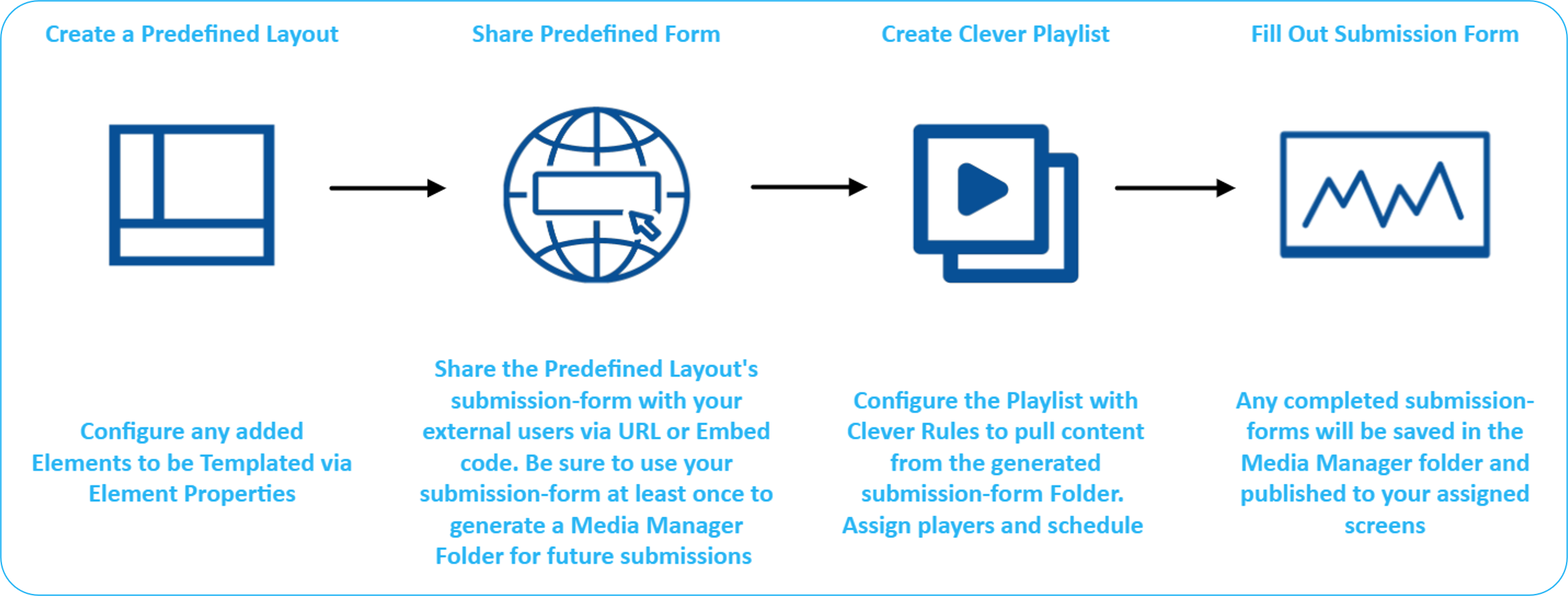
Create a Predefined Web Forms Layout and mark Elements as templated; publish it.
Share the submission form (URL or embed) with external users; submit once yourself to generate the target folder.
Either configure a Tag on the Template, or configure tags for users to select
Create a Playlist that pulls from that Tagged content.
Assign Players to the Playlist, or use the Playlist in a Layout
Each completed submission is saved and auto-published to the assigned screens.
HTML Template Scheduling
An Automated Process that uses the HTML element in a layout to display code that is controlled and configured outside of Korbyt.
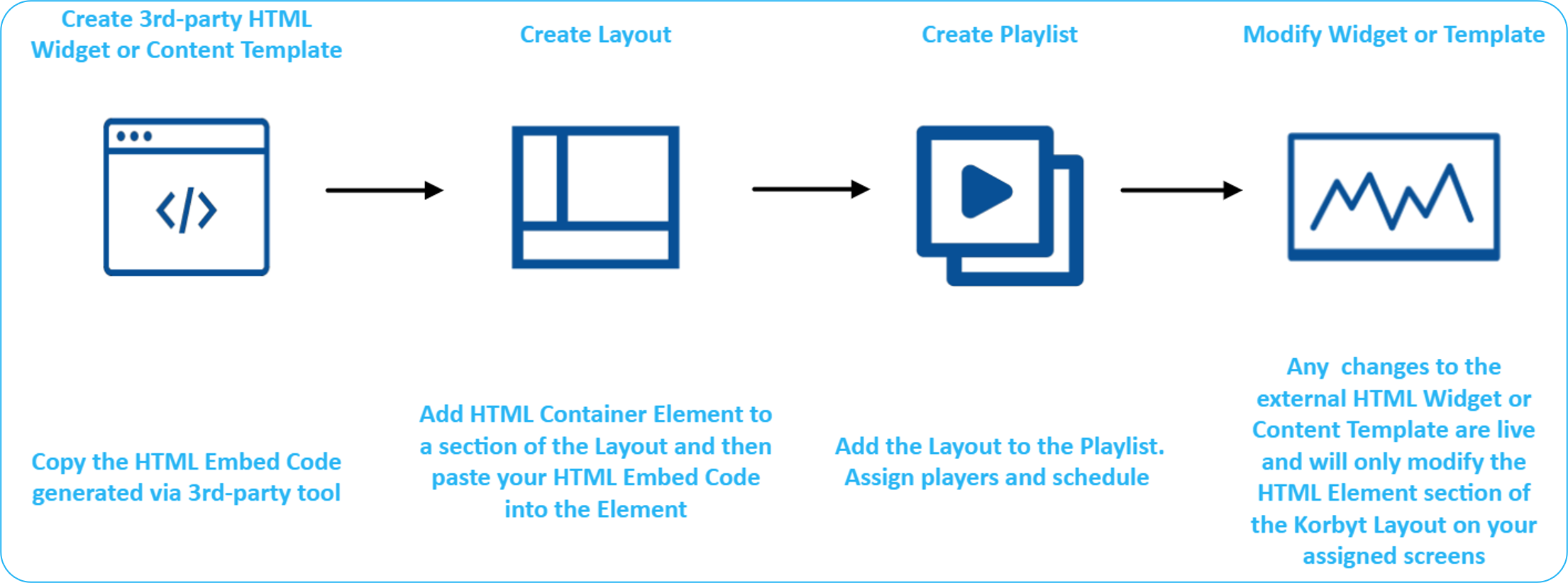
Copy the embed code from your third-party source.
In Korbyt, add an HTML Embed to a Layout and paste the embed code.
Add the Layout to a Playlist, assign Players, and schedule it.
Ongoing changes to the external HTML template update only that HTML section in the Korbyt Layout on screens.
Still need help? Share an idea