Proof Of Play
Written By Ed Kinne
Overview
Proof of Play is a feature within Korbyt that will record when specific content is shown on your displays. The specific content has to be set to Record Proof of Play, and then it will show on Proof of Play Reports
Proof of play is a paid for feature within Korbyt.
To use this feature your Korbyt Tenant has to be equipped with it. If you are interested in recording proof of play contact your Korbyt Account Executive or Korbyt Support.
Enabling Proof-of-Play Logging at the ‘Content’ Level
The Proof-of-Play (POP) function tracks when items are played and generates a summary playback report.
Layout Proof of Play
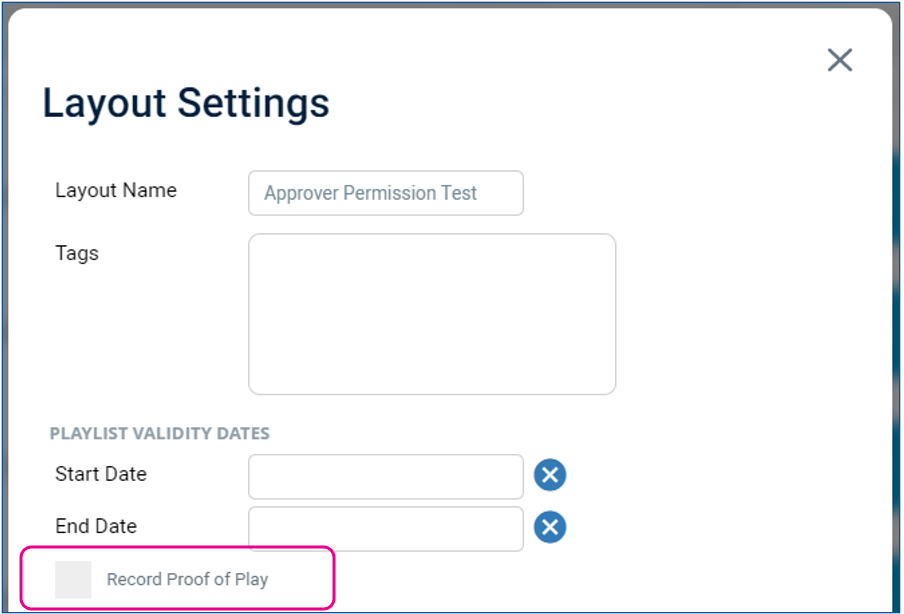
You can add Record Proof of Play to individual Layouts.
Click the Edit Metadata icon (i) in the Layout Actions, and change the Record Proof of Play option
Pictures and Videos
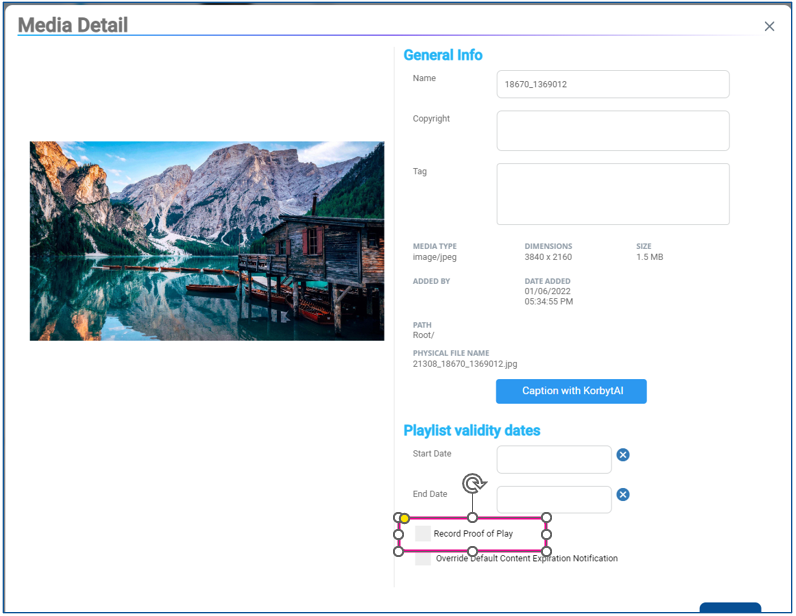
You can add Record Proof of Play to individual media items.
Locate the item in the Media Manager and click Edit (pencil icon) for the item’s Actions, and select Record Proof of Play
Entire Folder of Content
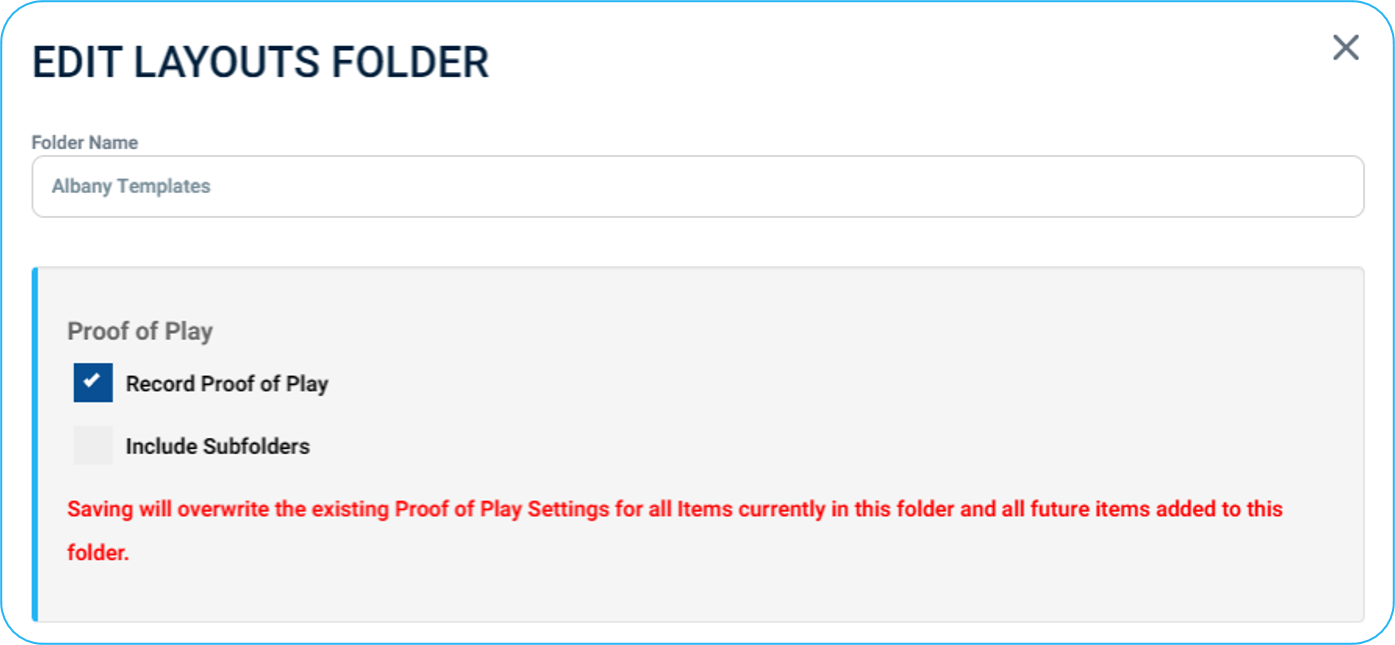
You can add Record Proof of Play to all items in a folder. This can be done for either a Media Folder or a Layout Folder.
Locate the folder you wish to enable Proof of Play for all its content, and click Edit (pencil icon) and select Record Proof of Play. You can also decide if this will include all of this folder's subfolders.
Proof of Play Reports
Once an item is set to use Proof of Play, there are reports that can be looked at to track the content being played.
From the Menu, in the Analytics section, click on Reports
Along the top, you will see several blue buttons;
Click the Proof of Play button to see available proof of play reports.

To download a report, click the download button to the right.
This will download a ZIP file with the report data that can be opened in Excel

The report details every time a tracked piece of content plays and the duration it is on the screen.
It records which playlist was driving it, and the details about the player showing it.
Each time it appears anywhere, it creates a new row of information.
Was this helpful?
Still need help? Share an idea